
Build SCORM Courses with AI in Teachfloor Studio
SCORM is still the format most LMSs expect. It lets the platform play a course and track progress, completion and scores. Building a SCORM course, though, usually means a desktop authoring tool, a lot of manual layout, and a separate check to make sure the package actually works once it is uploaded.
Many teams also have content that already exists in other forms: a safety manual in PDF, an onboarding deck in PowerPoint, a course built in Rise a few years ago. Rebuilding all of it by hand takes time that most training teams do not have.
Today, we're introducing SCORM Builder in Teachfloor Studio, a browser-based SCORM authoring tool, along with converters that turn existing files into SCORM packages.
Three ways to start a SCORM course
The SCORM authoring tool gives you three starting points. Every course opens in the same editor, ready to change.
Start from a template
Start blank or from a complete example, such as employee onboarding, compliance training, a sales playbook, workplace safety, customer service or cybersecurity awareness, and rewrite it with your content.
Draft a course with AI from a document
Upload a PDF, a PowerPoint or a Word file, or describe the course. The AI drafts the outline first, then writes every lesson and a final quiz. Scanned PDFs work too, and everything can be edited afterward.
Import an existing Rise or SCORM course
Open an Articulate Rise package as an editable course. Text, headings, images, lists, tables, accordions, tabs, processes, buttons and knowledge checks become blocks you can change. Rise blocks that are not supported yet become a note with their text. Storyline and other SCORM packages are imported as one lesson per slide.
Interactive blocks, quizzes and scenarios
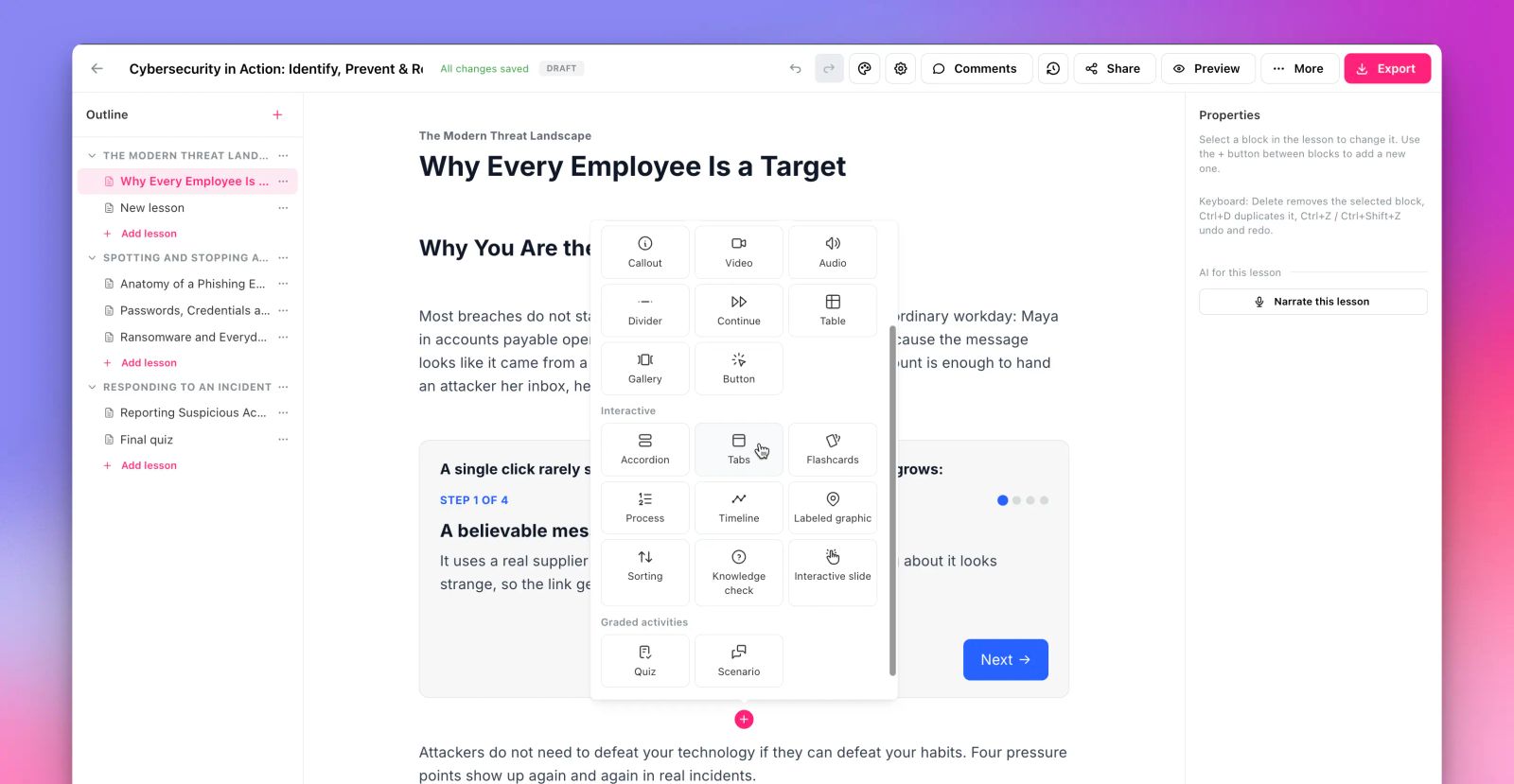
Each lesson is built from blocks, added in place with the + button:
- Basics: heading, text, list, image, image + text, video, audio and table
- Interactive: accordion, tabs, flashcards, process, timeline, labeled graphic, sorting, knowledge check and interactive slide
- Graded activities: quizzes from the AI Quiz Generator, and scenarios, which can be a branching scenario or an AI Roleplay call, scored and reported to the LMS
Each lesson also has AI options to rewrite the text or narrate the lesson.
Brand and accessibility settings
Apply your brand kit in one click or pick a ready-made theme, then set the colors, the font, the corners and the buttons. The font is packed inside the SCORM file. Every text color is checked for WCAG AA contrast, and images need alt text before you can export, unless you mark them as decorative. Courses adapt to computers, tablets and phones, and you can preview all three.
Review courses with your team
Invite colleagues as editors or viewers. Reviewers comment on a block or on selected words, and a review link lets people without an account comment too. You can restore any earlier version from the history.
Export to SCORM, cmi5, xAPI, a web link or PDF
Build once and export to SCORM 1.2, SCORM 2004, cmi5 or xAPI (Tin Can). You can also publish the course as a web link or download it as a printable PDF handout. Switching from SCORM 1.2 to SCORM 2004 does not require rebuilding anything. SCORM 1.2 works in almost every LMS, so it is the safe default. SCORM 2004 adds richer tracking, such as sequencing and separate completion and success status.
Every export is checked by the SCORM Validator and saved as a new course version.
Completion rules and results
Choose when a course counts as complete: all lessons done, the last lesson reached, or a quiz passed with your pass mark. Let learners move freely or in order. You can then see who finished, their scores and the questions they missed, and download a CSV.
Convert PowerPoint, PDF, Word, HTML and video to SCORM
Not every file needs a full course. Studio's conversion tools turn PowerPoint, PDF, Word, HTML and video files into SCORM packages, ready for your LMS. A converted package is SCORM 1.2 and tracks completion. The same tools can also produce a narrated video or a PDF from your files.
For a single file that should stay as it is, use PowerPoint to SCORM or PDF to SCORM. If you want an editable course with lessons, blocks and a quiz instead, upload the same file to SCORM Builder and let the AI draft it.


Get started
SCORM Builder and the conversion tools are available now in Teachfloor Studio. In Teachfloor, you upload the exported zip as a SCORM element; in any other LMS, you upload it like any other package. Learn more on the SCORM authoring tool page or try it at studio.teachfloor.com.


