
 AI Video Training|by Teachfloor Studio
AI training video generator for your course or program
Upload a policy, a procedure or a slide deck. AI Video Training turns the document into a training video with a presenter, a voice and captions, and you approve every scene before it is made.

 SOC 2
 ISO 27001
Types of AI training videos you can make
Pick the format that fits the lesson. Every example below was made in AI Video Training. For a quick video from a single file, try the free PDF to video and PowerPoint to video tools.
Avatar presenter
Best for: Policies, compliance, healthcareA presenter talks to the learner, full screen, next to your slides or over stock footage.

Realistic scene
Best for: Soft skills, safety, healthcareActors act out a workplace situation, filmed-look or cartoon.
Story
Best for: Onboarding, customer serviceCharacters show a mistake and the right way to handle it, with dialogue.
Narrated slides
Best for: Procedures, workplace habitsAnimated slides with a voice and captions, no presenter. Your logo and colors on every slide.
New hand-hygiene audit
Observe one shift and record the five moments.
Ward
Date
Shift
Observed staff
Audit steps
Software walkthrough
Best for: Software training, IT proceduresYour real screens, step by step: where to click, what to type and why. See how to turn screenshots into a video tutorial.
Two more formats: Motion graphics, and Whiteboard videos, where the idea is drawn step by step.
How to create a training video with AI
Six steps from your document to a finished training video. Try each one here.
Start from your document
Drop in a PDF, a Word file or a deck. The AI reads it and writes the script: what the presenter says and what is on screen, scene by scene.
phishing-policy.pdf
6 pages
Reading your document
Pick a style and your brand colors
A realistic, filmed look or one of five cartoon styles. Then pick a palette and add your logo to the title and the closing scene.
Colors

Choose who presents
Pick one of the AI avatars, a cartoon presenter, or create your own from a photo. Stock presenters are AI-generated, not real people, and are licensed for use in your training videos.

Hi, I'm Giulia.
Your presenter in every scene
Give it the right voice and tone
Choose from 30 AI voices and set the tone: friendly, serious, energetic or reassuring. With your own presenter, use the person's voice with AI voice cloning. Make the same video in 15 languages with the same presenter, or translate a video you already have with the video translator.
Tone
Decide scene by scene
Each scene shows the presenter full screen, a slide with the presenter, or the slide only. Every scene gets a picture first: edit any line and redraw any picture before it is animated.
Storyboard

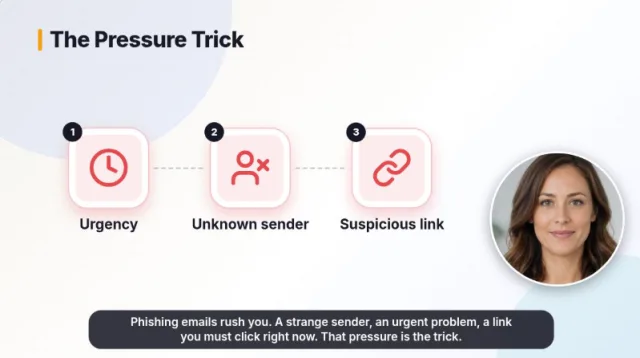
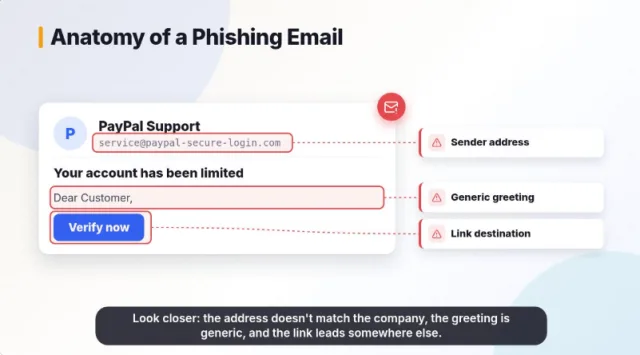
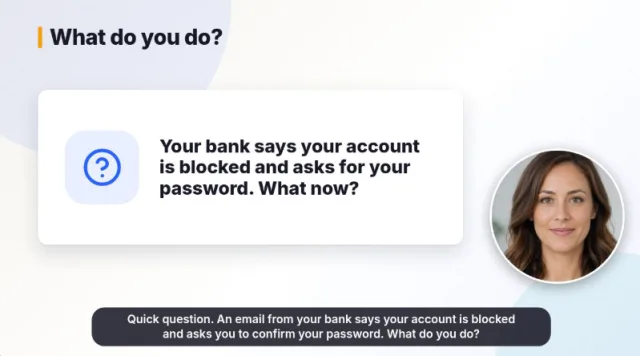
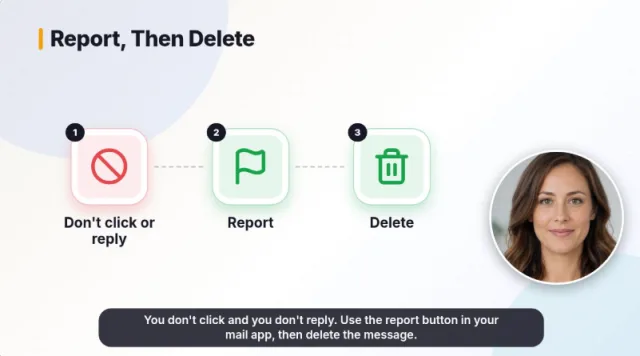

Anatomy of a phishing email
Account Support
support@acc0unt-secure-login.com
Your account has been limited
Dear customer,
Verify nowGet the finished video
AI Video Training animates the scenes and adds the voice and captions. Download the video or export it as SCORM for your LMS, or add it to a course in the SCORM authoring tool.
Identify a phishing email
12 scenes · 1 min 44 s
Employee training videos for every team
Tell AI Video Training what kind of course it is and it suggests the type of video, the tone, the setting and the characters.
 IT security
Identify a phishing email
Motion graphics Compliance
Data privacy basics
Avatar presenter Healthcare
Hand hygiene before patient contact
Story, flat cartoon Onboarding
Meet your team
Story, paper cut-out Software training
Logging an audit in CareLog
Software walkthrough Leadership
Giving feedback that lands
Realistic scene, filmed lookGet help from real people
Teachfloor is built for organizations that value real partnership. You work directly with our experienced team, who take the time to understand your needs and help you find the right solution.

“Every organization is different. That's why our job isn't just to answer questions, it's to understand our customers' goals and work alongside them to find the right path forward.”
Filippo Schiano di Pepe
CEO & Founder, Teachfloor

.svg?dpl=dpl_CyJorwgBaMvX4hAQKNVCDZ1smAxW)
.svg?dpl=dpl_CyJorwgBaMvX4hAQKNVCDZ1smAxW)
.svg?dpl=dpl_CyJorwgBaMvX4hAQKNVCDZ1smAxW)
.svg?dpl=dpl_CyJorwgBaMvX4hAQKNVCDZ1smAxW)
.svg?dpl=dpl_CyJorwgBaMvX4hAQKNVCDZ1smAxW)
.svg?dpl=dpl_CyJorwgBaMvX4hAQKNVCDZ1smAxW)


“Amazing support and true partnership”
“Easy to use, powerful, and built with educators in mind”
“Very easy to create and manage courses.”
“The platform that helped us scale across 4 departments”
“Noticeably easier to work with”
“Great product, even better people behind it”
“Solid to use platform with a top UI”
All reviews are collected and hosted on G2.com.
Enterprise-grade security for your content
SSO, role-based access, audit logs, GDPR and SOC 2 controls.
Explore securitySOC 2 & ISO 27001
Built to meet enterprise security and operational standards.
GDPR-compliant
Your data is processed and stored in line with EU data protection rules.
Data protection & privacy
All data is protected with encryption and strict access policies.
Single Sign-On (SSO)
Centralize access and identity management across your organization.
AI Training Video Generator FAQ
A tool that turns your training material into a finished video. You upload a document or write what learners need to know, and the AI writes the script, picks the scenes and adds a presenter, a voice and captions. AI Video Training does this for employee training, compliance, onboarding and software tutorials.
Upload a document or describe what the learner should know. The AI writes the script and a storyboard with one picture per scene, you pick a presenter or a style, and AI Video Training animates the scenes with voice and captions. Download it as MP4 or export it as SCORM.
Yes. Start from a PDF, a Word file, a PowerPoint deck or plain text. You can also just write what the learner should know or do. If the material is long, AI Video Training splits it into several shorter videos.
Avatar presenter, Presenter + slides, Realistic scene, Story, Software walkthrough, Motion graphics and Whiteboard. Scenes can have a realistic, filmed look or one of five cartoon styles.
Yes. Pick a stock AI presenter or create your own from a photo. Stock presenters are AI-generated, not real people, and are licensed for use in your training videos. If you create your own presenter, use the photo and voice of a person who agreed to it.
Choose from 30 AI voices and set the tone: friendly, serious, energetic or reassuring. With your own presenter, use the person's own voice.
Yes. You first see three test slides in your style, then the full script and a storyboard with one picture per scene. You can edit any line or redraw any picture before the scenes are animated.
Yes. Record your screen while you do the procedure, upload a recording of up to 20 minutes, or upload up to 20 screenshots. AI Video Training finds the clicks, zooms in on them and a narrator explains each step.
Yes. Make the same video in 15 languages with the same presenter.
Yes. Download the video as MP4, or export it as a SCORM package and upload it to any LMS.
Yes. AI Video Training is part of Teachfloor Studio, so the same place also makes quizzes, branching scenarios and AI roleplay calls. Put them together in a SCORM course, or publish them in the Teachfloor LMS.
You can start for free, with no credit card. See Studio pricing for credits and plans.
Create your first AI training video
Start from a document or a slide deck. Export to MP4 or SCORM.