
Make AI Training Videos and Avatars in Studio
Most training content already exists as text. A security policy, a safety procedure, an onboarding deck. Turning that material into a video usually means writing a script, booking a presenter, recording, editing and doing it again every time something changes.
For software training the problem is similar. Someone records their screen, narrates while clicking, and the video is out of date as soon as a button moves.
Today, we're introducing AI Video Training in Teachfloor Studio, together with AI avatars, cartoon presenters and an AI video tutorial generator for software procedures.
Turn a document into a training video
The AI training video generator starts from the material you have. Upload a PDF, a Word file or a PowerPoint deck, paste plain text, or describe what the learner should know. The AI reads the document and writes the script scene by scene: what the presenter says and what appears on screen. If the material is long, it splits it into several shorter videos.
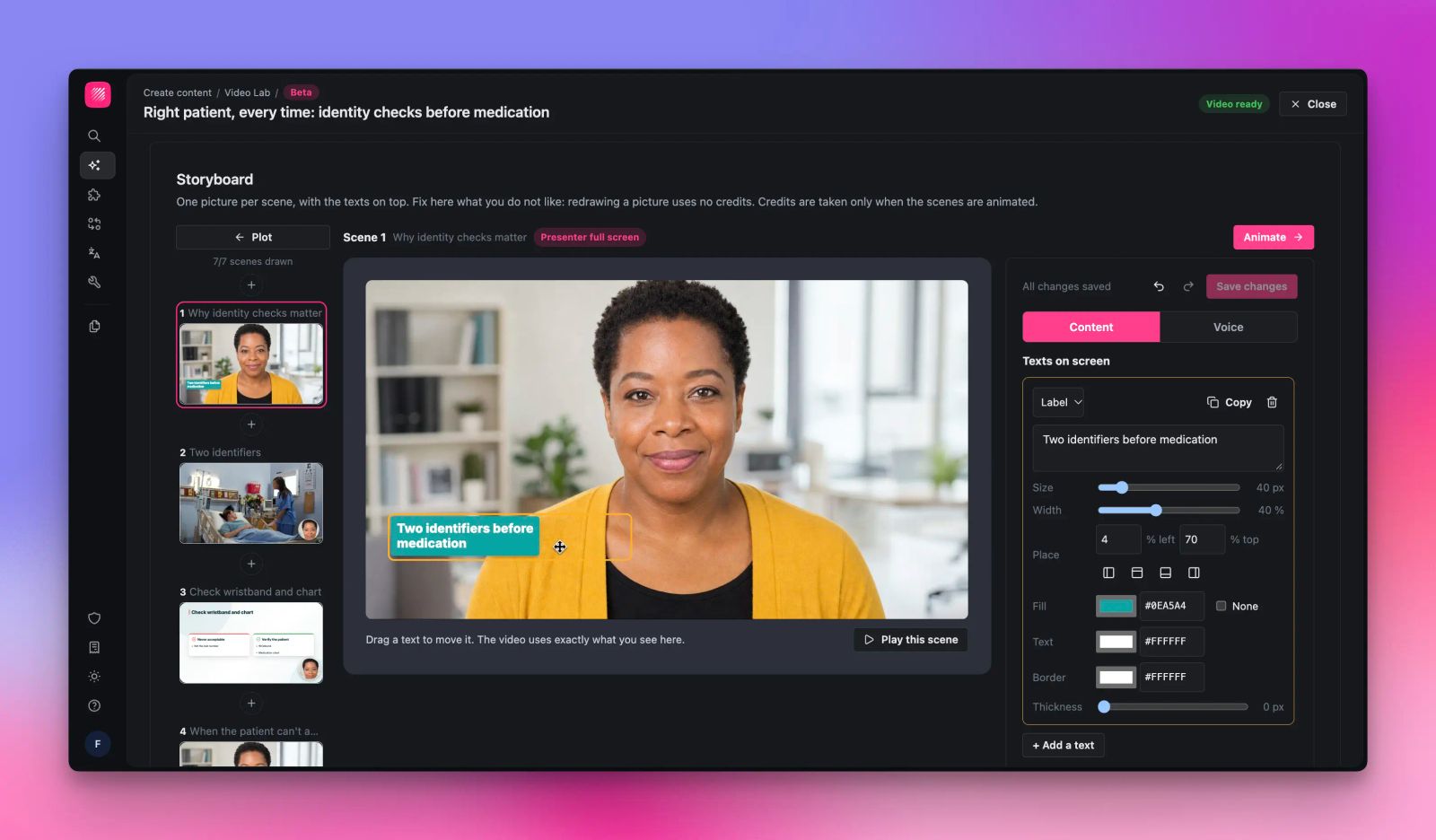
Review every scene before it is animated
Before anything is generated, you see three test slides in your chosen style, then the full script and a storyboard with one picture per scene. You can edit any line and redraw any picture. Each scene can show the presenter full screen, a slide with the presenter, or the slide only.
Pick the format that fits the lesson
You can make several types of video:
- Avatar presenter for policies, compliance and healthcare topics
- Presenter + slides and Narrated slides, with your logo and colors on every slide
- Realistic scene and Story, where characters act out a workplace situation or show a mistake and the right way to handle it
- Software walkthrough, Motion graphics and Whiteboard videos
Set the voice, the tone and the language
Choose from 30 AI voices and set the tone: friendly, serious, energetic or reassuring. The same video can be made in 15 languages with the same presenter. When it is done, download the MP4 or export it as a SCORM package for your LMS.
Choose an AI avatar or create your own
AI avatars present your script on video with a lip-synced voice. You can pick from dozens of stock presenters of different ages and backgrounds. They are AI-generated, not based on real people, and are licensed for use in your training videos.
Build a custom avatar from one photo
With a custom AI avatar, you upload one photo of a trainer, a manager or yourself and the avatar is ready right away. Your head of training can then present onboarding and policy updates without a studio session or reshoots. Use only the photo of someone who agreed to it.
Every presenter, stock or custom, speaks all 15 languages. Translate the script and the lips follow the new audio.

Make animated training videos with cartoon presenters
Some topics work better with a lighter look. Cartoon avatars are talking presenters in five styles: 3D cartoon, flat 2D, comic, paper cut-out and watercolor. AI Video Training draws the scenes and animates them with voice and captions, so there is no timeline and no keyframes to manage.
Cartoon videos fit safety refreshers, onboarding, workplace habits and retail store routines. For compliance, leadership messages or customer-facing teams, a realistic presenter often fits better. The script, the voice and the languages stay the same whichever look you pick.

Turn screenshots into step-by-step video tutorials
The AI video tutorial generator is built for software training. Upload up to 20 screenshots in order, record your screen in the browser, or upload a screen recording of up to 20 minutes and Studio finds the moments where the screen changes.
Narration, zooms and clicks added for you
Studio writes the narration for every screen and reads it with a natural voice. When the narrator names a button, the camera moves to it, the rest of the screen dims and a pointer clicks it with a short label. Every scene has its own narration, label and zoom points. You can edit the text, fix how a name is pronounced or ask the AI to redo a slide, and a preview plays in your browser before you generate the MP4.
Match your brand and keep tutorials current
Pick one of 13 color palettes or your own colors, a font, a frame around your screens (full screen, floating, hard shadow or browser window) and your logo. Narration can use 30 AI voices, 20 premium voices or your own voice from about 45 seconds of audio. When the software changes, start a new version, replace the screens that changed and generate it again. The style and the voice stay the same.
Generation takes about 3 to 4 minutes for every minute of video.
Get started
AI Video Training, AI avatars and the tutorial generator are available now in Teachfloor Studio. Videos download as MP4 or export as SCORM for any LMS, and in Teachfloor they can sit in a course next to quizzes and roleplay scenarios. Upload your first document and try it at studio.teachfloor.com.


