eLearning Translation and AI Voice in Studio
Courses often need to reach teams in other countries. Translating one involves more than text. Slides have on-screen text, quizzes have feedback, videos have captions and a voice, and the player has its own buttons and menus.
The usual route is an agency: export the text, send the files, re-import the translation, book voice actors, then check layout and tracking in every language. Every course update starts the cycle again.
Today, we're introducing SCORM Translator and AI Video Translator in Teachfloor Studio, along with AI voice-over and AI voice cloning for training videos.
Translate SCORM courses into 15 languages
eLearning translation in Studio starts from the published SCORM zip, up to 2 GB. The translator recognizes the authoring tool, detects the source language and shows what it will translate before you start. It supports Storyline 360, Rise 360, Adobe Captivate, iSpring Suite, Lectora, Adapt, Evolve, H5P, Easygenerator, Camtasia and plain HTML packages, among others. You can also translate .xliff, .xlf or .docx exports from Storyline or Captivate. Courses built in SCORM Builder come back as editable translated copies.
What gets translated
- On-screen text, written back in the same font size, color and alignment. Longer text shrinks to fit.
- Quizzes and feedback. Questions, answers and feedback are translated, and quizzes keep scoring the same answers.
- Captions, translated and timed to the new voice. You can also burn subtitles into videos.
- Voice-over. Speech in every video and audio file is re-voiced. You pick the voice for English; other languages use a native AI voice of the same gender.
- Text inside videos on fixed slides and screen recordings, replaced in the same place and color.
- Player labels: buttons, menus, tooltips, image descriptions and player messages.
Text saved inside pictures, such as screenshots or slides exported as images, stays in the original language. For videos with moving text, you can burn translated subtitles into the picture instead.
Review before the voice is made
Open every segment next to the original and fix product names, legal terms or tone. Lines that are too long for the video are flagged before the voice-over, and Auto-shorten rewrites them so the voice still fits. You can re-translate one line without losing your other edits.
One SCORM package per language
Choose several languages at once from English, Spanish, Italian, French, German, Portuguese, Dutch, Polish, Japanese, Chinese, Korean, Arabic, Russian, Turkish and Hindi. Each language becomes its own SCORM 1.2 package that tracks completion and scores. A short course takes a few minutes per language, and you get an email when each package is ready. For courses that need sign-off, we recommend a native speaker checks each package in your LMS before it goes live.
Studio can also translate documents and audio files.
Translate training videos with lip-sync
The AI video translator takes an MP4, MOV or MKV file up to 2 GB, such as a presenter video, webinar, screen recording or product demo, and translates the speech into any of the same 15 languages with a natural AI voice.
Check every line before generating
Every line is shown with its translation and its time in the video. Change a product name, a term or a sentence before the new voice is generated. Each translated line is timed to the original, so the speech stays in sync with what happens on screen.
Translate on-screen text and match the speaker's mouth
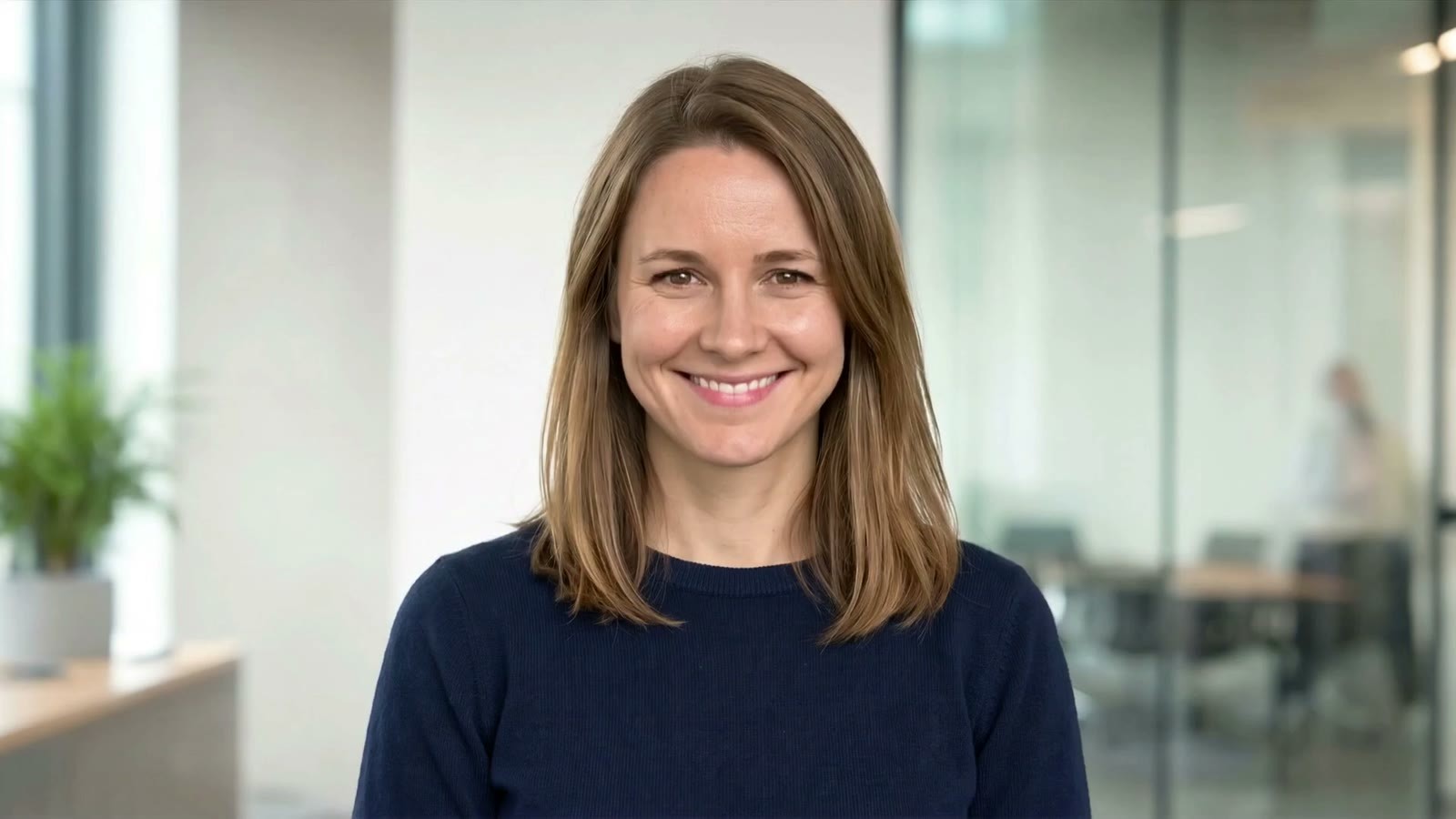
Turn on on-screen text and the titles, lists and labels printed in the video are translated too. When someone speaks on screen, Lip-sync AI moves the speaker's lips to the translated words. It works on real people and AI avatars, and is currently in beta. You can translate into one language at a time or all at once, then download each version as an MP4.
Add an AI voice-over to any video
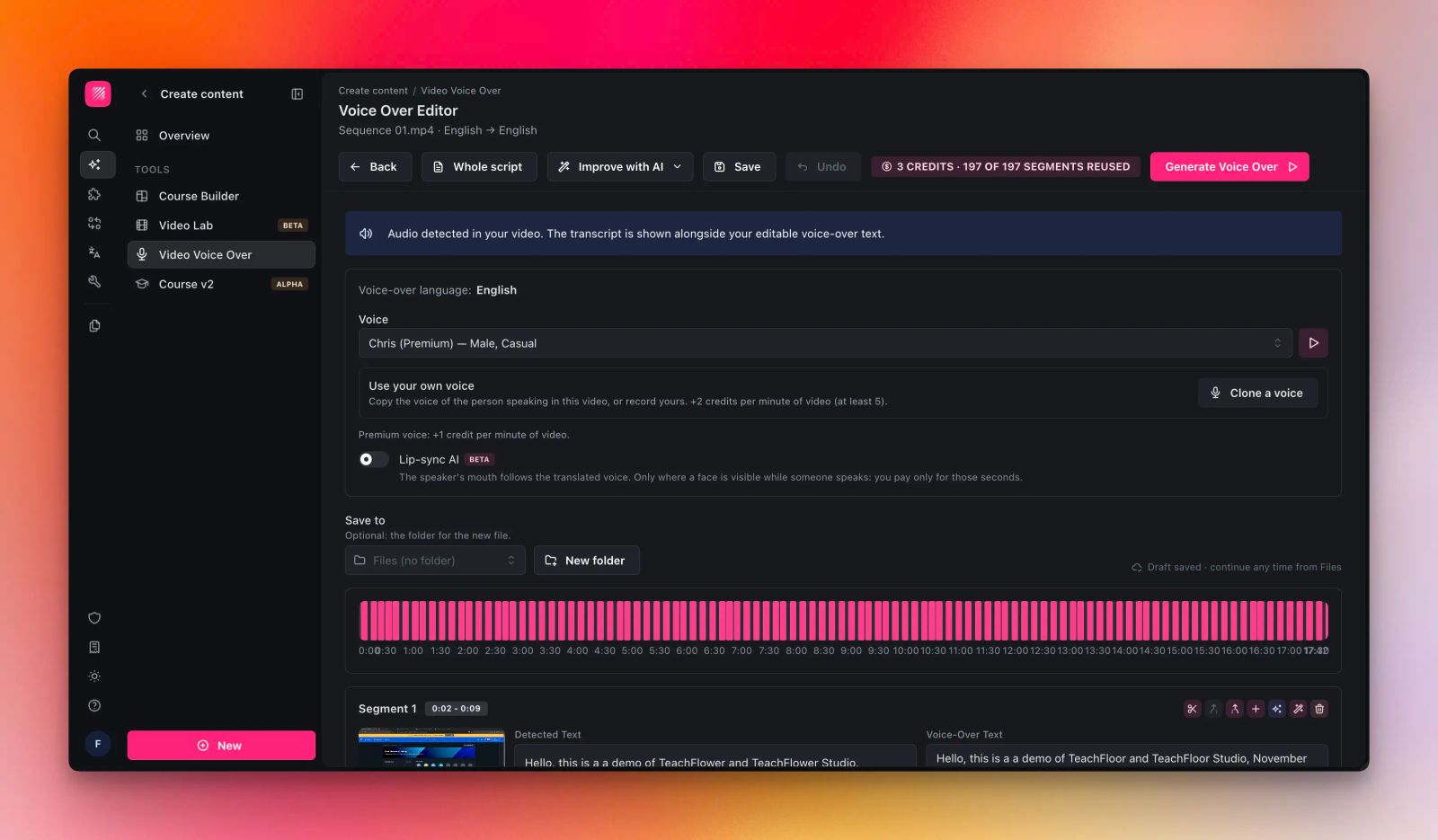
AI voice-over narrates a silent screen capture or replaces the audio of an existing lesson. Upload an MP4, MOV, WEBM or M4V file, then transcribe the existing audio, write your own script section by section, or let AI draft the narration from the video. Every line is timed to the video and stays editable until you generate.
Choose from six natural AI voices, preview each one on your own script, and keep the same voice across all your videos. The voice-over stays in the same language as the video; to change the language, use the video translator.
Narrate with your own cloned voice
With AI voice cloning, you upload a recording of your voice in AI Video Training and the AI creates a cloned voice you can pick like any other. About 45 seconds of audio is enough. Your cloned voice narrates training videos or voices your custom AI avatar, in 15 languages. When a rule changes, edit the line in the script and the narration is created again in the same voice. Clone a colleague's voice only with their permission.
Get started
SCORM Translator, AI Video Translator, AI voice-over and AI voice cloning are available now in Teachfloor Studio. Learn more on the eLearning translation page or try it at studio.teachfloor.com.


