


The Teachfloor MCP server lets AI assistants such as Claude, ChatGPT, Gemini, Copilot and Cursor work directly inside your Teachfloor academy. Once it is connected, you can run reports, build courses, enroll learners and set up automations by describing what you want in plain language.
This guide collects 20 practical use cases, each with a prompt you can copy, grouped by the kind of work they replace. If you have not connected an assistant yet, start with our step-by-step guide on how to connect Teachfloor to Claude and ChatGPT. If you are still comparing platforms, see how Teachfloor stacks up in our list of the best MCP servers for LMS.
TL;DR: what you can do with the Teachfloor MCP
| Area | What the AI can do | Access needed |
|---|---|---|
| Reporting and analytics | Completion by cohort, at-risk learners, drop-off analysis, weekly summaries | Read |
| Course creation | Courses from PDFs, outlines, quizzes, lesson rewrites, content updates | Write |
| Enrollment and members | Bulk enrollment, cohorts, access removal, member data cleanup | Write |
| Automations and certificates | Automation rules, certificate renewals, follow-up learning paths | Write |
| Cross-tool workflows | Sync with HubSpot, Slack, Sheets, Jira or Linear through other connectors | Read and write |
| Learner self-service | Progress, next lessons, finding materials, joining the next cohort | Read (learner role) |
How the Teachfloor MCP works
When you send a prompt, the assistant decides which Teachfloor tools it needs (for example "list courses", "get course members" or "create module"), calls them through the MCP server, and uses the results to answer or to take the next step. Teachfloor executes each call with the role of the person who signed in, so an instructor cannot do through AI what they could not do in the dashboard.
Three habits make prompts work better: name the exact course or cohort, say what the output should look like (a table, a draft email, a new module), and ask the assistant to confirm before it writes anything. Admins can also switch off specific tools for the workspace, and every MCP call is recorded in the audit log. More on that in security and compliance.
Reporting and analytics use cases
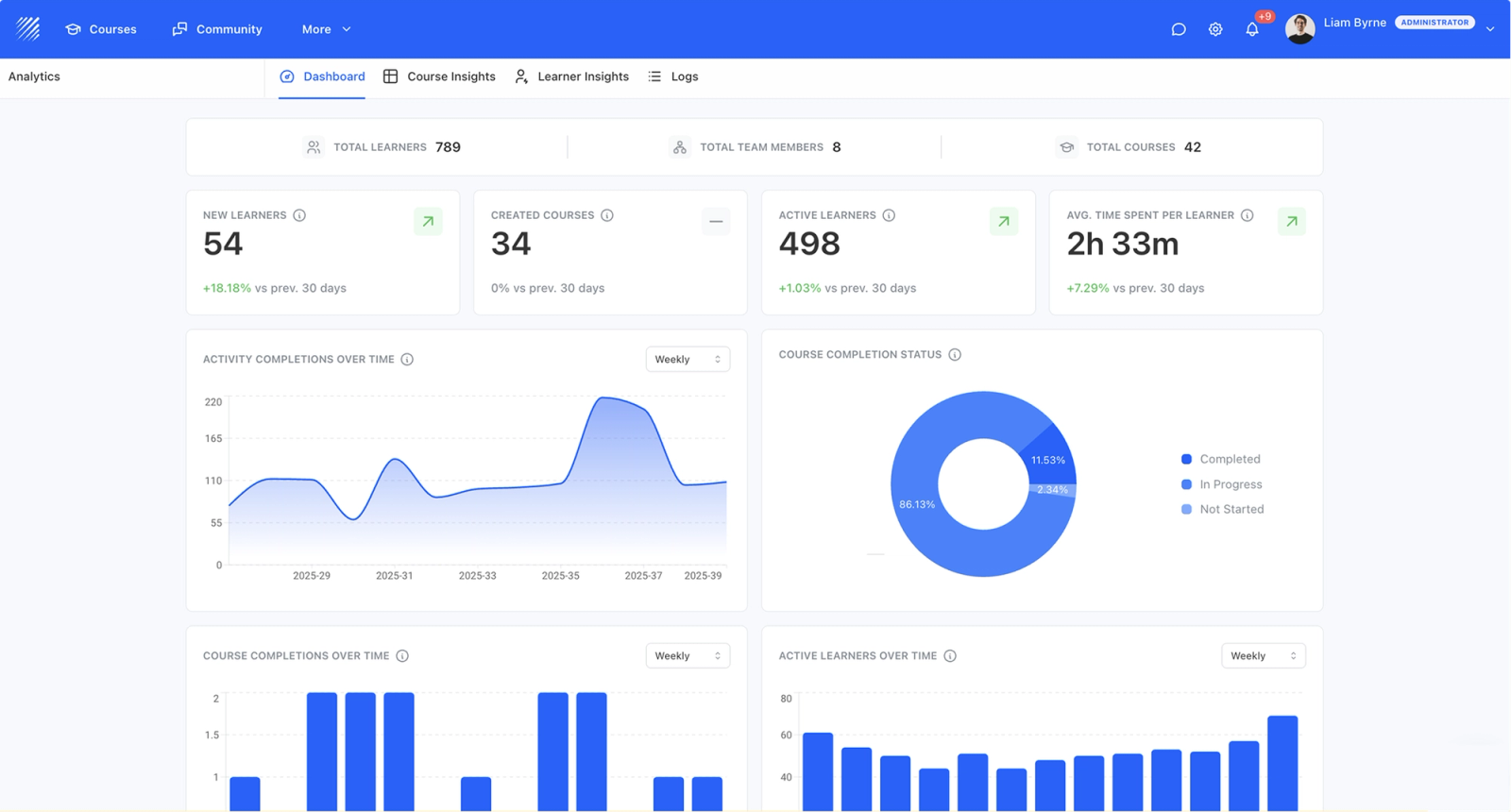
These prompts only need read access, which makes them the safest place to start. They replace exporting CSVs and building pivot tables by hand. The same data is available in Teachfloor analytics; MCP lets you ask follow-up questions in the same conversation.
Completion rate by cohort
Show completion rate by cohort for the "Sales Onboarding" program this quarter, as a table sorted from lowest to highest.The assistant lists the cohorts in the program, reads each member's progress and returns one comparison table. Useful before a quarterly review or when a manager asks "how is onboarding going?"
Find at-risk learners and draft a check-in
List learners under 40% progress in the "Customer Success Academy" cohort who have not been active in the last 14 days, and draft a short check-in email for each.It combines progress and activity data to find people who are both behind and inactive, then writes a personalized draft you can review before sending.
Spot where learners drop off
For the "Compliance 2026" course, show completion for each module and tell me where most learners stop. Suggest two changes to fix it.A quick way to find the lesson that is too long, too hard or badly placed, with suggestions based on real usage rather than guesswork.
Weekly summary for managers
Summarize last week for the "Leadership Program": new enrollments, lessons completed, learners who finished, and anyone who has not started. Keep it under 150 words.Paste the result into Slack or an email, or combine it with a Slack connector to post it automatically (see the cross-tool section below).
Course creation use cases
These prompts need write access. The assistant creates real courses, modules and lessons in your academy, so try them in a test course first. They pair well with Teachfloor's own course design tools and AI features.
Turn a PDF into a course
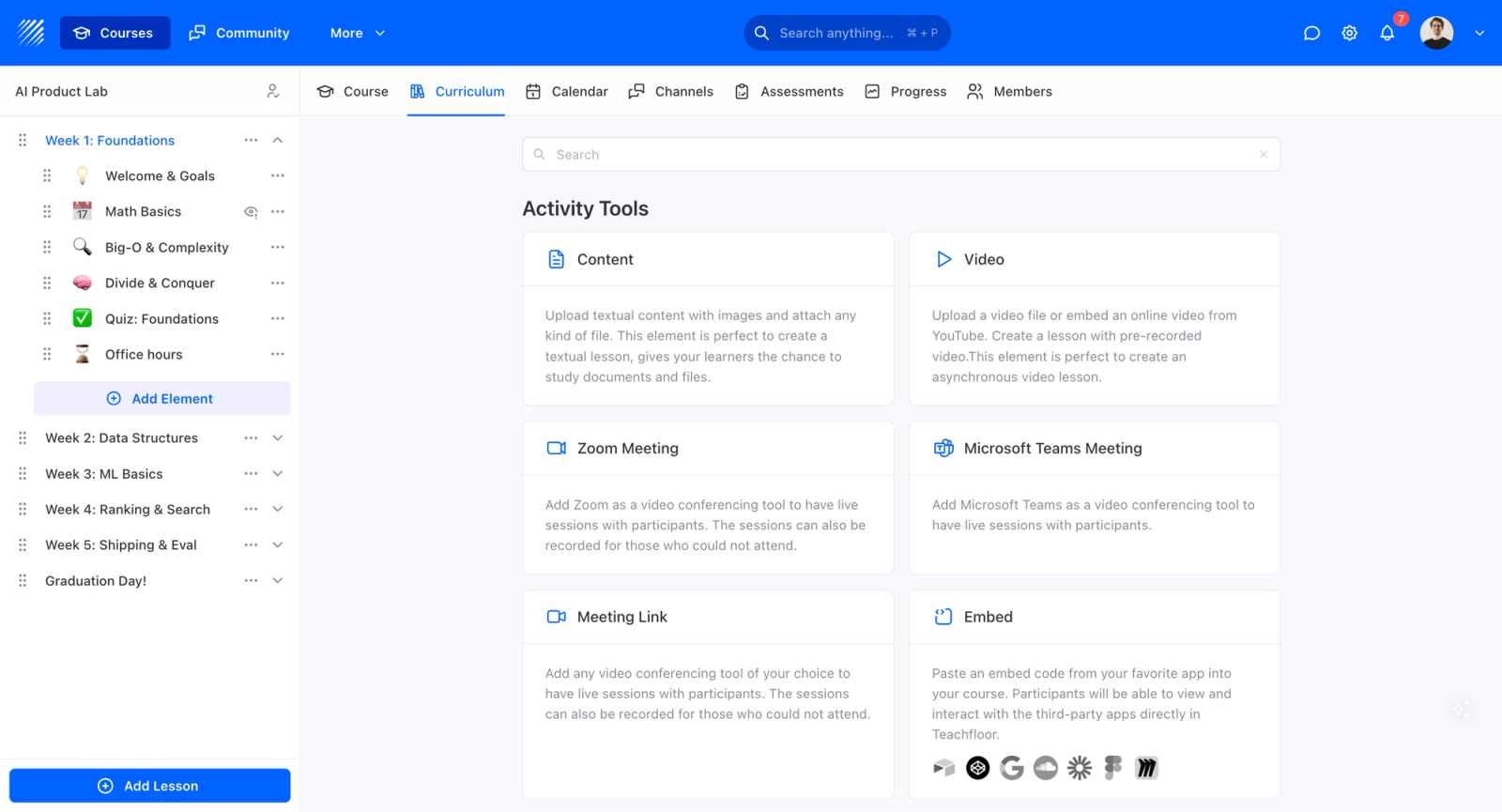
Create a course from this PDF and split it into 5 modules, each with 2-3 lessons and a short quiz at the end.Attach the document in your AI client. The assistant reads it, proposes a structure, then creates the course, modules and lessons in Teachfloor. You review and polish instead of starting from a blank page.
Build a course outline from a brief
Create a 6-week course called "Product Management Foundations" with one module per week, three lessons per module, and a reflection prompt at the end of each week.Good for getting a structured skeleton in minutes. You can then ask for changes in the same chat: "move week 4 before week 3" or "add a live session to week 6".
Generate a quiz for a lesson
Read the lesson "Handling Objections" in the "Sales Onboarding" course and create a 5-question multiple-choice quiz right after it.The quiz is created as a new element in the course, next to the lesson it tests. Teachfloor also supports richer assessments such as peer review and assignments.
Rewrite or split a long lesson
The lesson "Data Privacy Basics" is too long. Split it into three shorter lessons with clear titles and keep the original wording where possible.Useful after the drop-off analysis above shows learners stopping on one heavy lesson.
Update courses after a product release
Here are this week's release notes. Find every onboarding course that mentions the old reporting screen and add a short lesson about the new dashboard to each one.Customer education and enablement teams use this to keep training current without hunting through every course by hand.
Enrollment and member management use cases
Admin work that usually means clicking through the member list one person at a time. These prompts need write access and follow the same rules as user management in the dashboard.

Bulk enroll from a spreadsheet
Enroll all sales reps from this spreadsheet into the Q2 onboarding cohort. Create members that do not exist yet and tell me who was skipped and why.The assistant matches existing members by email, creates new ones where needed and returns a short report of what it did.
Set up a new cohort
Create a 6-week cohort of the "Leadership Program" starting Monday, with 3 live sessions a week, and enroll the 12 people in this list.Handy for cohort-based programs that repeat every quarter with a new group and a new schedule.
Remove access for people who left
These 8 people left the company. Revoke their access to every course they are enrolled in and confirm the list before you do it.Asking for confirmation first is a good habit for any prompt that removes access or deletes content.
Clean up member data
Find members whose "Department" custom field is empty, match them against this HR export by email, and fill in the department.Custom fields drive filters, reports and automations, so keeping them clean pays off across the platform.
Automation and certificate use cases
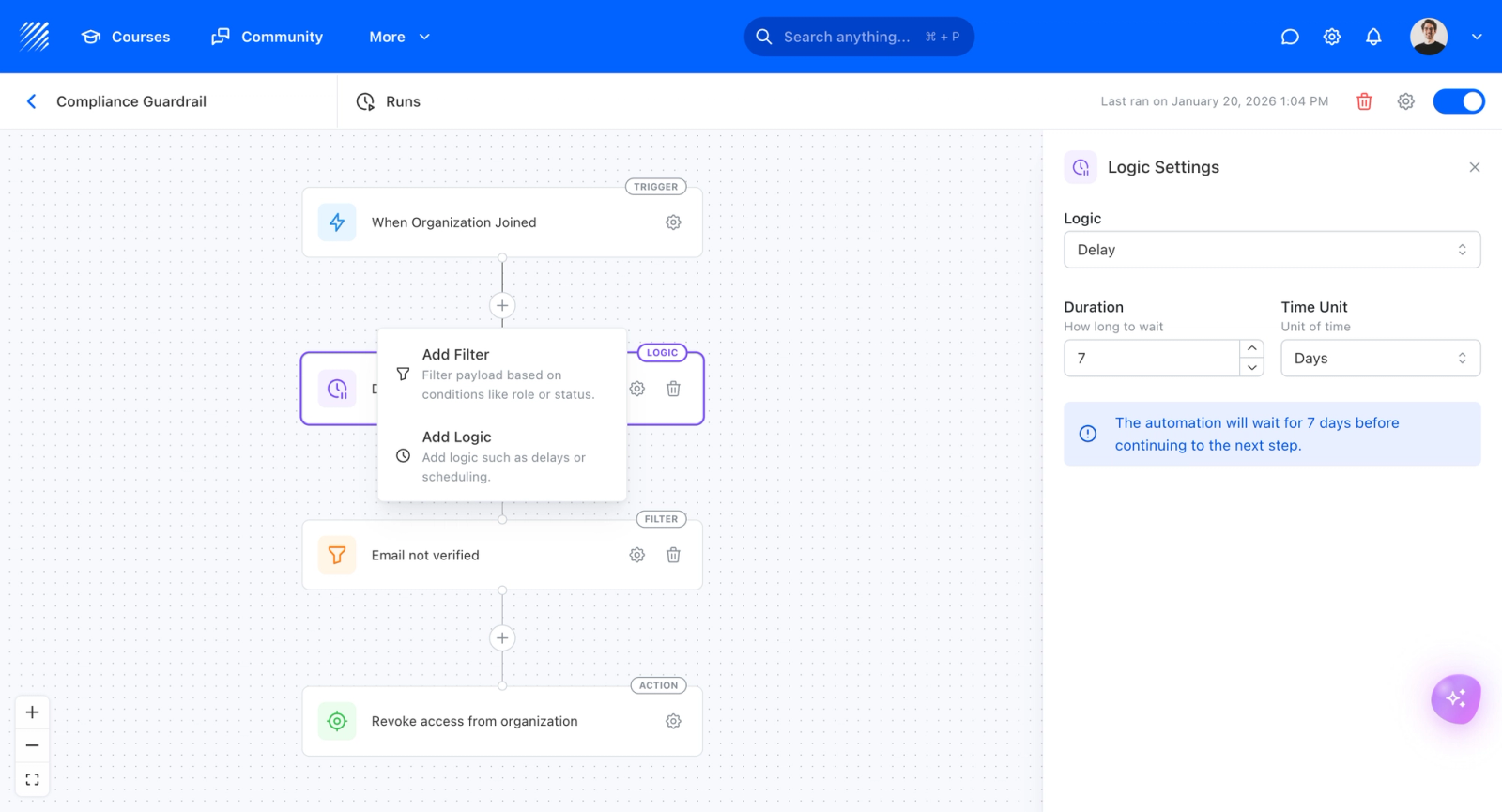
You can describe a rule instead of configuring it step by step in the automation builder.
Create an automation
Build an automation: when a learner completes the final quiz of "Onboarding 101", assign the course "Onboarding 201" and post a congratulations message in Slack.The assistant translates the sentence into a trigger, filters and actions. Review the result in the builder before turning it on.
Handle certificate renewals
List certificates expiring in the next 30 days and email each owner a renewal link.A common compliance task that is easy to forget until an audit. You can turn it into a monthly routine by running the same prompt, or by asking the assistant to set up an automation.
Follow up with inactive learners
Find learners who have not logged in for 30 days and enroll them in the "Getting Back on Track" learning path.Combines activity data with enrollment in one step, so re-engagement does not depend on someone remembering to check.
Cross-tool workflows
MCP is at its best when your assistant has several connectors at once. Teachfloor becomes one tool in a multi-step workflow, next to your CRM, chat, docs and project tools. Teachfloor also has native integrations for many of these; MCP is useful for one-off or custom workflows.
Sync training data to your CRM
Sync completion of the "Partner Certification" program to HubSpot: for each company, update the number of certified people.With a HubSpot connector active in the same assistant, customer education and partner teams can see training status where sales and success teams already work.
Post progress to Slack
Every Monday, post a summary of last week's onboarding progress to the #people-ops channel in Slack.Uses Teachfloor for the data and Slack for delivery. For a recurring version, use your AI client's scheduling feature or a Teachfloor automation.
Turn release notes into training
Read the tickets closed in Linear this sprint that are tagged "customer-facing", summarize the changes, and create a lesson about them in the "What's New" course.This is the kind of end-to-end workflow described in our guide to AI agents in education: the assistant reads from one system, writes content and updates another.
Learner self-service
The Teachfloor MCP is not only for admins. Learners who connect their own assistant get tools scoped to their role, so they only see their own courses and data.
Ask what to do next
What is left for me in the "Data Analytics Bootcamp", and which lesson should I do next? Also tell me when the next cohort of "Advanced SQL" starts.Learners get their progress, their next step and relevant materials without navigating the platform, which lowers the effort of coming back.
Go further: build custom apps with the same connection
The same MCP connection can help you build custom apps that run inside Teachfloor. Because the assistant can see your real courses and lessons, it can scaffold an app with the Teachfloor CLI, test it against real content and publish it to your academy, either privately or in the Teachfloor App Marketplace. We walk through the process in our MCP server comparison, and the developer documentation is on docs.teachfloor.com.
To start, connect the Teachfloor MCP server to the assistant you already use, try a few read-only prompts from the reporting section, then move to write actions in a test course. For background on the protocol itself, see Anthropic's introduction to MCP and our explainer on agentic AI.
Frequently Asked Questions
Quick answers to the questions teams ask most before connecting an AI assistant to Teachfloor.
What can I do with the Teachfloor MCP?
You can read and act on your Teachfloor academy from an AI assistant: pull completion and activity reports, find at-risk learners, create courses, modules, lessons and quizzes, enroll and manage members, set up automations and certificate renewals, and combine Teachfloor with other tools such as HubSpot, Slack or Linear.
Which AI assistants work with the Teachfloor MCP?
Claude, ChatGPT, Gemini, Microsoft Copilot, Cursor and Mistral, plus any other client that supports remote MCP servers. You connect with OAuth, so there are no API keys to copy.
Can the AI change or delete things in my academy?
Only if you grant write access, and only within the role of the person who signed in. Admins can disable specific tools for the workspace, and every call is logged in the Teachfloor audit log. Start with read-only prompts and use a test course for write actions.
Can learners use the Teachfloor MCP?
Yes. Learners who connect their own assistant can check their progress, find materials and see upcoming cohorts, limited to their own data and permissions.
Do I need to write code?
No. All the use cases in this guide are plain-language prompts. Code is only involved if you want to build custom apps, and even then the assistant can write most of it for you.


