


You can connect Teachfloor to Claude, ChatGPT, Gemini, Microsoft Copilot, Cursor, Mistral and other AI assistants through the Teachfloor MCP server. Once connected, the assistant can read your courses and learner data and, if you allow it, create content, enroll people and set up automations for you.
This guide shows the exact setup steps for each client, what to check before you connect, and how to fix the most common problems. Setup takes a few minutes and you do not need an API key.
Quick answer: the Teachfloor MCP server URL
The Teachfloor MCP server is a remote MCP server at https://mcp.teachfloor.com. It uses OAuth 2.0: you paste the URL into your AI client, sign in with your Teachfloor account in the browser window that opens, and approve read or write access. Teachfloor supports automatic client registration, so in most clients the URL is all you need, with no client ID, secret or API key.
Before you connect
A few things are worth checking first, especially if you manage an academy with real learner data:
- Your role decides what the AI can do. Every action runs with the permissions of the Teachfloor user who signs in. An admin's assistant can manage the whole workspace, following the same rules as user management; a learner's assistant only sees that learner's own courses.
- Choose read or write access. During sign-in you grant read access, write access, or both. Read access is enough for reports and questions about learner analytics. Write access is needed to create courses, enroll members or change settings.
- Admins stay in control. Workspace admins can disable specific MCP tools, and every MCP call is recorded in the Teachfloor audit log with the user, action, timestamp and result.
- Use a test course for write actions. Until you trust your prompts, let the assistant create and change content in a sandbox course.
For the full security model, see Teachfloor security. If you are still choosing a platform, our comparison of the best MCP servers for LMS explains how Teachfloor's server differs from the ones offered by other LMS vendors.
Setup steps by AI client
The table summarizes where to add the server in each client. Detailed steps follow.
| AI client | Where to add Teachfloor | Notes |
|---|---|---|
| Claude (web and desktop) | Customize, Connectors, Add custom connector | Free plan: 1 custom connector. Team and Enterprise: an Owner adds it first |
| Claude Code | claude mcp add --transport http | Authenticate with /mcp |
| ChatGPT | Developer mode, then create an app with the server URL | Plus, Pro, Business, Enterprise and Education on the web |
| Gemini CLI | ~/.gemini/settings.json or gemini mcp add | Authenticate with /mcp auth |
| Microsoft Copilot Studio | Agent Tools, Add a tool, Model Context Protocol | OAuth 2.0 with dynamic discovery |
| GitHub Copilot in VS Code | .vscode/mcp.json or MCP: Add Server | Business and Enterprise need the MCP policy enabled |
| Cursor | .cursor/mcp.json or ~/.cursor/mcp.json | OAuth handled automatically |
| Mistral Le Chat | Connectors, Add Connector, Custom MCP Connector | OAuth detected automatically |
| OpenAI Codex | ~/.codex/config.toml or codex mcp add | Authenticate with codex mcp login |
Connect Teachfloor to Claude (web and desktop)
Claude supports remote MCP servers as custom connectors. On Pro and Max plans:
- Open Customize, then Connectors.
- Click + and choose Add custom connector.
- Name it "Teachfloor", paste https://mcp.teachfloor.com and click Add. You can leave the advanced OAuth fields empty.
- Click Connect, sign in to Teachfloor in the browser window and approve access.
On Team and Enterprise plans, an Owner first adds the connector for the whole organization under Organization settings, Connectors, Add, Custom, Web. Each member then finds Teachfloor under Customize, Connectors and clicks Connect to sign in with their own Teachfloor account. The Free plan allows one custom connector. Connectors set up on claude.ai are also available in the Claude desktop app.
Connect Teachfloor to Claude Code
In the terminal, add the server over HTTP:
claude mcp add --transport http teachfloor https://mcp.teachfloor.comThen run /mcp inside Claude Code, select Teachfloor and follow the browser login. Tokens refresh automatically. Add --scope project to share the server with your team through a .mcp.json file in the repository, or --scope user to use it across all your projects. Claude Code is also the easiest way to build custom Teachfloor apps with the help of MCP.
Connect Teachfloor to ChatGPT
ChatGPT connects to custom MCP servers through developer mode, available on the web for Plus, Pro, Business, Enterprise and Education accounts.
- Open Settings, go to Security and login and turn on Developer mode. On Business, Enterprise and Education workspaces, an admin may need to allow it first.
- Create a new developer-mode app, name it "Teachfloor" and enter https://mcp.teachfloor.com as the server URL, with OAuth as the authentication method.
- Sign in to Teachfloor when prompted and approve access.
- In a new chat, enable Teachfloor from the Developer mode tools in the composer.
ChatGPT asks you to confirm write actions by default, which is a useful safety net while you are testing. Available features differ by plan, so check with your workspace admin if an action is blocked.
Connect Teachfloor to Gemini
The simplest way to use Teachfloor with Gemini is the Gemini CLI. Add the server with one command:
gemini mcp add --transport http teachfloor https://mcp.teachfloor.comOr add it to ~/.gemini/settings.json (for all projects) or .gemini/settings.json (for one project):
settings.json{
  "mcpServers": {
    "teachfloor": {
      "httpUrl": "https://mcp.teachfloor.com"
    }
  }
}
Then run /mcp auth teachfloor and sign in. OAuth settings are discovered automatically. Gemini Enterprise also supports custom MCP servers, added by an administrator; depending on the edition it may ask for OAuth client credentials, so check with your Teachfloor account team before setting it up for your organization.
Connect Teachfloor to Microsoft Copilot
In Copilot Studio, you add Teachfloor as a tool for an agent:
- Open your agent and go to Tools, then Add a tool, New tool, Model Context Protocol.
- Enter a server name ("Teachfloor"), a short description and https://mcp.teachfloor.com as the server URL.
- Choose OAuth 2.0 and Dynamic discovery, then click Create.
- Click Next, create a new connection, sign in to Teachfloor, and select Add to agent.
Your organization's Power Platform data policies also apply to MCP servers, so check with your admin if the option is not available.
For GitHub Copilot in VS Code, run MCP: Add Server from the Command Palette, or add this to .vscode/mcp.json:
.vscode/mcp.json{
  "servers": {
    "teachfloor": {
      "type": "http",
      "url": "https://mcp.teachfloor.com"
    }
  }
}
VS Code opens the Teachfloor sign-in on first use. On Copilot Business and Enterprise, an organization admin must first enable the "MCP servers in Copilot" policy, which is off by default.
Connect Teachfloor to Cursor
Add Teachfloor to .cursor/mcp.json in a project, or to ~/.cursor/mcp.json to use it everywhere. You can also add it from Customize in the Cursor sidebar. See the Cursor MCP docs for details.
.cursor/mcp.json{
  "mcpServers": {
    "teachfloor": {
      "url": "https://mcp.teachfloor.com"
    }
  }
}
Cursor handles the OAuth sign-in when the server is first used. No client ID or secret is needed.
Connect Teachfloor to Mistral Le Chat
- Open the Connectors page and click + Add Connector.
- Select the Custom MCP Connector tab.
- Enter a connector name without spaces (for example "teachfloor") and https://mcp.teachfloor.com as the server URL.
- Click Connect, sign in to Teachfloor and approve access. Authentication is detected automatically.
Connect Teachfloor to OpenAI Codex
Codex (CLI, IDE extension and desktop app) reads MCP servers from ~/.codex/config.toml:
config.toml[mcp_servers.teachfloor]
url = "https://mcp.teachfloor.com"
Or run codex mcp add teachfloor --url https://mcp.teachfloor.com, then sign in with codex mcp login teachfloor.
Other clients: any assistant that supports remote MCP servers over HTTP with OAuth can connect the same way. Add a remote server, paste the URL and sign in.
Test the connection
Start with a read-only prompt to confirm the assistant can see your academy:
Using the Teachfloor connection, list my courses and tell me how many members are enrolled in each.If you get your real course list back, the connection works. Then try a slightly bigger task, such as:
Show completion rate by cohort for the "Onboarding" program and list learners below 40% progress.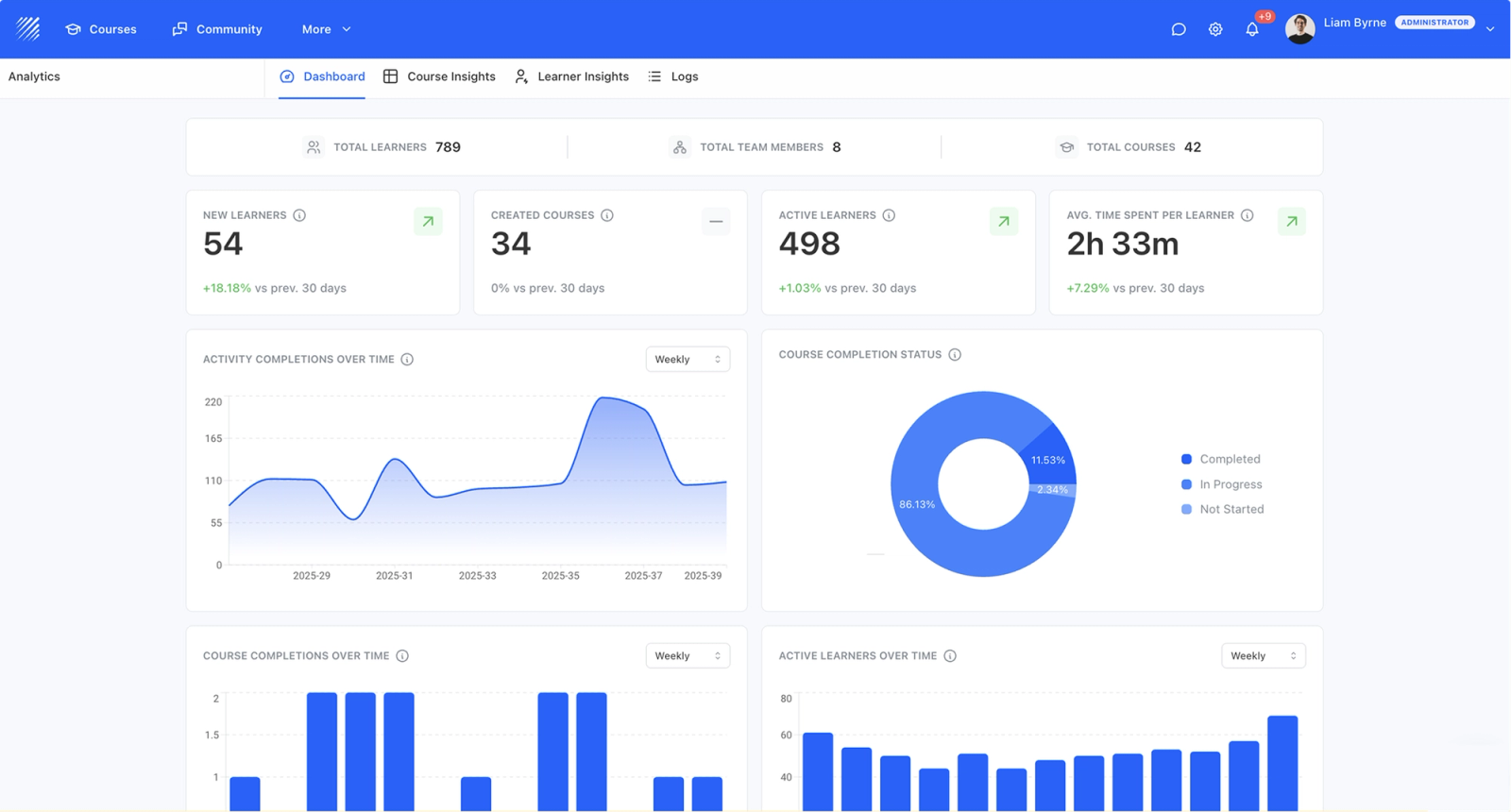
For 20 more ready-to-use prompts, from turning a PDF into a course to bulk enrollment and certificate renewals, see our Teachfloor MCP use cases.
Troubleshooting
- The assistant says it cannot see Teachfloor. The connection expired or was never authorized. Reconnect it from your client's connector settings; it is a one-click browser login.
- Write actions fail. You probably granted read access only, or your Teachfloor role does not allow that action. Reconnect with write access, or ask a workspace admin.
- A specific tool is missing. A workspace admin may have disabled it for your organization.
- The option to add a server is missing. In company workspaces (ChatGPT Business, Claude Team, Copilot Business, Gemini Enterprise), an admin usually has to enable custom connectors or MCP servers first.
- You hit rate limits. MCP calls use the same limits as the Teachfloor API. Heavy workloads can ask the account team for higher limits.
What to do next
Once Teachfloor is connected, you can run most day-to-day LMS work from your assistant: reports, course creation, enrollment and automations. It complements the built-in Teachfloor AI features and native integrations, and it is a practical first step toward the AI agents in education that many training teams are now exploring. Developers can also use the same connection to build custom apps that run inside Teachfloor, as explained in our MCP server comparison and on the developer hub. To learn more about the protocol, read Anthropic's introduction to MCP.
Frequently Asked Questions
Common questions about connecting Teachfloor to AI assistants.
What is the Teachfloor MCP server URL?
The Teachfloor MCP server URL is https://mcp.teachfloor.com. It is a remote server that uses OAuth 2.0, so you sign in with your Teachfloor account instead of using an API key.
Can I connect Teachfloor to ChatGPT?
Yes. Turn on developer mode in ChatGPT settings (Plus, Pro, Business, Enterprise and Education on the web), create an app with the Teachfloor MCP server URL, and sign in with your Teachfloor account.
Can I connect Teachfloor to Claude?
Yes. In Claude, open Customize, Connectors, Add custom connector and paste the Teachfloor MCP server URL. On Team and Enterprise plans an Owner adds the connector first. In Claude Code, use claude mcp add with the HTTP transport.
Do I need an API key to connect Teachfloor to an AI assistant?
No. The Teachfloor MCP server uses OAuth 2.0 with automatic client registration, so you only paste the server URL and sign in.
Is it safe to connect my LMS to an AI assistant?
Every action runs with your Teachfloor role and permissions, you choose read or write access when you connect, admins can disable specific tools, and every call is recorded in the audit log. Start with read-only prompts and use a test course for write actions.
Can learners connect Teachfloor to their own AI assistant?
Yes. Learners who sign in with their own account only see their own courses, progress and materials.


