

Why Look for a Loom Alternative?
Loom popularized async video. Record your screen, add a webcam bubble, share a link. That simplicity made it a default for product teams, customer support, and remote collaboration.
Why teams are leaving Loom in 2026. Atlassian completed its acquisition of Loom in November 2023 for about $975 million, and the product is now being folded into Atlassian's wider suite. For teams that adopted Loom as an independent tool, that shift, plus the free-tier limits and price below, is the main reason to evaluate alternatives now.
The free plan is tight. You get a maximum of 25 videos at 5 minutes each, no drawing or annotation during recording, and Loom branding on every video. For anyone producing more than a handful of clips a month, those limits hit fast.
The paid jump is steep. Loom's Business plan starts at $15 per user per month, billed annually (the Business plus AI tier is $20). For a 20-person team, that is $3,600 a year for screen recordings, a cost many teams find hard to justify for quick, informal video messages. If budget is the trigger, our LMS pricing and affordable LMS guides cover lower-cost ways to host training video.
Editing is the other gap. Loom offers basic trim and stitch and little else. If you need callouts, cleaned-up pauses, polished transitions, or multi-format export, you record a second time or switch to a separate editor. There is no auto-zoom, no cursor smoothing, and no motion graphics.
These constraints push teams toward alternatives with more generous free tiers, deeper editing, or a different approach to recording and hosting altogether.
What to Look for in a Screen Recording Tool
Choosing a screen recording tool depends on what you are actually producing and who will watch it.
Recording flexibility. Full screen, specific window, browser tab, or region capture. Some tools add webcam overlays, virtual backgrounds, or teleprompter features. Define your recording scenario before comparing tools.
Editing depth. If you are sending quick async messages, trim and stitch is enough. If you are producing training videos, product demos, or marketing content, you need multi-track editing, callout overlays, and export control.
Sharing and hosting. Some tools generate instant shareable links with built-in analytics. Others export local files that you upload yourself. Teams that rely on viewer engagement data need hosted solutions. Creators who want full ownership of their files prefer local-first tools.
Pricing model. Per-user subscriptions add up. One-time purchases save money over time. Free tiers vary wildly, from fully functional with a watermark to heavily restricted.
Platform support. Mac-only, Windows-only, browser-based, or cross-platform. Check compatibility with your team's hardware before committing.
12 Best Free Loom Alternatives for Screen Recording
| Tool | Starting price | Free tier | Best for |
|---|---|---|---|
| Screen Studio | $29/mo (or $108/yr) | Free trial only | Polished, auto-zoomed product demos on Mac |
| Tella | $19/mo ($12/mo annual) | Free plan (watermark) | Scene-based presentations and tutorials |
| Claap | Starter €8/mo, Pro €24/mo | Free plan | AI-summarized team async video |
| Descript | $24/mo per editor | Free plan (1 hr/mo, watermark) | Text-based video editing and cleanup |
| VEED | Lite $12/mo, Pro $24/mo | Free plan (watermark) | Browser recording plus full editing |
| ScreenPal | Deluxe $4/mo, Max $10/mo | Free plan (no watermark) | Free, no-watermark recording and hosting |
| Zight | Pro from $9.95/mo | Free plan | Mixed screenshots, GIFs, and short clips |
| Berrycast | Pro $9.99/mo | Free plan (5-min limit) | Annotated technical recordings |
| OBS Studio | Free | Fully free, open source | Maximum-control recording and streaming |
| Kap | Free | Fully free, open source | Quick GIF and clip captures on Mac |
| Supercut | Paid from $20/mo | Free tier (limited minutes) | Turning long recordings into short clips |
Screen Studio
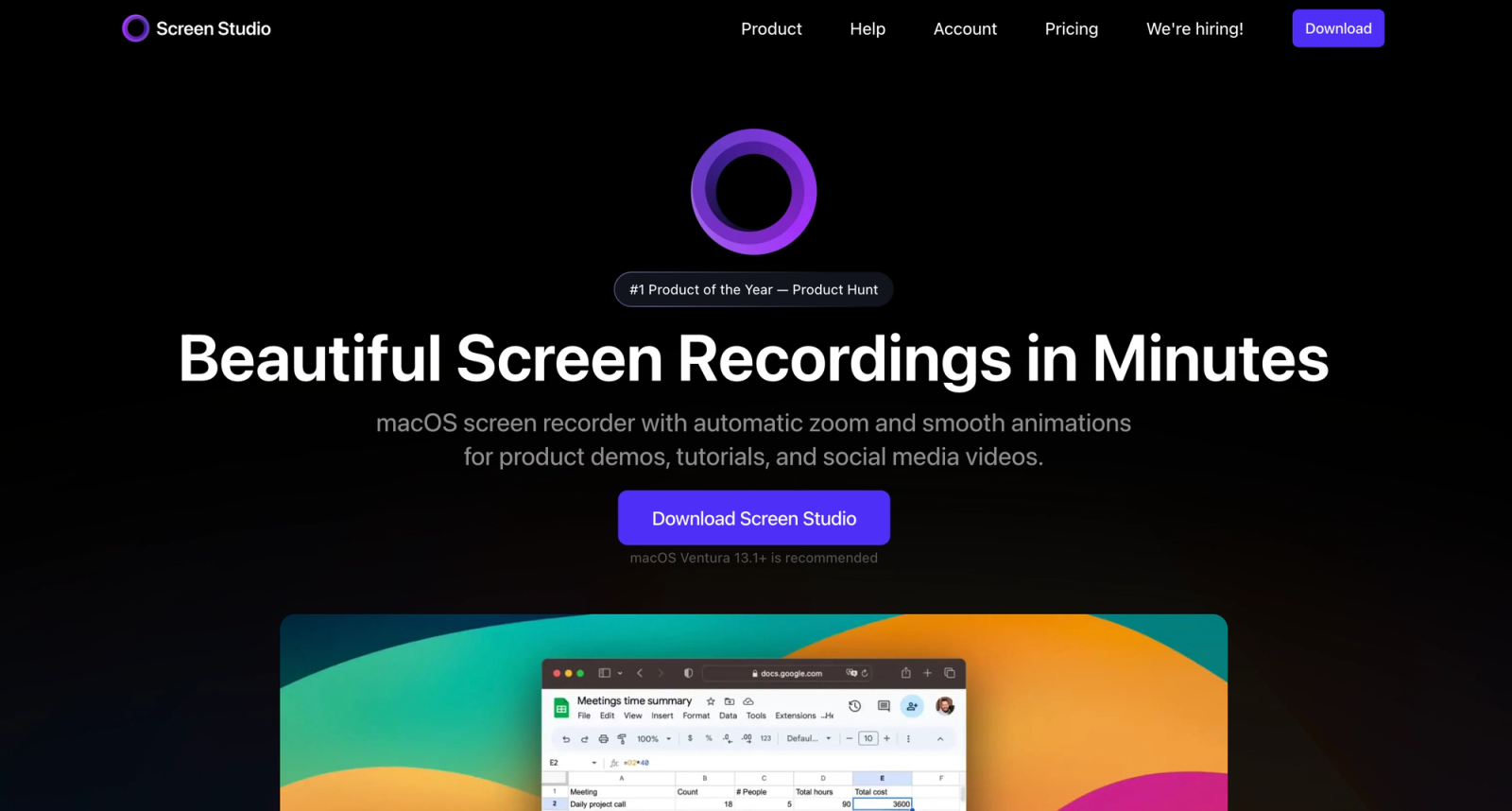
Screen Studio is a Mac-only screen recorder built for polished output. Where Loom produces flat, unprocessed captures, Screen Studio automatically adds smooth zoom effects, cursor highlighting, and motion animations that make recordings look professionally edited.
The difference shows immediately. A simple product walkthrough that would look like raw footage in Loom comes out of Screen Studio looking like a produced tutorial, with no manual editing. The auto-zoom follows your cursor and interactions, keeping viewers focused on the action.
The tool runs locally, so recordings are never uploaded to a third-party server unless you choose to. This matters for teams working with sensitive data or proprietary interfaces.
Core Capabilities:
- Automatic zoom and follow-cursor animation
- Cursor highlighting with customizable size and smoothness
- Adjustable background colors, gradients, and wallpapers
- Custom device frames (iPhone, MacBook, iPad)
- GIF, MP4, and MOV export options
- Configurable recording quality up to 4K
- Webcam overlay with adjustable shape and position
- Local-first architecture with no cloud dependency
Standout Strength: The automatic zoom and motion effects produce broadcast-quality screen recordings without any post-production. No other tool in this list matches Screen Studio's visual polish out of the box.
Best For: Content creators, developer advocates, and marketing teams on Mac who need professional-looking product demos and tutorials without a video editor. Useful for teams producing online teaching content that requires visual clarity.
Pricing Overview: Subscription pricing at $29 per month, or about $108 per year on the annual plan. The lifetime license was discontinued in September 2025. A free trial is available, but there is no free plan.
Limitations:
- Mac only. No Windows or Linux support.
- No built-in sharing or link hosting. You export files and distribute them yourself.
- No free plan.
Quick Comparison Insight: Screen Studio produces far more polished output than Loom, but lacks Loom's instant sharing and viewer analytics.
Tella
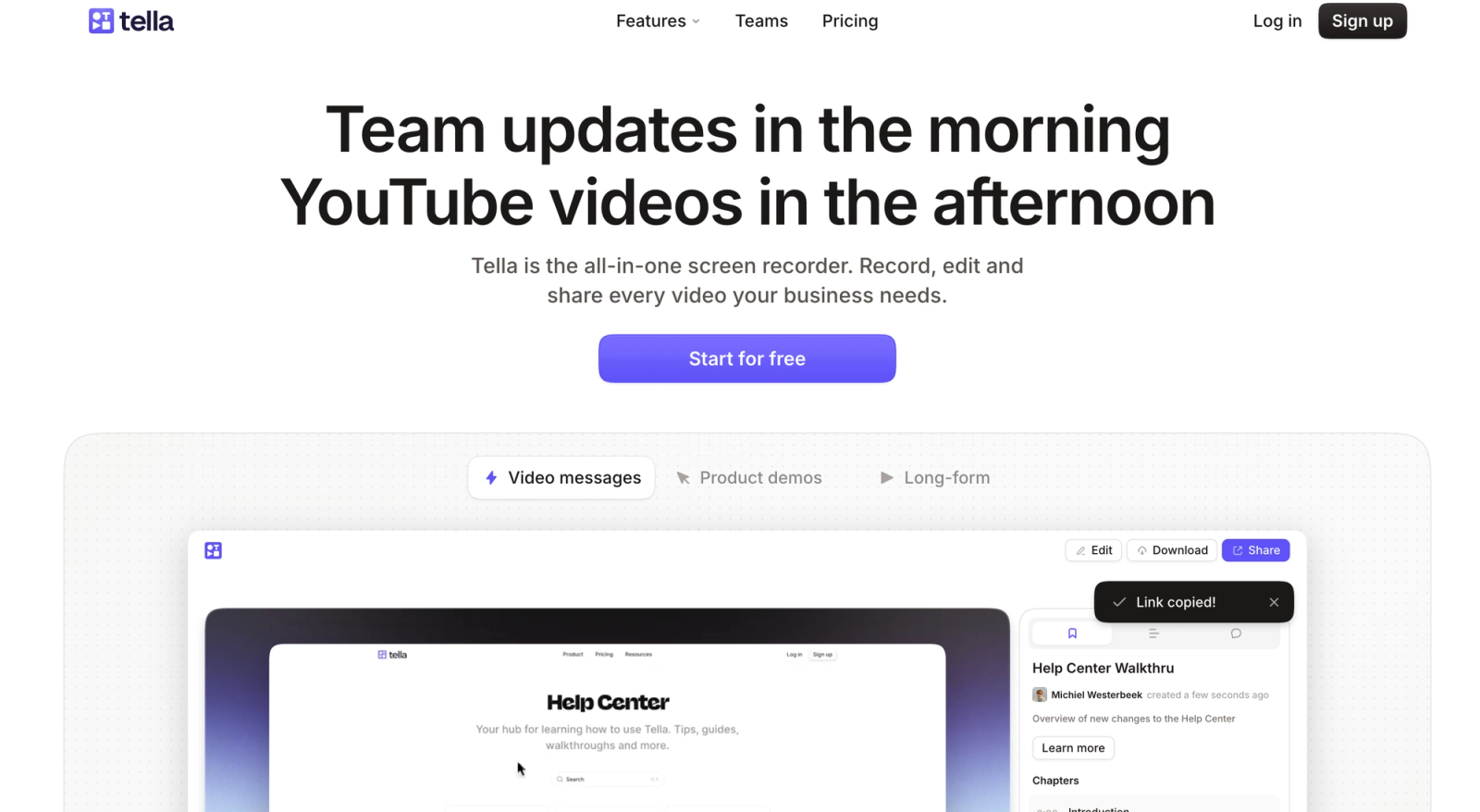
Tella treats screen recording as a presentation medium. Instead of just capturing your screen, it lets you build layouts, switch between scenes, and control the visual flow of your recording in real time.
Recording in Tella feels closer to directing a video than clicking "record." You set up multiple scenes, each with a different combination of screen share, slides, webcam, and text. During recording, you switch between them with keyboard shortcuts. The result is a structured, multi-segment video that requires minimal editing.
Core Capabilities:
- Multi-scene recording with slide, screen, and webcam layouts
- Real-time scene switching during capture
- Built-in teleprompter for scripted recordings
- Background customization with gradients and images
- Browser-based and Mac app options
- Instant shareable link generation
- Custom branding on shared video pages
- Subtitle generation for accessibility
Standout Strength: The scene-based recording system eliminates the need to edit segments together after recording. It is the closest thing to a live production tool for screen recordings.
Best For: Course creators, product marketers, and educators who produce structured presentations or tutorials, not quick async messages. Works well alongside virtual classroom setups that need pre-recorded walkthroughs.
Pricing Overview: Free plan with a watermark and a 15-video monthly limit. Pro plan at $19/month ($12/month billed annually). Premium plan at $49/month adds custom branding, a custom domain, and analytics.
Limitations:
- Scene setup adds preparation time. Not ideal for quick, spontaneous recordings.
- Editing tools are limited compared to dedicated video editors.
- Free plan watermark is visible and cannot be removed without upgrading.
Quick Comparison Insight: More structured than Loom's record-and-share approach, but requires more upfront planning per video.
Claap
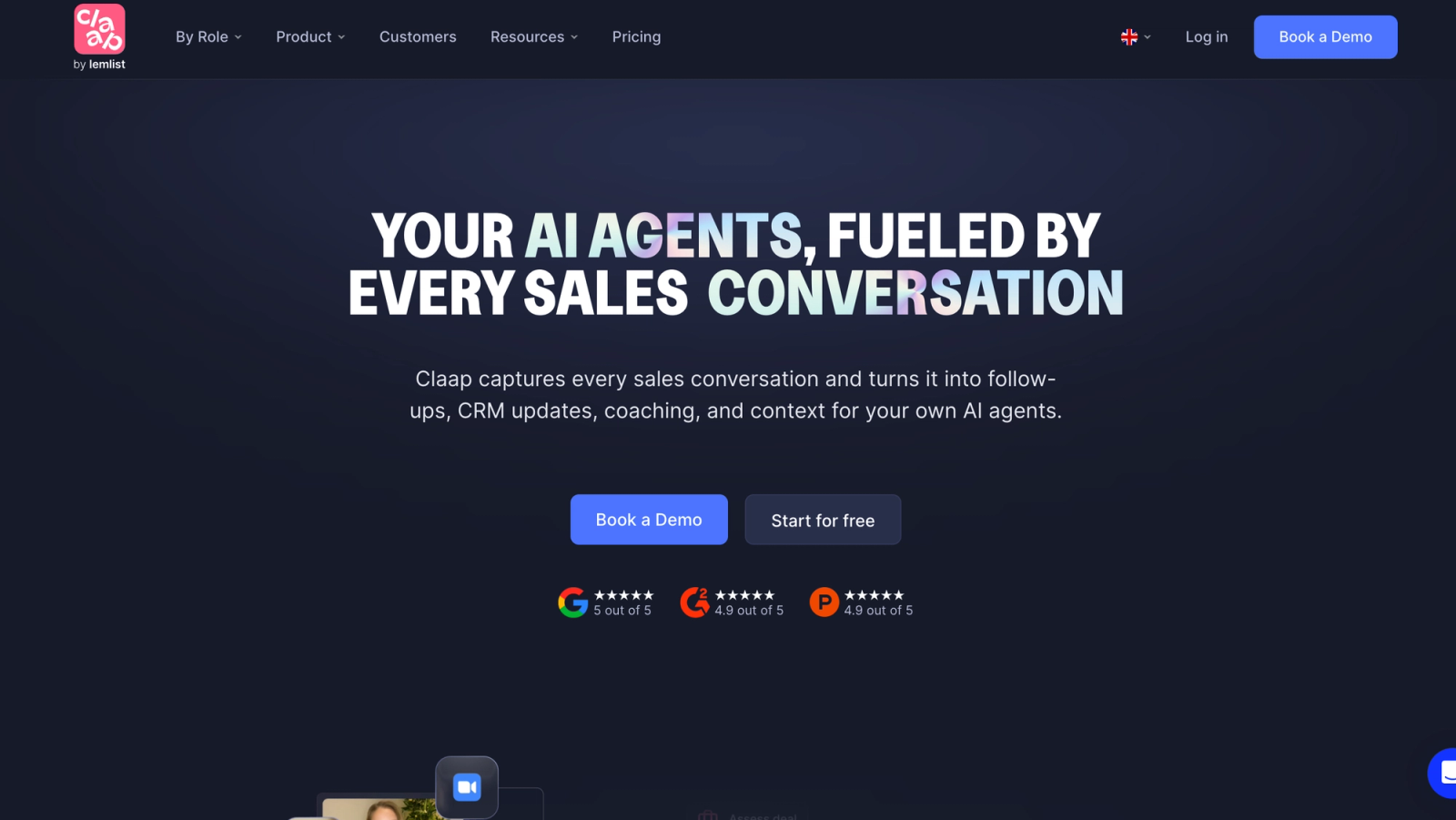
Claap targets a different problem than Loom. It is built for team video collaboration, not individual screen recordings. The platform combines screen recording with AI-powered meeting transcription, topic summaries, and threaded video discussions.
The value sits in the collaboration layer. After a recorded design review, team members can leave timestamped comments, the AI generates a structured summary, and action items are extracted automatically, which Loom's comment system does not handle well.
Core Capabilities:
- Screen and webcam recording with instant link sharing
- AI-generated video summaries and action items
- Automatic transcription in multiple languages
- Threaded comments on specific video timestamps
- Meeting recording and highlights extraction
- Workspace organization with channels and topics
- Integration with Slack, Notion, and Linear
- Video analytics with viewer engagement data
Standout Strength: The AI layer does the work that usually falls on the viewer. After a recorded review, Claap generates a structured summary and pulls out action items, so team members read the digest rather than scrub through the full clip.
Best For: Product teams, engineering squads, and remote organizations that use async video as a core communication channel, not just occasional screen recording.
Pricing Overview: Free Basic plan. Starter plan at €8/user/month for short updates and feedback. Pro plan at €24/user/month adds AI summaries and unlimited recording length. Business plan at $48/user/month for sales teams.
Limitations:
- Focused on team collaboration. Solo creators or one-off recordings do not benefit from the AI features.
- AI summaries vary in quality depending on audio clarity.
- Recording polish is minimal compared to tools focused on visual output.
Quick Comparison Insight: Stronger than Loom for team async workflows, but less useful for producing polished standalone recordings.
Descript
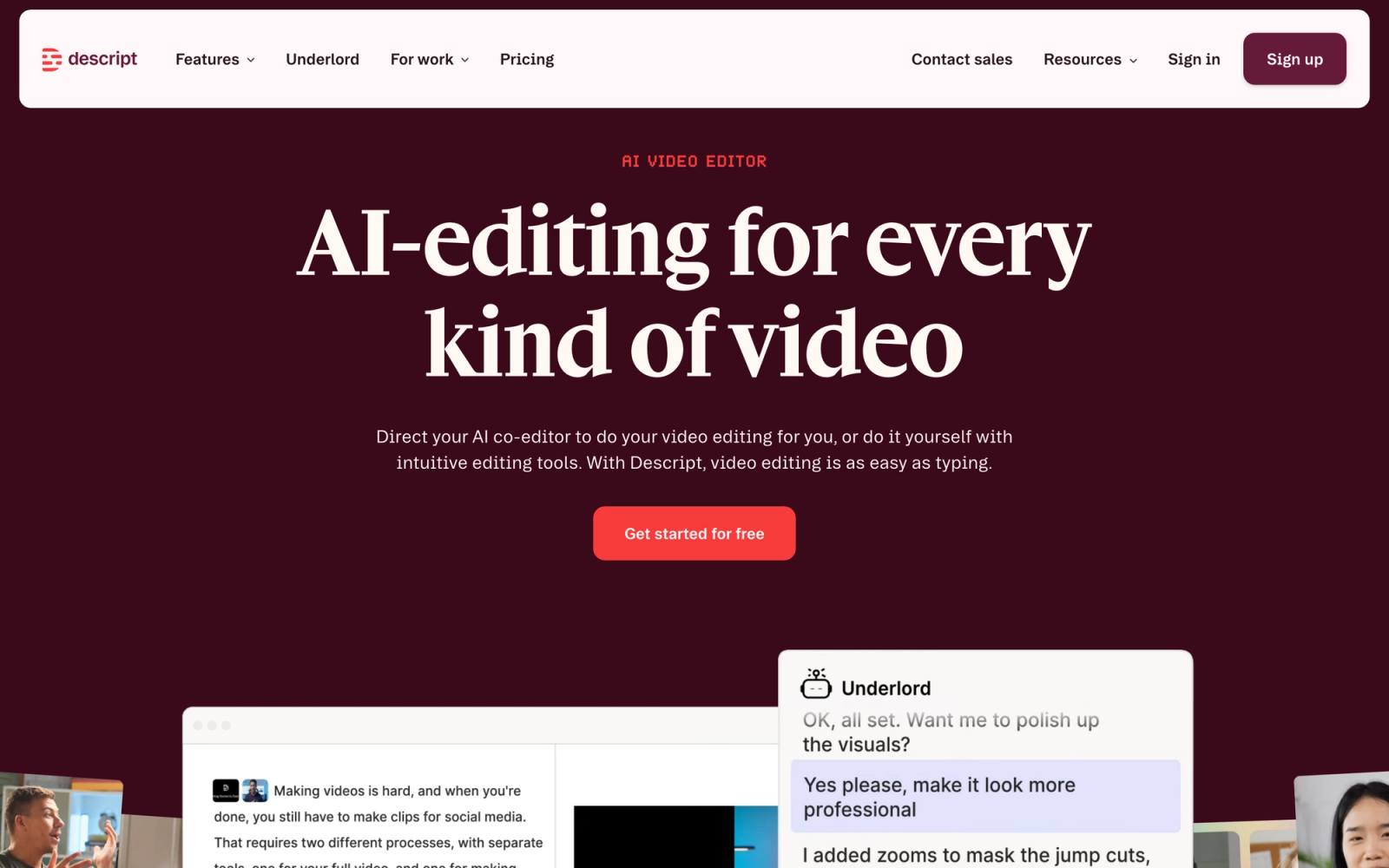
Descript takes a different approach to video editing: it treats a recording like a text document. Record your screen and the software generates a transcript. Edit that transcript, and the video updates to match. Delete a sentence and the corresponding segment disappears.
This approach removes the biggest barrier in video production: timeline-based editing. It is especially relevant for anyone producing short training videos and tutorials that need quick turnaround. Cleaning up a recording, removing pauses, filler words, and off-topic tangents, is much faster than scrubbing a timeline in a traditional editor.
Core Capabilities:
- Text-based video and audio editing
- Screen recording with webcam overlay
- AI-powered filler word removal ("um," "uh," "like")
- Studio Sound for audio quality enhancement
- Automatic transcription and subtitle generation
- Multi-track editing with layers
- Green screen and background replacement
- Publishing directly to YouTube, Wistia, and podcast platforms
Standout Strength: Text-based editing makes video editing accessible to anyone who can edit a document. The filler word removal alone saves hours of manual cleanup.
Best For: Content creators, podcasters, and training teams who produce polished video content and need editing capabilities beyond basic trim.
Pricing Overview: Free plan with 1 hour of transcription per month and watermark on exports. Pro plan at $24/month per editor.
Limitations:
- The free plan is restrictive for regular use. One hour of transcription covers about one video.
- AI features (Studio Sound, Eye Contact) are only available on paid plans.
- Learning the text-based editing workflow takes adjustment.
Quick Comparison Insight: Far more powerful editing than Loom, but also more complex. Best suited for content that justifies production time.
Veed Recorder
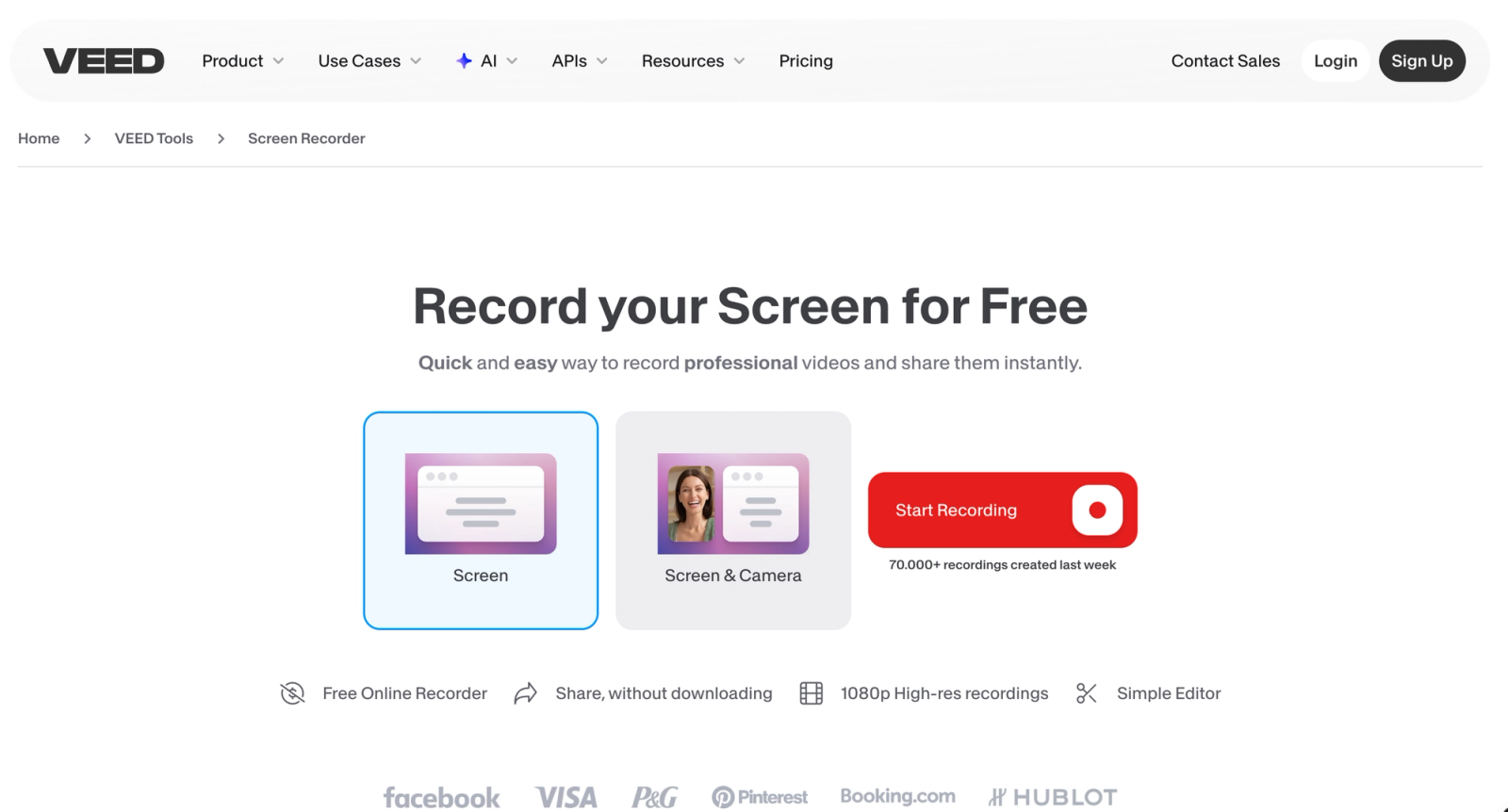
Veed Recorder is the screen recording component of Veed's browser-based video editing platform. Record your screen directly in the browser, then edit the recording with Veed's full editing suite, including subtitles, text overlays, cropping, and transitions.
Open a browser tab, start recording, finish, and edit in the same interface. There is no app to download, no account required for basic recordings, and the hand-off from capture to editing happens without leaving the tab.
Core Capabilities:
- Browser-based screen recording with no installation
- Webcam overlay with virtual background options
- Built-in video editor with timeline and layers
- Automatic subtitle generation in 100+ languages
- Text, shape, and image overlays
- Noise reduction and audio cleanup
- Export in multiple resolutions and formats
- Direct publishing to YouTube and social platforms
Standout Strength: The direct hand-off from recording to full-featured editing in the browser. Few tools on this list pair browser-based recording with this level of editing depth.
Best For: Marketers, educators, and content creators who want to record and edit in one workflow without installing software. A good fit for teams that want one browser tab for recording and light editing. For pure AI video generation, see our guide to the best AI video generators for education.
Pricing Overview: Free plan with a watermark. Lite plan at $12/month (billed annually) removes the watermark. Pro plan at $24/month adds more editing and export features.
Limitations:
- Browser-based recording can be less reliable than native apps, especially with system audio capture.
- Free plan watermark is prominent.
- Processing and export times are slower than local tools.
Quick Comparison Insight: Offers more editing power than Loom in the browser, but the recording reliability is slightly lower than dedicated desktop apps.
ScreenPal
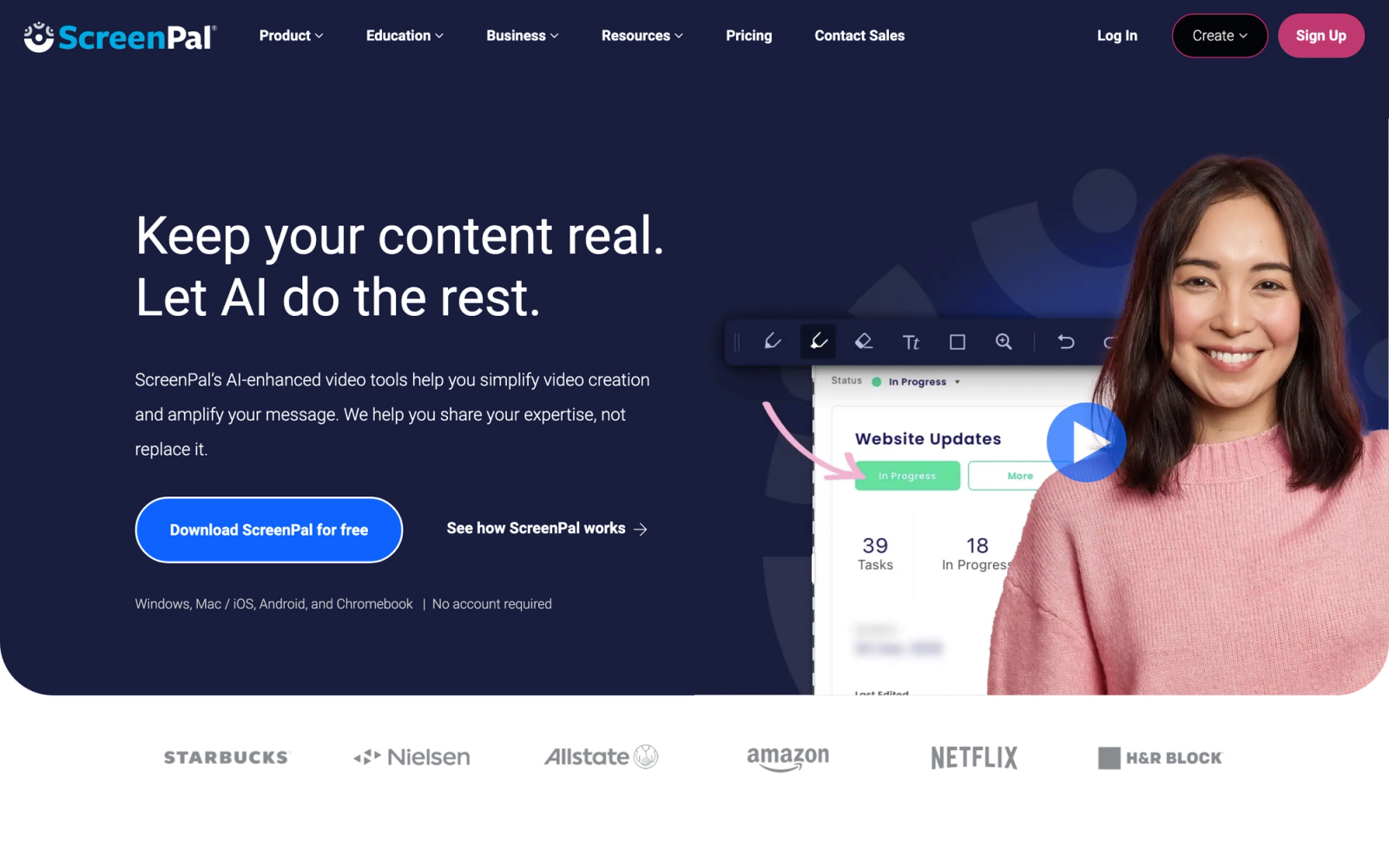
ScreenPal, formerly Screencast-O-Matic, is one of the few genuinely free screen recorders that exports with no watermark. The free plan records screen and webcam, includes basic trim-and-merge editing, and gives you free cloud hosting with shareable links, which makes it a direct answer to the most common Loom complaint: branded videos on a capped free tier.
The free plan limits each recording to 15 minutes, which covers most async messages and short training videos. Paid tiers add longer recordings, stock libraries, captions, and team hosting. Because the recorder, a light editor, and hosting all live in one place, ScreenPal is an easy free-first replacement for individuals and small teams.
Core Capabilities
- Screen and webcam recording with no watermark on the free plan
- Basic editor with trim, split, and merge
- Free cloud hosting with shareable links
- Captions and speech-to-text on paid tiers
- Stock music and image library on paid tiers
- Cross-platform: Windows, Mac, Chromebook, iOS, and Android
- Team hosting and admin controls on business plans
Standout Strength
A free tier that does not stamp a watermark on your exports. For anyone whose main reason for leaving Loom is the branding and the 25-video cap, ScreenPal removes both at no cost.
Best For
Educators, support teams, and small businesses that want a free, no-watermark recorder with built-in hosting and just enough editing to clean up a clip.
Pricing Overview
- Free plan with no watermark and a 15-minute per-recording limit
- Deluxe from $4/month (billed annually) for longer recordings and editing
- Max from $10/month for stock libraries and advanced features
- Team Business from $8/user/month for shared hosting and admin controls
Limitations
- The 15-minute free limit rules out long, unbroken sessions.
- Editing is functional but lighter than dedicated editors like Descript or VEED.
- No auto-zoom or motion effects.
Quick Comparison Insight
The closest free-tier replacement for Loom's everyday use: record, host, and share without a watermark, where Loom caps you at 25 branded videos.
Zight
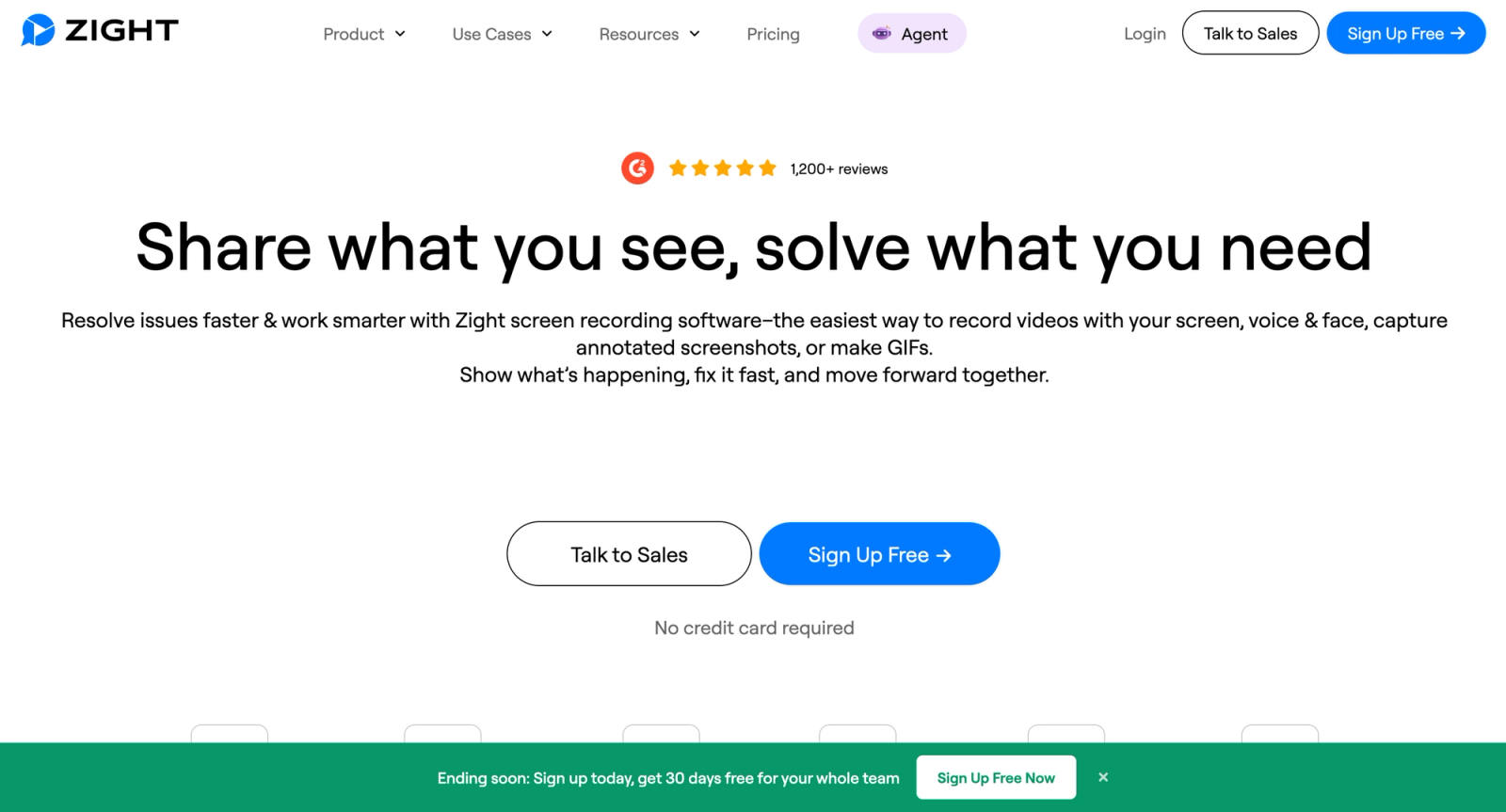
Zight, formerly CloudApp, bundles screen recording with screenshot capture, GIF creation, and annotation in a single menu bar app. It targets professionals who need to capture and share visual context quickly, whether that is a bug report, a design critique, or a brief explainer.
The workflow is fast. Press a shortcut, select a region, record, and the link copies to your clipboard automatically. For support teams and QA engineers, that capture-share-discuss cycle is faster than in most alternatives.
Core Capabilities:
- Screen recording with webcam overlay
- Screenshot capture with annotation tools
- GIF creation from screen recordings
- Automatic link generation and clipboard copy
- Cloud storage with organized collections
- Custom branding for shared content
- Integration with Jira, Slack, Zendesk, and Asana
- Analytics on views and engagement
Standout Strength: Screenshots, GIFs, and screen recordings all live in one tool, with a shared library and the same shortcut-driven capture workflow for each format.
Best For: Support teams, QA engineers, designers, and anyone who communicates through a mix of screenshots, GIFs, and short recordings daily.
Pricing Overview: Free plan with limited features and recording length. Pro plan from $9.95/month. Team plans available with per-user pricing.
Limitations:
- Video editing is basic. Trim only, no multi-track or effects.
- The rebrand from CloudApp created confusion; some integrations still reference the old name.
- Free tier is restrictive compared to other tools on this list.
Quick Comparison Insight: Broader capture capabilities than Loom (screenshots, GIFs, annotations), but video recording features are less developed.
Berrycast
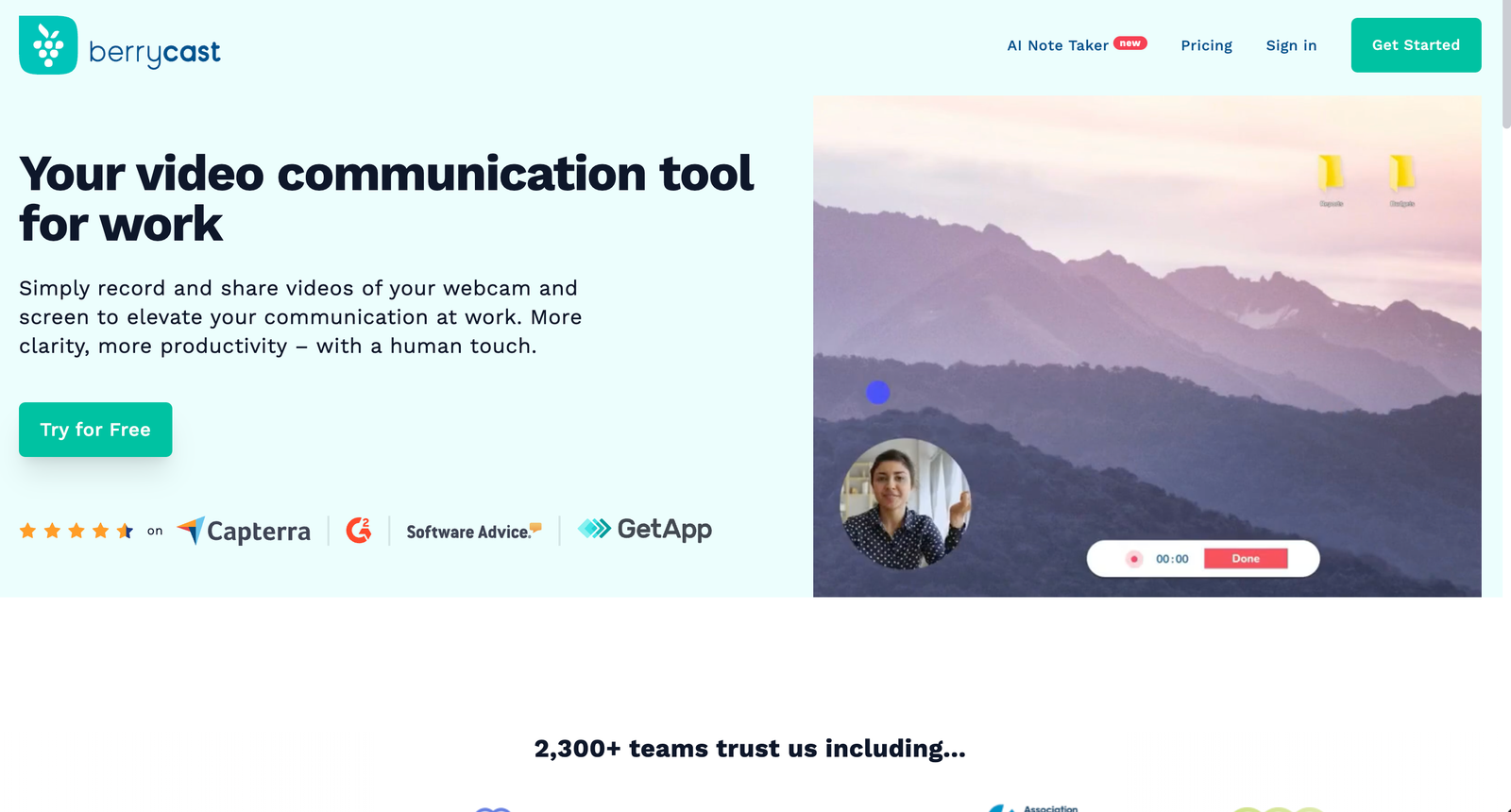
Berrycast focuses on speed and simplicity for technical teams. Record a screen, draw annotations in real time, and share via link. The value is in the directness: no setup, no editing, no polishing. Capture what you see, mark what matters, and send it.
The annotation during recording is the feature that separates Berrycast from similar tools. Drawing arrows, highlighting areas, and writing directly on screen while recording gives reviewers a precise visual trail that verbal narration alone cannot match.
Core Capabilities:
- Screen and webcam recording
- Real-time annotation and drawing during capture
- Instant link sharing with auto-copied URL
- Trim and crop editing tools
- Cloud hosting with organized video library
- Comment threads on shared videos
- Desktop app for Mac and Windows
- Browser extension for quick captures
Standout Strength: Real-time drawing and annotation during recording. This is not available in Loom and makes technical explanations, design feedback, and bug reports more precise.
Best For: Developers, designers, and QA teams who need to visually annotate their screen while recording, rather than explain everything verbally.
Pricing Overview: Free plan with 5-minute recording limit. Pro plan at $9.99/month with unlimited recording.
Limitations:
- Limited editing beyond basic trim.
- No advanced video effects or auto-zoom.
- Community and support resources are smaller than Loom's.
Quick Comparison Insight: Better than Loom for annotated technical recordings, but less polished for general async communication.
OBS Studio
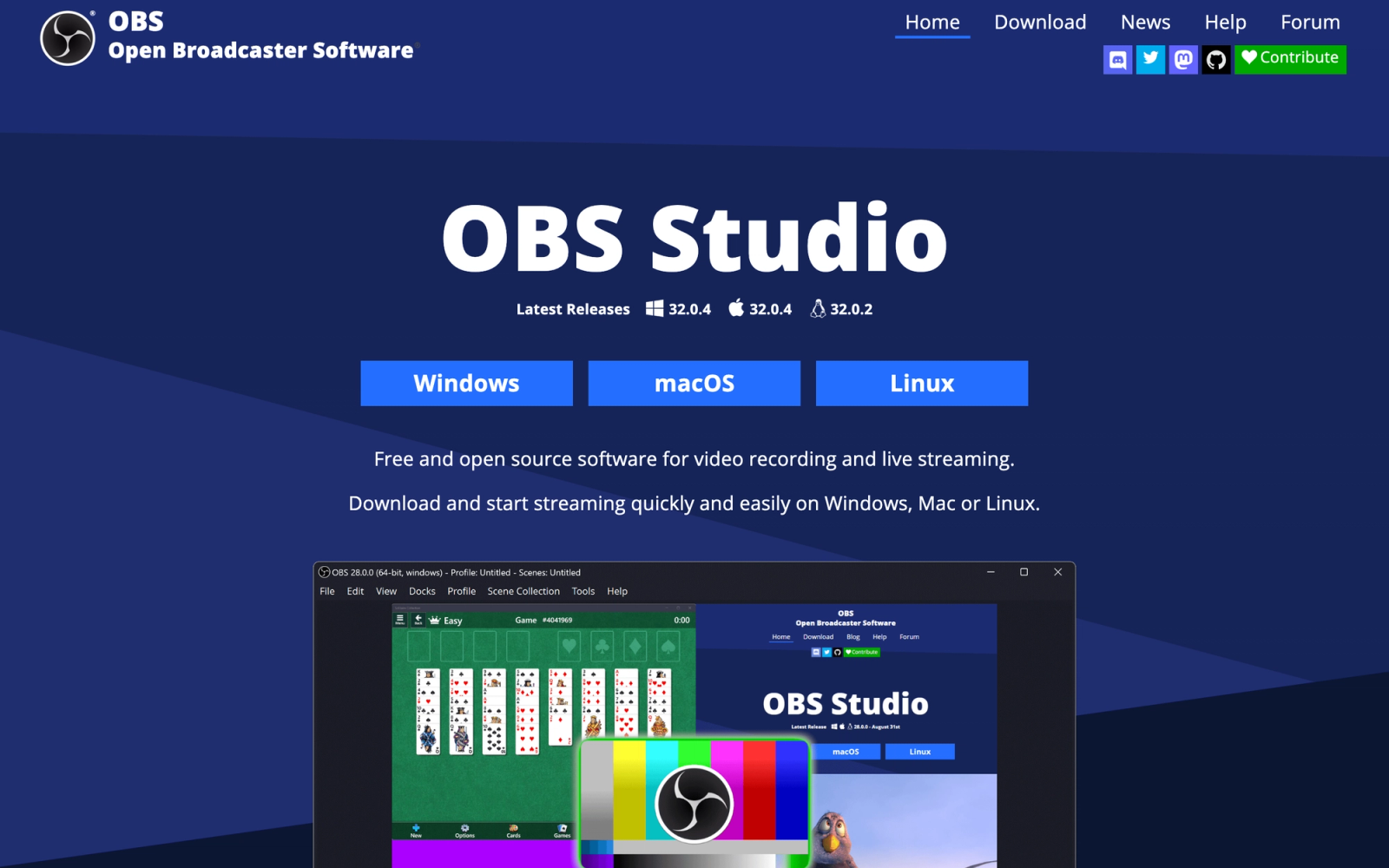
OBS Studio is the open-source standard for screen recording and live streaming. It is completely free, with no watermarks, no recording limits, no feature gates, and no account required. What you get is a professional-grade capture engine that powers a significant share of content on YouTube and Twitch.
The trade-off is complexity. OBS was built for broadcasters, not for someone who wants to send a quick product update. Setting up scenes, configuring audio sources, and adjusting encoding settings takes time. But once configured, OBS produces recordings at a quality level that no cloud-based tool can match.
Core Capabilities:
- Unlimited screen, window, and region recording
- Multi-source scene composition (screen, webcam, images, text)
- Real-time audio mixing with per-source filters
- Custom transitions between scenes
- Hardware-accelerated encoding (NVENC, QuickSync, AMF)
- Plugin stack with hundreds of community extensions
- Virtual camera output for use in video calls
- Cross-platform support for Windows, Mac, and Linux
Standout Strength: Zero cost, zero limitations on recording length or quality, and a plugin stack that can extend functionality to match almost any workflow. No commercial tool offers this combination.
Best For: Technical users, streamers, educators producing long-form video content, and anyone who wants maximum control over recording settings without paying for software.
Pricing Overview: Completely free. Open source under GPL-2.0 license. No paid tiers, no premium features, no subscriptions.
Limitations:
- The learning curve is steep. Expect 30-60 minutes of setup before your first clean recording.
- No built-in sharing or link generation. You export files and manage distribution yourself.
- The interface is functional, not polished. It prioritizes capability over usability.
Quick Comparison Insight: More powerful than Loom in every recording dimension, but completely lacks Loom's simplicity and instant sharing workflow.
Kap
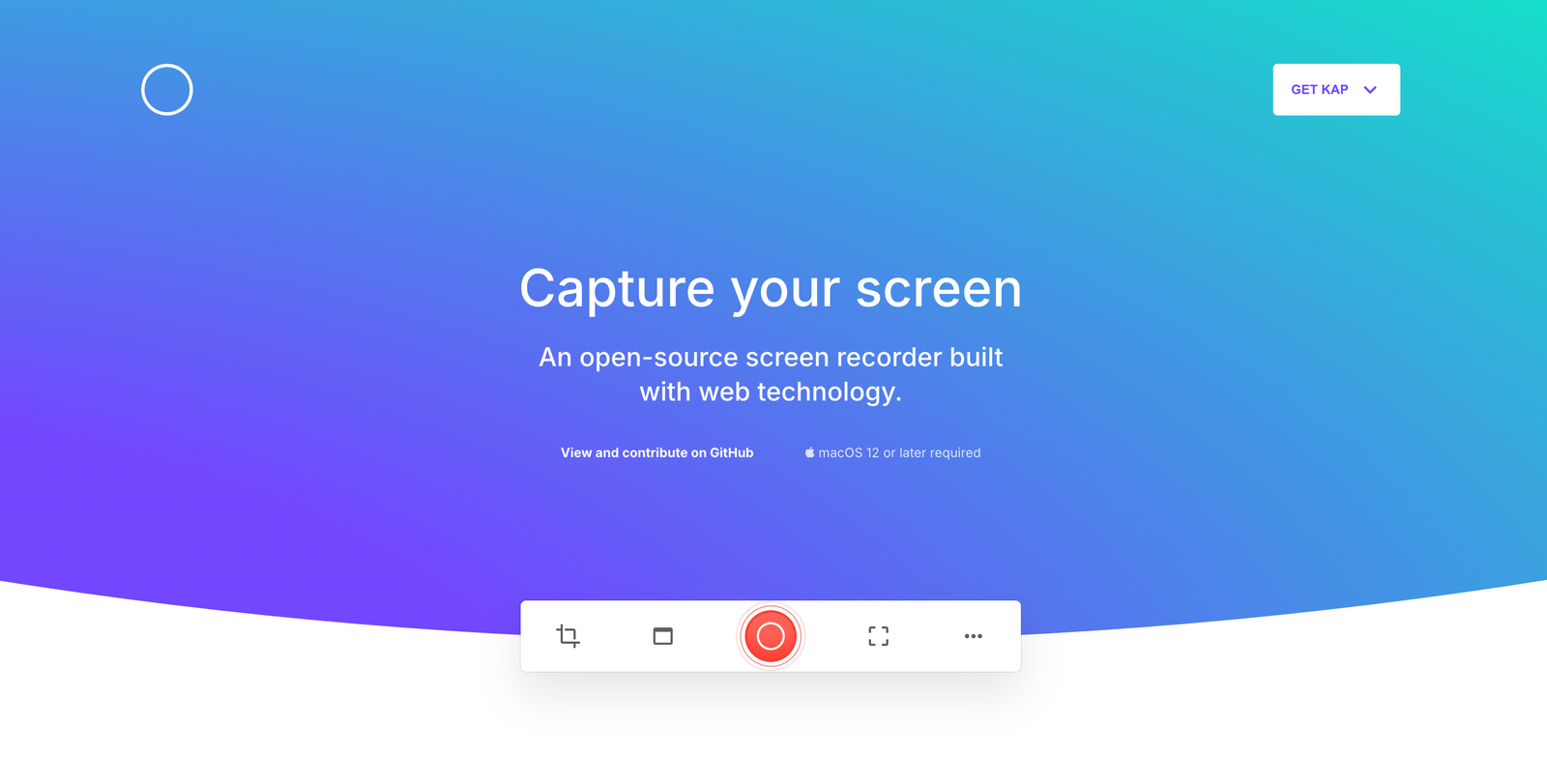
Kap is an open-source screen recorder for Mac that does one thing well: capture your screen and export as GIF, MP4, WebM, or APNG. It sits in your menu bar, starts and stops with a shortcut, and gets out of the way.
The appeal is the absence of features. No account creation, no cloud storage, no sharing links, no analytics dashboards. Press record, stop, export. For developers and designers who just need a quick capture of a UI interaction or a code demo, Kap removes every unnecessary step.
Core Capabilities:
- Menu bar integration for instant access
- Region, window, or full-screen capture
- Export to GIF, MP4, WebM, and APNG formats
- Adjustable frame rate and resolution settings
- Plugin system for additional export formats
- Keyboard shortcut for start and stop
- Open-source codebase on GitHub
- Lightweight resource usage
Standout Strength: The most frictionless path from "I need to capture this" to "here is the file." No login, no upload, no cloud. Record and export.
Best For: Developers, designers, and technical writers who need quick GIF or video captures for documentation, pull requests, or collaborative projects.
Pricing Overview: Completely free. Open source under MIT license. No premium tier.
Limitations:
- Mac only. No Windows or Linux.
- No editing features at all. Trim requires a separate tool.
- No webcam overlay or annotation capabilities.
- No sharing or hosting. Export only.
Quick Comparison Insight: Faster and lighter than Loom for quick captures, but has no communication or collaboration features.
Supercut
Supercut takes a different angle entirely. Instead of improving the recording experience, it focuses on what happens after recording. Upload a long video, and Supercut's AI identifies key moments, generates clips, and produces a highlight reel.
For teams recording long meetings, training sessions, or product demos, the problem is rarely the recording itself. A 45-minute video loses most of its audience before the halfway mark. Supercut addresses this by identifying and extracting the segments worth keeping, reducing a long session to a set of short, focused clips.
Core Capabilities:
- AI-powered highlight extraction from long videos
- Automatic clip generation based on topics
- Text-based editing of video content
- Subtitle generation and overlay
- Export in multiple formats and aspect ratios
- Social media-ready vertical and square outputs
- Batch processing for multiple videos
- Collaborative workspace for team editing
Standout Strength: Turning long recordings into short, shareable clips automatically. This addresses the most common failure mode of async video: people skipping long content.
Best For: Marketing teams repurposing webinar content, L&D teams creating bite-sized training from long sessions, and anyone producing clips for social distribution.
Pricing Overview: Free tier with limited processing minutes. Paid plans from $20/month add processing capacity and team features.
Limitations:
- Not a screen recorder itself. You need to record elsewhere and upload.
- AI clip selection requires manual review for quality control.
- Processing time for long videos can be substantial.
Quick Comparison Insight: Complements Loom rather than replacing it. Useful for teams that already have long recordings and need to extract value from them.
Where Teachfloor Fits
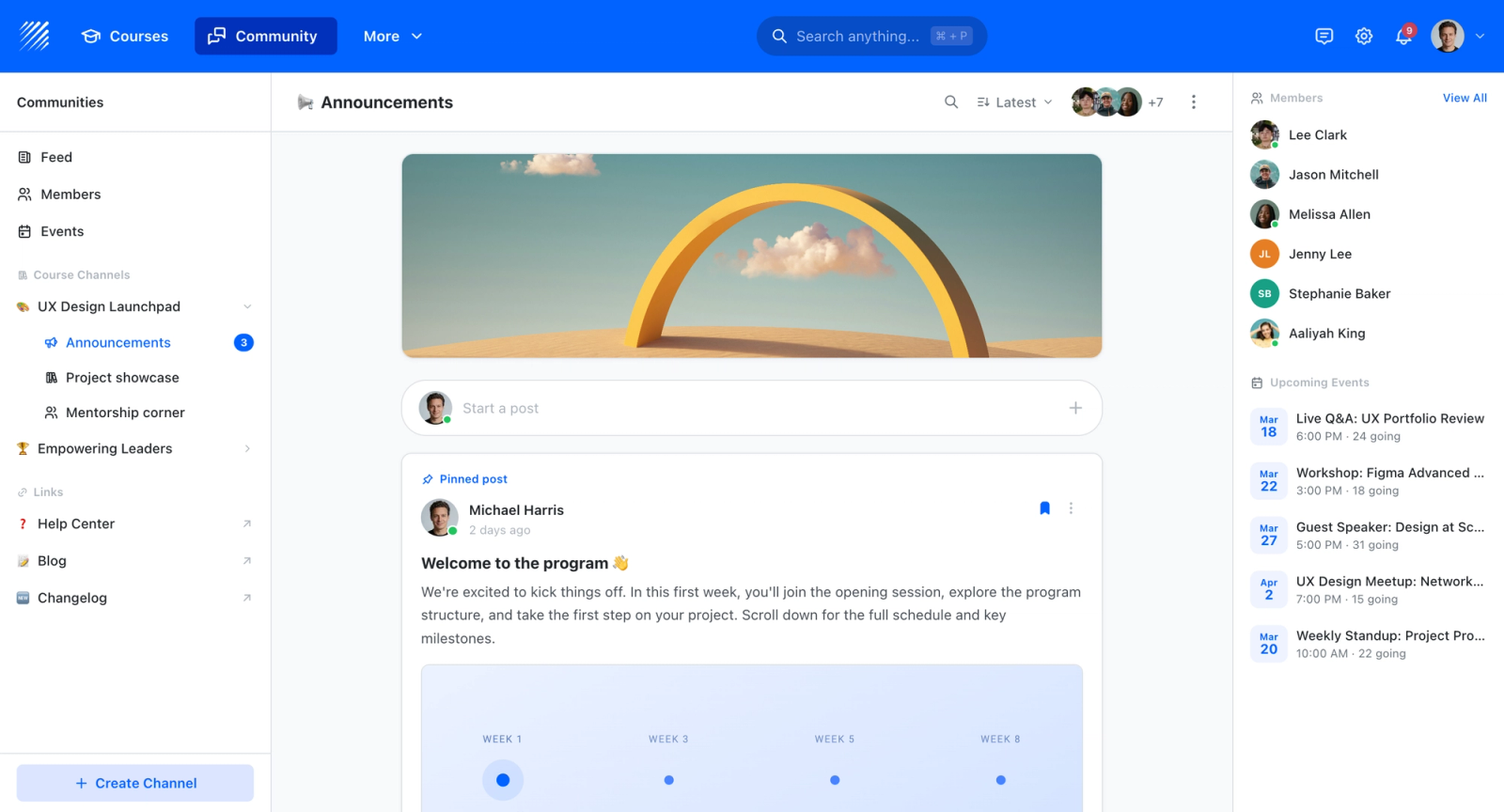
If your screen recordings are meant to teach rather than just inform, Teachfloor is the natural next step beyond any recorder on this list. The tools above capture the video; Teachfloor wraps those recordings into trackable lessons with quizzes, course progress, certificates, and a learner community around the content. Keep your favorite recorder for the capture itself and bring the finished videos into Teachfloor when you want to know who actually watched and learned.
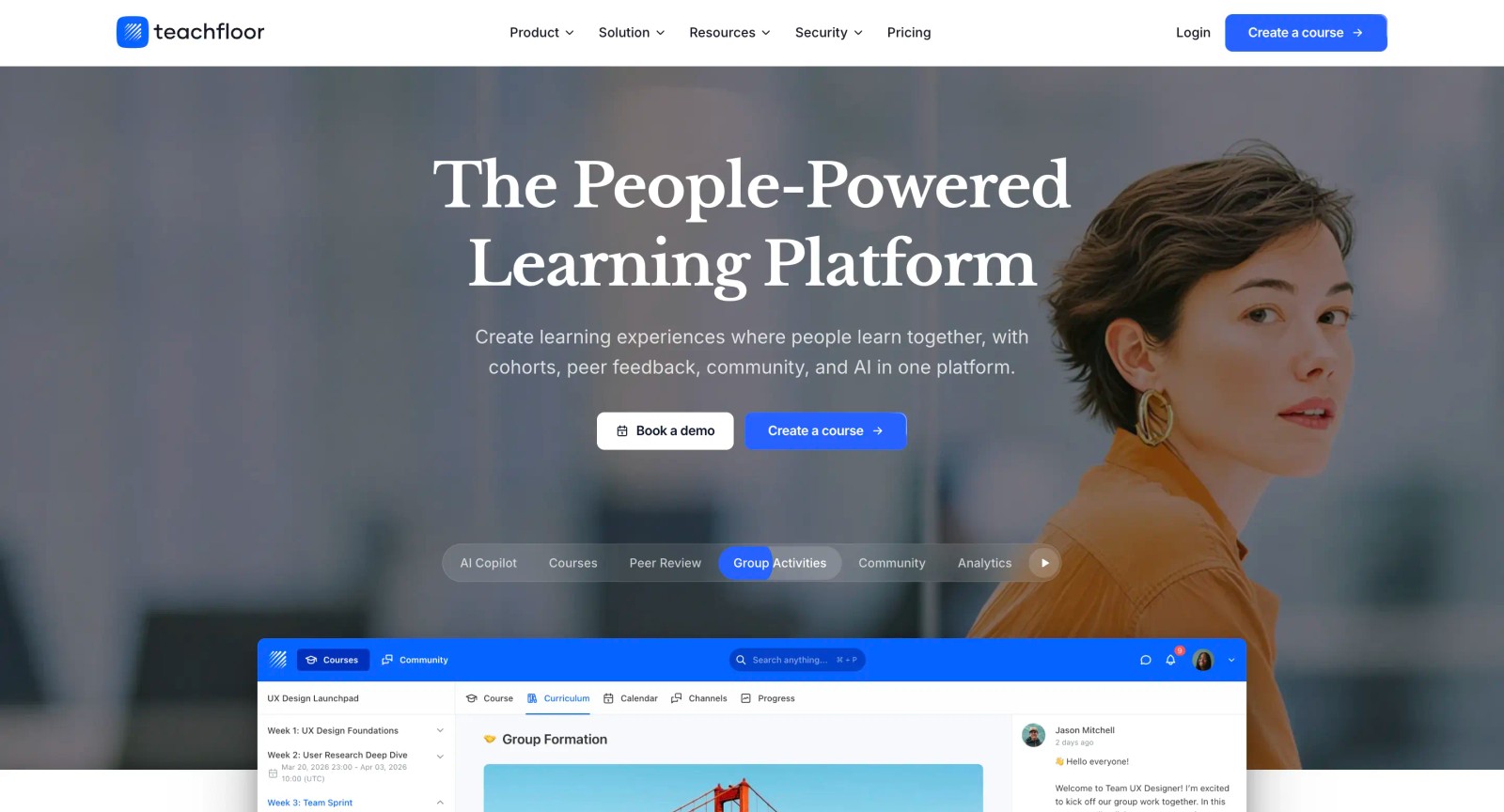
If you are choosing a home for your courses rather than a single-purpose tool, Teachfloor is worth a look. It starts at $89 per month with a 14-day free trial.
How to Choose the Right Alternative
The right tool depends on what you are recording and how you plan to use it. Instead of comparing feature lists, match your primary use case to the tool built for it.
For polished product demos and tutorials: Screen Studio (Mac) or Descript (Mac/Windows). Both produce professional-quality output, with Screen Studio excelling at auto-zoom effects and Descript at text-based editing.
For team async communication: Claap. The AI summaries, transcription, and threaded comments make it the strongest option for teams replacing Loom's collaboration model.
For quick technical captures: Kap (Mac, free, GIF-focused) or Berrycast (Mac/Windows, annotation-focused). Both prioritize speed over polish.
For browser-based recording and editing: Veed Recorder. Record and edit in one workflow without installing anything.
For zero-cost, maximum control: OBS Studio. Completely free, cross-platform, and limitless, but expect a learning curve.
For a free, no-watermark option: ScreenPal. Record, host, and share without Loom's branding or 25-video cap.
For content repurposing: Supercut. Upload long recordings and extract short clips automatically.
For mixed capture needs (screenshots, GIFs, video): Zight. One tool replaces three.
Cost is often the deciding factor. If budget is the primary constraint, OBS Studio and Kap are free with no restrictions, and ScreenPal is free with no watermark. Claap, Berrycast, and Zight offer functional free tiers for individual users.
FAQ
Is there a completely free alternative to Loom with no watermark?
Yes. ScreenPal exports with no watermark on its free plan (15 minutes per recording) and includes free hosting, which makes it the closest like-for-like free replacement. For unlimited length and full control, OBS Studio and Kap are free, open-source, and watermark-free, though they leave file hosting and sharing to you.
What is the best Loom alternative for Mac users?
Screen Studio is the standout for polished Mac output, with auto-zoom and cursor-following animation that produce broadcast-quality recordings without manual editing. For a free Mac option, Kap is lightweight, fast, and open source. Both are Mac-exclusive.
Which Loom alternative is best for team async messaging?
Claap is built for it. Screen recordings sit alongside AI summaries, timestamped comments, and threaded discussion, so a clip becomes a conversation rather than a one-way link. Teams that want their videos to live inside a structured, collaborative learning space, with discussion and tracking, can use Teachfloor instead of scattering links across chat.
Which Loom alternative is best for hosting and delivering training videos?
If your recordings are training, onboarding, or full courses, a recorder alone is not enough. Teachfloor lets you host and deliver those videos inside structured courses, with community, peer review, live sessions, and completion analytics, and white-label them on your own domain. For a deeper look at recorder-only options, see our guide to screen recording software for training videos.
Which Loom alternative has the best AI features?
Claap leads on meeting AI, generating summaries, action items, and topic highlights from recordings. Descript offers AI filler-word removal, Studio Sound, and text-based editing. Teachfloor adds AI course creation that turns documents and recordings into structured courses. Each solves a different AI use case.
Free eLearning tools
Speed up your workflow with these free tools from Teachfloor:


