

Why Look for a Camtasia Alternative?
Camtasia by TechSmith has been a go-to screen recording and video editing tool for educators, training teams, and content creators for years. It bundles screen capture with a timeline-based editor, and for many workflows, that combination works well. But there are specific friction points that push users toward Camtasia alternatives.
High upfront cost. Camtasia costs $313 for a one-time license. On top of that, TechSmith charges an annual maintenance fee to keep receiving updates. For individuals or small teams producing occasional training content, that price tag is hard to justify when lighter tools handle basic screen recording for free or at a fraction of the cost.
Resource-heavy performance. Camtasia is a desktop application that demands significant CPU and RAM. On older machines or laptops without dedicated GPUs, rendering and editing become noticeably sluggish. Long recordings or multi-track projects can stall during export, and the application itself can feel heavy even during simple editing tasks.
Steep learning curve for beginners. While Camtasia is not as complex as professional video suites, its timeline editor, layering system, and effects library take time to learn. For teams that just need quick screen captures with basic annotations, the onboarding time is disproportionate to the task at hand.
Large file sizes. Camtasia projects and exported videos tend to be large. Screen recordings at full resolution generate files that are difficult to share, store, or upload without compression. For teams managing a library of training videos, storage management becomes an ongoing concern.
No cloud-based collaboration. Camtasia is a local-first application. There is no built-in way for multiple editors to collaborate on a project, share assets in a cloud workspace, or review edits asynchronously. Teams that need collaborative video workflows have to bolt on external file-sharing tools, which adds friction.
Limited animation capabilities. Camtasia includes basic motion graphics, callouts, and transitions, but it cannot produce the kind of polished animations that tools like After Effects or even browser-based platforms offer. If your video content needs custom motion graphics or branded animations, Camtasia reaches its ceiling quickly.
None of these are deal-breakers for every user. But if your budget, hardware, collaboration needs, or content complexity have outgrown what Camtasia offers, the alternatives below address those gaps in distinct ways.
What to Look for in a Screen Recording and Video Editing Tool
Before comparing individual tools, it helps to define the criteria that matter most for your specific workflow. Screen recording tools range from lightweight capture utilities to full production suites, and the right choice depends on what you are producing.
Recording flexibility. Consider whether you need full-screen capture, window-specific recording, browser tab isolation, webcam overlay, or region selection. Some tools add teleprompter features, virtual backgrounds, or presenter mode. Define your recording scenario before evaluating features you will never use.
Editing depth. Quick screen recordings for async communication need only trim and stitch. But if you are creating polished tutorials, product demos, or employee training content, you need multi-track editing, callout overlays, transitions, text animation, and granular export control. Match editing depth to your actual production needs.
Cloud versus desktop. Cloud-based tools let you record, edit, and share from a browser with no installation. Desktop applications offer more processing power and offline access. Hybrid tools give you both. Consider your team's hardware, internet reliability, and whether you need to work offline.
Collaboration features. If multiple people contribute to video production, look for shared workspaces, commenting, version control, or simultaneous editing. Solo creators can skip this criterion, but teams producing content at scale need it.
Export and sharing options. Some tools host videos and generate shareable links with viewer analytics. Others export local files for upload to your own platform. Consider whether you need direct publishing to YouTube, Vimeo, or an LMS, and what resolution and format options the tool supports.
Total cost of ownership. Subscription fees, per-seat pricing, one-time licenses, storage limits, and feature gating all affect the real cost. A tool with a lower sticker price can end up costing more if essential features sit behind premium tiers or add-on modules.
10 Best Camtasia Alternatives
The tools below span lightweight screen recorders, browser-based editors, professional video suites, and AI-powered platforms. Each addresses a different combination of the gaps outlined above. They are organized to cover a wide range of use cases, budgets, and production complexity.
Tool Screen Recording Video Editing Cloud-Based Collaboration Best For Loom ✓ Basic ✓ ✓ Async team communication ScreenPal ✓ ✓ Hybrid ✓ Education and tutorials OBS Studio ✓ ✗ ✗ ✗ Free advanced recording Snagit ✓ Basic ✗ ✓ Quick captures and annotations Filmora ✓ ✓ ✗ ✗ Beginner-friendly editing DaVinci Resolve ✗ ✓ ✗ ✓ Professional post-production Descript ✓ ✓ ✓ ✓ Text-based video editing Riverside ✓ ✓ ✓ ✓ Remote interviews and podcasts Synthesia ✗ ✓ ✓ ✓ AI-generated training videos Teachfloor ✗ ✗ ✓ ✓ Video-based learning delivery
Loom
Overview
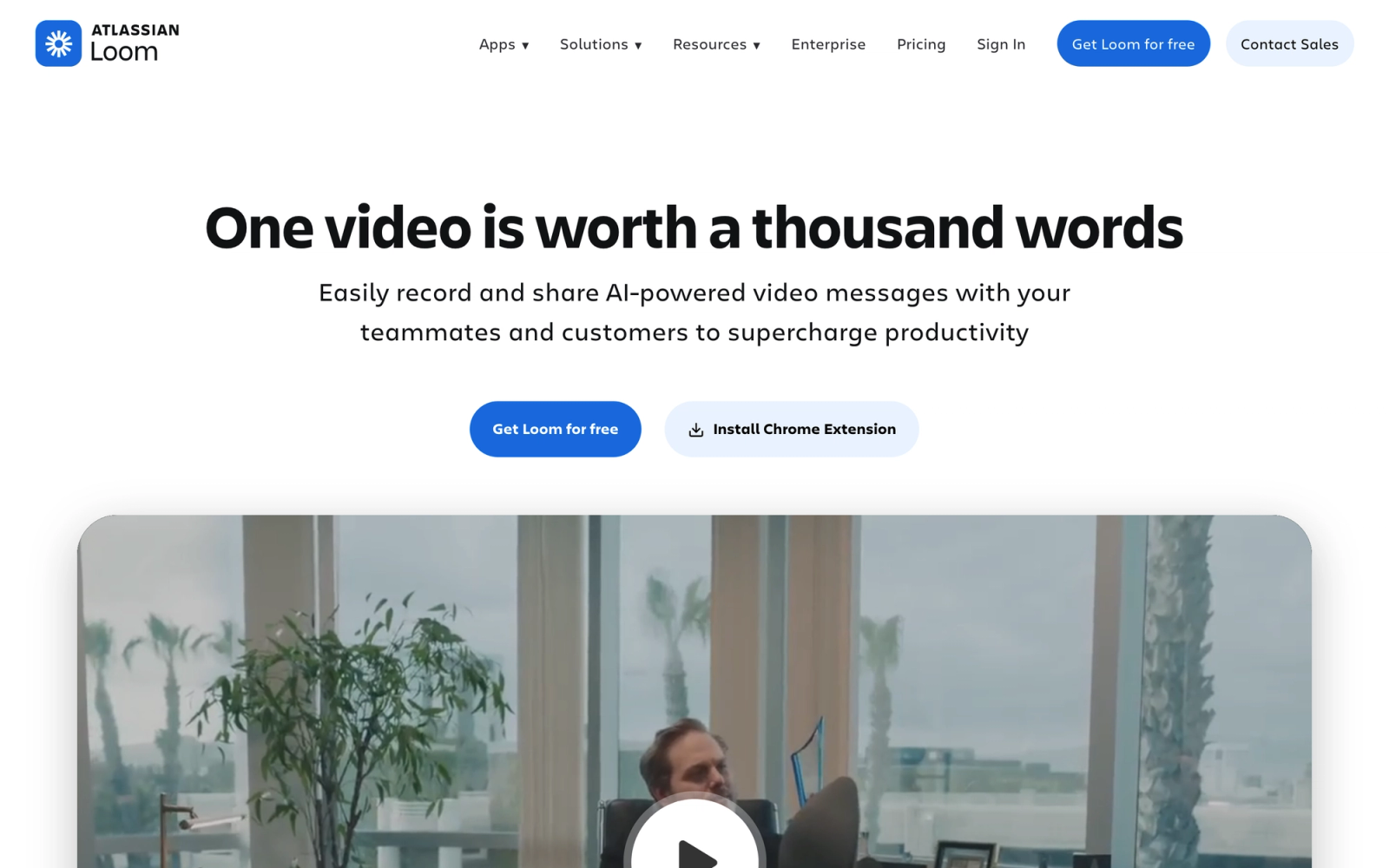
Loom repositioned screen recording as a communication act rather than a production task. Instead of writing long emails or scheduling meetings, you record your screen, add a webcam bubble, and share an instant link. The recipient watches on their own time, and the whole loop from recording to delivery takes under a minute.
Where Camtasia is a production tool built for polished output, Loom is a communication tool built for speed. There is no rendering step, no file export, no upload queue, you click record, talk through your point, stop, and the link is ready. For teams that need to explain things visually without producing formal video content, Loom removes most of the overhead that a desktop editor adds.
Core Capabilities
- Browser extension and desktop app for screen, camera, or screen-plus-camera recording
- Instant shareable links with password protection and expiration settings
- Viewer analytics showing who watched, how much they viewed, and where they dropped off
- Drawing and annotation tools during recording for highlighting key areas on screen
- Auto-generated transcripts and closed captions for accessibility
- Basic trim, stitch, and clip editing directly in the browser
- Custom branding options for video pages and player
- Integration with Slack, Notion, Gmail, and other productivity tools
- AI-powered video summaries and automatic chapter generation
- Centralized video library with folder organization and team workspace
Standout Strength
Speed to share. Loom removes every friction point between having a thought and sharing it as a video. For distributed teams where async communication replaces meetings, that speed is the entire value proposition. No other tool on this list matches Loom's record-to-share workflow.
Best For
Remote and hybrid teams that use video for internal communication: product walkthroughs, bug reports, design feedback, quick status updates, and onboarding explanations. Particularly strong for customer success teams sending personalized video responses and managers giving feedback to remote employees.
Pricing Overview
- Free plan: 25 videos, 5-minute maximum per video
- Business plan: $12.50 per user per month (billed annually)
- Enterprise: Custom pricing
- 14-day free trial on paid plans
Limitations
- Editing is minimal. You can trim and stitch, but there are no multi-track timelines, callouts, transitions, or motion graphics.
- The free plan is restrictive. Twenty-five videos at five minutes each is not enough for regular use.
- Video quality maxes out at 4K on paid plans, but there is no control over bitrate, codec, or export format.
Quick Comparison Insight
Much faster than Camtasia for async communication, but not a replacement for structured video production. Choose Loom when speed matters more than polish.
ScreenPal (Screencast-O-Matic)
Overview
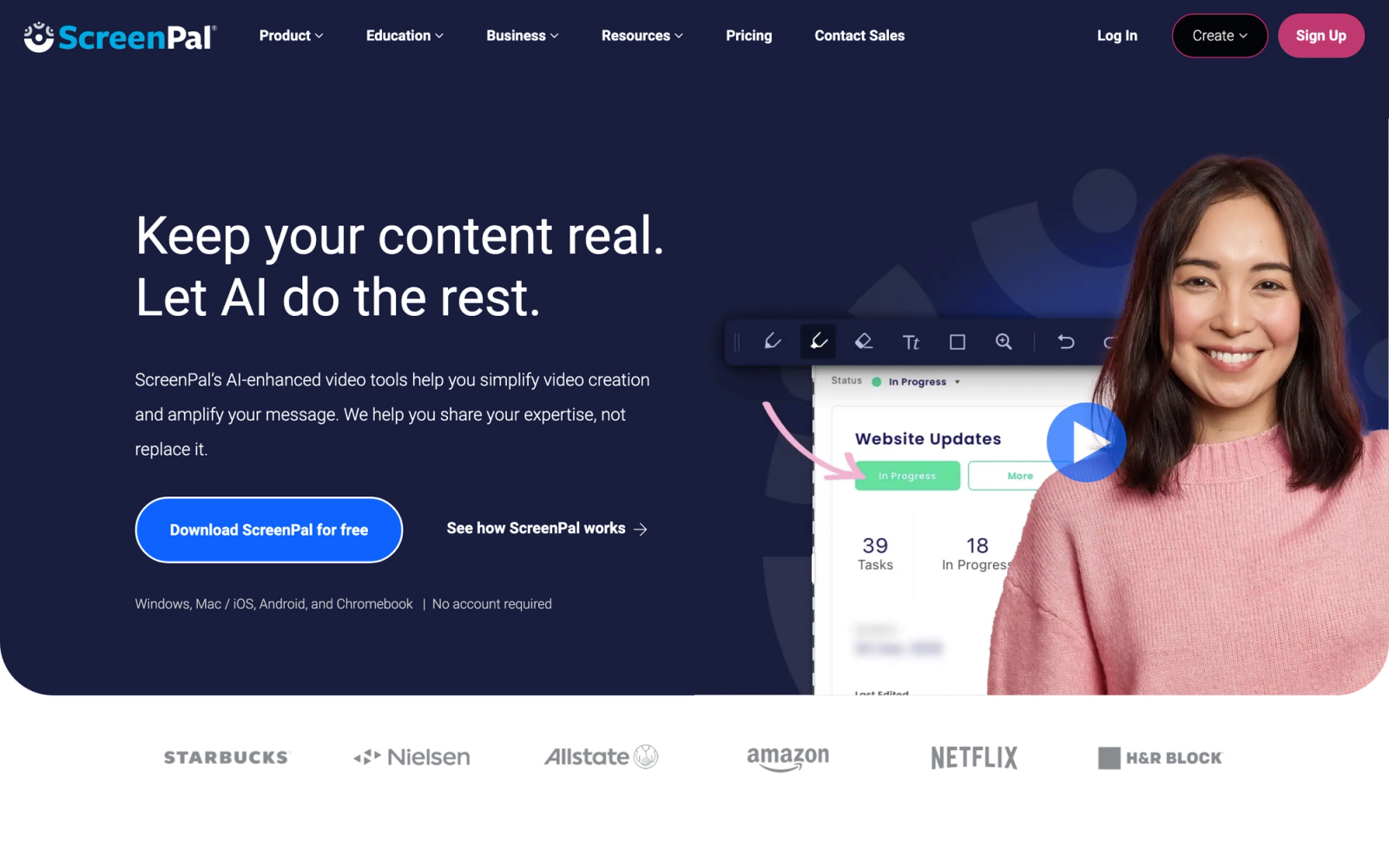
ScreenPal, formerly Screencast-O-Matic, is one of the longest-established screen recording tools in the education and training space. It combines screen and webcam recording with a built-in video editor and a content hosting platform, making it a mid-range alternative to Camtasia that covers the full produce-and-distribute workflow without requiring a separate tool.
ScreenPal deliberately keeps complexity low. The recorder launches quickly, the editor uses a simplified timeline, and the publishing workflow connects directly to YouTube, Google Drive, or ScreenPal's own hosting. Where Camtasia requires you to learn a layered timeline with effects and animations, ScreenPal's editor stays focused on the essentials: trimming, overlays, narration, captions, and basic transitions. For educators and trainers who need to produce and publish tutorial content without a steep onboarding process, that scope is a practical advantage.
Core Capabilities
- Screen, webcam, and screen-plus-webcam recording with region selection
- Built-in video editor with timeline, narration, and overlay support
- Stock music library, shapes, arrows, and text annotations
- Automated captions and speech-to-text transcription
- Green screen (chroma key) support for webcam recordings
- Scripted recording mode with a built-in teleprompter
- Direct publishing to YouTube, Vimeo, Google Drive, and Dropbox
- ScreenPal hosting with shareable links and basic viewer analytics
- Team management features for education and business accounts
- Screenshot capture with annotation and sharing tools
Standout Strength
Education-focused workflow. ScreenPal was built with teachers and instructional designers in mind. The combination of simple recording, built-in editing, caption generation, and LMS-compatible hosting means educators can produce and distribute content without switching between multiple applications.
Best For
Educators, instructional designers, and corporate trainers who produce tutorial videos, course content, and how-to guides regularly. Particularly strong for K-12 and higher education teams that need affordable, accessible tools and for organizations building online learning libraries at scale.
Pricing Overview
- Free plan: Recording up to 15 minutes with watermark
- Solo Deluxe: $3.00 per month (billed annually)
- Solo Premier: $6.00 per month (billed annually)
- Solo Max: $10.00 per month (billed annually)
- Team plans available with volume discounts
Limitations
- The video editor lacks the depth of Camtasia's timeline. Complex multi-track projects with layered effects are not practical in ScreenPal.
- Export options are limited compared to professional tools. Format and codec control is basic.
- The interface, while simple, can feel dated in places, particularly the editor's asset management.
Quick Comparison Insight
Significantly cheaper than Camtasia and faster to learn, but with a lower ceiling for advanced editing. The right choice when production speed and accessibility matter more than editing sophistication.
OBS Studio
Overview
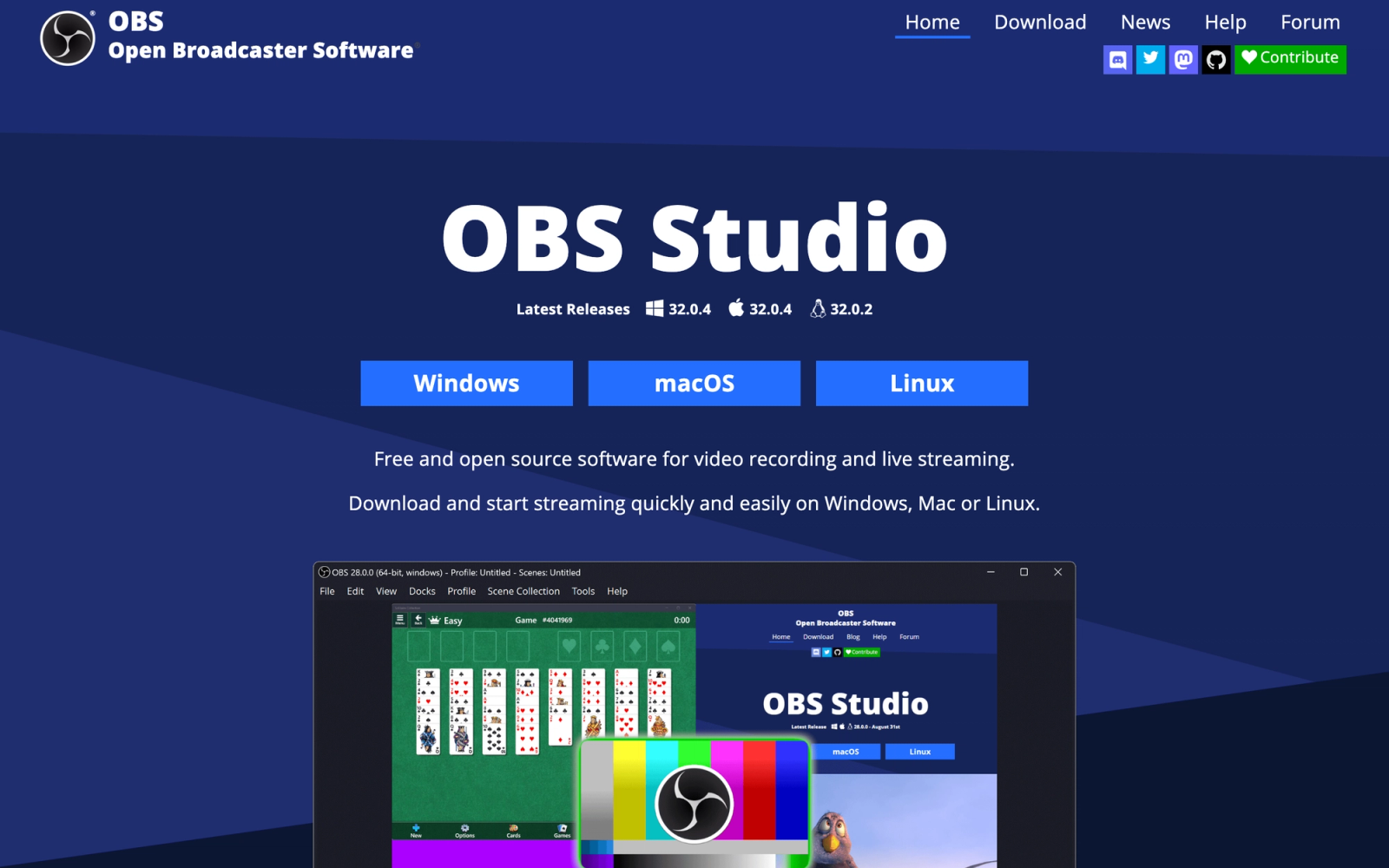
OBS Studio (Open Broadcaster Software) is a free, open-source screen recording and live streaming application. It is the most capable free recording tool available, and it is used by streamers, educators, and professionals who need granular control over their capture setup without paying for a license.
OBS is not an editor. It records and streams, and it does both with more configurability than Camtasia offers on the capture side: multiple scenes, audio mixing, source layering, custom transitions between scenes, and real-time filters. The trade-off is clear, though. There is no built-in editing timeline. Once you finish recording, you need a separate tool to cut, annotate, and polish the footage. For users who already have an editor they prefer, OBS covers the recording gap at zero cost.
Core Capabilities
- Unlimited screen, window, and region capture at any resolution, including 4K and beyond
- Scene-based recording with instant switching between layouts
- Real-time audio mixing with per-source volume control, noise suppression, and gain adjustment
- Studio mode with preview and program displays for live production
- Plugin stack with hundreds of community-built extensions
- Virtual camera output for feeding OBS content into Zoom, Teams, or Google Meet
- Custom transitions, stinger animations, and scene effects
- RTMP and SRT streaming to Twitch, YouTube, Facebook, and custom servers
- Hardware encoding support (NVENC, QSV, AMF) for efficient recording on lower-spec machines
- Modular source system supporting images, videos, browser overlays, and NDI feeds
Standout Strength
Zero cost with professional-grade recording capabilities. OBS handles use cases that Camtasia cannot, including multi-source recording, live streaming, and hardware-accelerated encoding. For users comfortable with a configuration-based interface, OBS provides more recording power than any paid tool on this list.
Best For
Technical users, live streamers, educators running live sessions, and anyone who needs a free, high-quality recording tool and already has a separate video editor. Particularly strong for teams that need to record live workshops or produce multi-source content for later editing.
Pricing Overview
- Completely free and open-source
- No paid tiers, no feature gating, no watermarks
- Supported by donations and sponsorships
Limitations
- No built-in video editor. You need a separate application for trimming, annotations, effects, and export.
- The learning curve is steep. Configuring scenes, sources, and encoding settings takes time and technical comfort.
- The interface is functional but not intuitive. First-time users often find it overwhelming compared to Camtasia's guided setup.
Quick Comparison Insight
More powerful than Camtasia for recording and streaming, but requires a separate editor. Choose OBS when budget is zero and you are willing to invest time in configuration.
Snagit
Overview
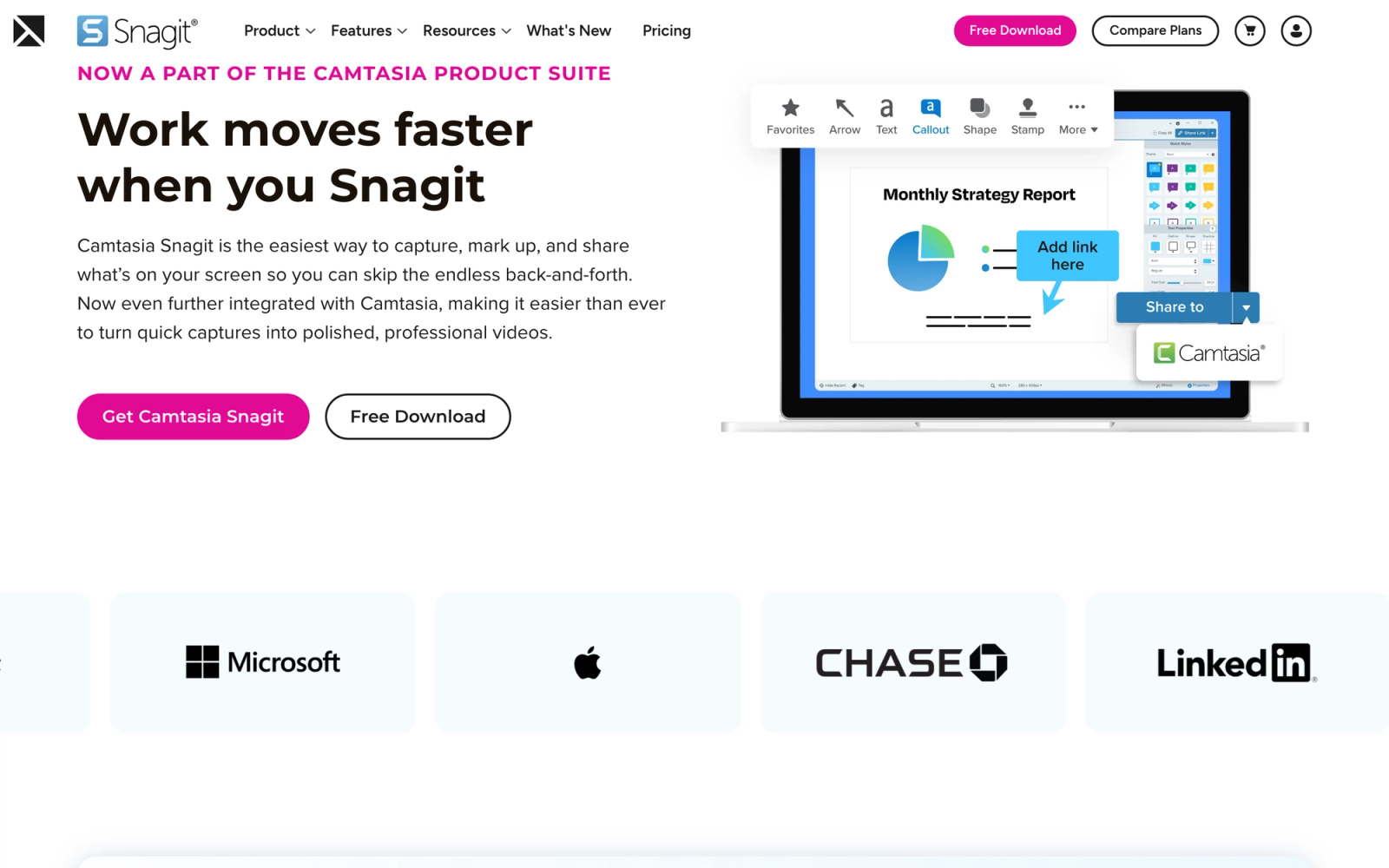
Snagit is Camtasia's sibling product from TechSmith, designed for quick screen captures and short video recordings rather than full video production. Where Camtasia is the full studio, Snagit is the quick-draw tool you use twenty times a day for screenshots, annotations, and brief explainer clips.
Snagit's primary strength is the speed of its capture-to-share cycle. It handles content that does not warrant opening a full video editor: annotated screenshots for documentation, 60-second process walkthroughs, and GIF captures for team chat. The annotation toolkit, arrows, callouts, stamps, and automatic step numbering, is purpose-built for explaining things visually. For teams producing technical documentation and process guides, that coverage eliminates the need to open heavier software.
Core Capabilities
- Full-screen, window, region, and scrolling capture for screenshots
- Video recording with webcam overlay, system audio, and microphone input
- Annotation toolkit with arrows, callouts, stamps, numbered steps, and text boxes
- Step tool that automatically numbers sequential actions in a screenshot
- Panoramic scrolling capture for long web pages, chat threads, and documents
- GIF creation from screen recordings
- Quick edit tools for cropping, resizing, adding borders, and applying effects
- Templates for combining multiple screenshots into visual guides
- Direct sharing to Slack, Teams, email, cloud storage, and TechSmith Screencast
- Library for organizing and searching past captures with tags and filters
Standout Strength
Screenshot and annotation speed. No tool on this list matches Snagit for the specific workflow of capturing a screen, marking it up with annotations, and sharing it within seconds. For teams that need annotated visuals more than polished videos, Snagit is more practical than Camtasia on a daily basis.
Best For
Technical writers, support teams, product managers, and anyone who produces annotated screenshots, short process videos, and visual guides as part of their regular workflow. Particularly strong for employee onboarding documentation and internal knowledge bases.
Pricing Overview
- One-time license: $62.99
- Annual maintenance plan for updates available as an add-on
- Free trial available
- Volume licensing for teams
Limitations
- Video editing is minimal. You can trim recordings, but there is no timeline, no multi-track editing, and no transitions.
- Not designed for producing polished video content. If you need tutorials with effects and overlays, Snagit is the wrong tool.
- Like Camtasia, it is a desktop application with no cloud editing or collaboration features.
Quick Comparison Insight
Much cheaper and faster than Camtasia for screenshot-heavy workflows, but not a video production replacement. Choose Snagit when annotated captures are your primary output.
Filmora
Overview
Filmora by Wondershare is a desktop video editor that targets the space between consumer tools like iMovie and professional suites like Premiere Pro. It includes a built-in screen recorder, which makes it a viable Camtasia alternative for users who want both capture and editing in a single application.
Filmora's editing interface is more feature-rich than Camtasia's. The effects library is broader, the preset templates give new users a starting point for polished output, and the timeline handles complex sequences more smoothly. The built-in screen recorder is functional but basic by comparison, no cursor effects, no drawing tools during capture. Where Filmora earns its place is in post-production: color correction, speed ramping, keyframe animation, and AI-powered features like background removal and auto-reframe that Camtasia does not offer.
Core Capabilities
- Built-in screen recorder with webcam overlay and audio capture
- Multi-track timeline editor with drag-and-drop functionality
- Extensive effects library including transitions, filters, overlays, and titles
- AI-powered features: smart cutout, auto-reframe, background removal, noise reduction
- Keyframe animation for motion graphics and text effects
- Speed ramping for flexible pacing control
- Color correction and grading tools
- Audio editing with ducking, equalization, and beat sync
- Direct export to YouTube, Vimeo, and TikTok
- Template library for intros, outros, and lower thirds
Standout Strength
Editing polish at a lower learning curve. Filmora gives users access to effects and editing capabilities that approach mid-tier professional tools, without requiring the technical knowledge that Premiere Pro or DaVinci Resolve demand. For creators who find Camtasia's editor limiting but are not ready for a professional NLE, Filmora sits in a productive middle ground.
Best For
Content creators, educators, and small marketing teams that need to produce polished video content, including tutorials, product demos, social media clips, and course content. Best for users who want more editing power than Camtasia offers but do not need the depth of a professional suite.
Pricing Overview
- Free plan: Full editing with watermark on exports
- Cross-platform annual plan: $49.99 per year
- Cross-platform perpetual plan: $79.99 one-time
- Add-on packs for effects and templates available separately
Limitations
- The built-in screen recorder is basic compared to Camtasia's. No drawing tools during recording, no cursor effects, and limited annotation options during capture.
- Some AI features require an active internet connection and may have usage limits on lower-tier plans.
- The effects library includes many paid add-ons, so the real feature set depends on which packs you purchase.
Quick Comparison Insight
Stronger video editor than Camtasia with weaker screen recording. Choose Filmora when editing quality matters more than capture features.
DaVinci Resolve
Overview
DaVinci Resolve by Blackmagic Design is a professional-grade video editing, color grading, visual effects, and audio post-production suite. It is used in Hollywood productions, and the free version includes more editing power than most paid tools on this list. It is not a screen recorder, but for users who need serious post-production capabilities after recording with another tool, DaVinci Resolve is in a different class entirely.
The depth is evident from first launch. DaVinci Resolve's multi-page workspace, Edit, Cut, Fusion, Color, Fairlight, Deliver, is structured around professional production disciplines rather than a single-track editor. The Color page alone contains more grading tools than Camtasia's entire feature set. For teams producing training content or marketing videos where production quality affects how audiences perceive the material, DaVinci Resolve operates at a level Camtasia does not reach.
Core Capabilities
- Professional multi-track timeline editor with magnetic and freeform modes
- Industry-leading color correction and grading with HDR support and color matching
- Fusion visual effects and motion graphics with node-based compositing
- Fairlight audio post-production suite with multi-track mixing, EQ, dynamics, and spatial audio
- Multi-user collaboration with shared project databases and timeline locking
- AI-powered features including magic mask, smart reframe, and speed warp
- Support for virtually every video format, codec, and resolution up to 32K
- Built-in media management, proxy workflow, and timeline comparison tools
- Direct delivery to YouTube, Vimeo, and custom export presets
- Hardware acceleration for NVIDIA, AMD, and Apple Silicon GPUs
Standout Strength
Professional production quality at zero cost. The free version of DaVinci Resolve includes features that competing tools charge hundreds or thousands of dollars for. Color grading, multi-track audio mixing, and visual effects compositing are all included without watermarks or export restrictions. No other free tool offers this level of post-production depth.
Best For
Video production teams, filmmakers, and organizations that need broadcast-quality editing, color grading, and audio post-production. Particularly strong for L&D teams and media departments producing high-value video-based training where production quality directly affects learner engagement and credibility.
Pricing Overview
- Free version: Full editing, color, Fusion, and Fairlight with minor limitations
- DaVinci Resolve Studio: $295 one-time (perpetual license, no subscription)
- Free version has no watermarks and no time-limited export restrictions
Limitations
- No screen recording capability. You need a separate tool (OBS, Loom, or the OS-native recorder) to capture your screen before editing in DaVinci Resolve.
- The learning curve is significant. DaVinci Resolve is a professional application, and becoming proficient takes weeks or months depending on which pages you use.
- System requirements are demanding. The free version runs on most modern machines, but complex projects with Fusion effects need a capable GPU.
Quick Comparison Insight
Far more powerful than Camtasia for video editing and color grading, but it does not record screens. Choose DaVinci Resolve when production quality is the priority and you have a separate recording workflow.
Descript
Overview
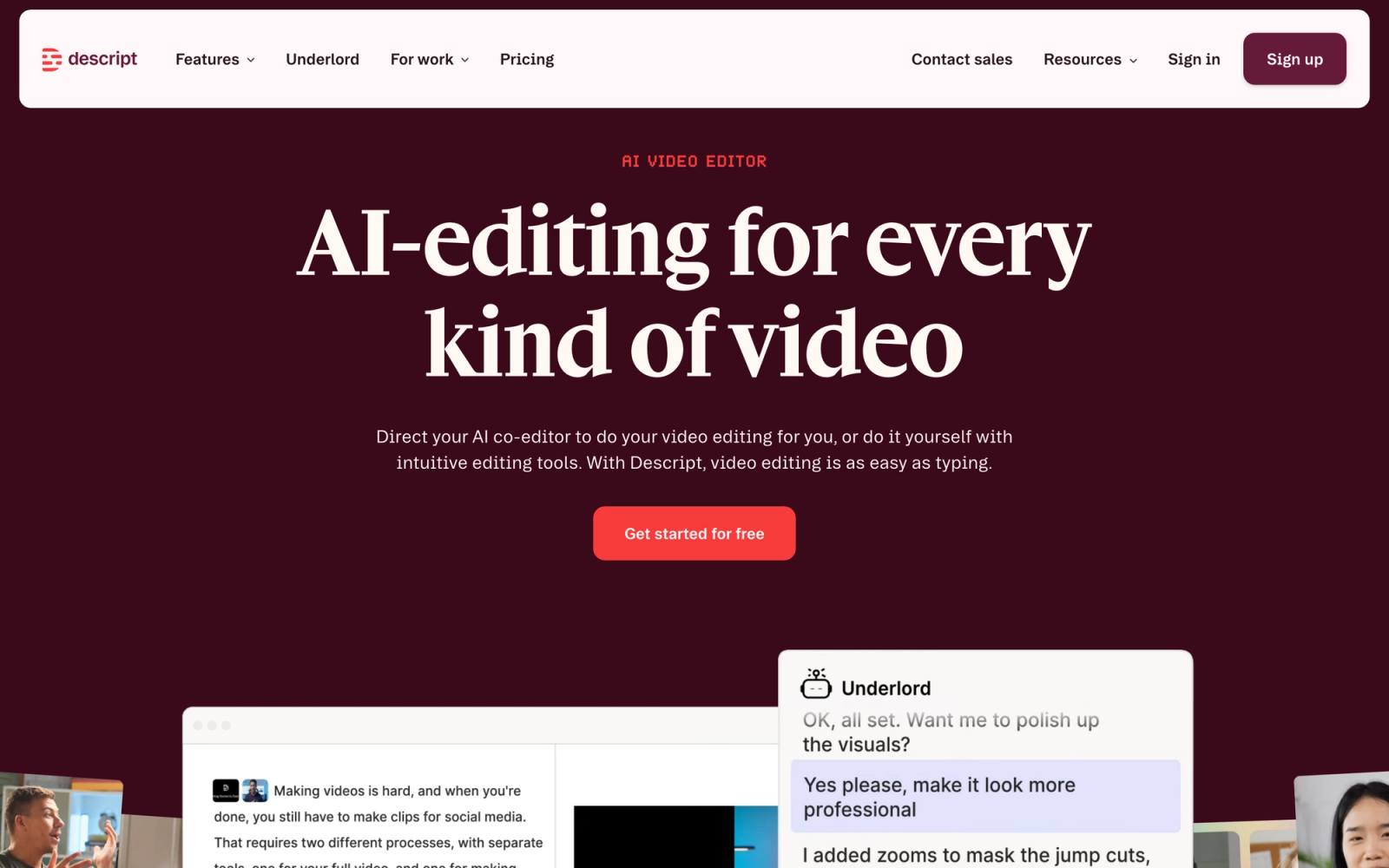
Descript takes a fundamentally different approach to video editing. Instead of a traditional timeline, you edit video by editing text. The application transcribes your recording, and when you delete or rearrange words in the transcript, the video follows. It also includes screen recording, webcam capture, and AI-powered tools that remove filler words, correct eye contact, and clone your voice for corrections.
The text-first editing model changes the workflow in concrete ways for narration-heavy content. Cutting out pauses, filler words, and tangents means deleting them from the transcript rather than scrubbing a timeline to find the right frame. For tutorials, course lectures, and explainer content where spoken narration drives the edit, that approach reduces editing time substantially compared to a traditional timeline.
Core Capabilities
- Screen recording with webcam overlay and system audio capture
- Automatic transcription with speaker detection and word-level timestamps
- Text-based video editing: delete words from the transcript to cut the video
- AI filler word removal (um, uh, like, you know) with one click
- AI eye contact correction that adjusts gaze to appear natural on camera
- Voice cloning for overdubbing corrections without re-recording
- Multi-track timeline for traditional editing when needed
- Template-based publishing for clips, audiograms, and social media formats
- Collaborative workspace with commenting and version history
- Direct publishing to YouTube, podcast platforms, and social channels
Standout Strength
Text-based editing removes the timeline learning curve entirely. For anyone who can use a word processor, Descript makes video editing accessible in a way that Camtasia and traditional editors cannot. The AI-powered cleanup tools (filler word removal, eye contact correction) add polish without manual effort.
Best For
Content creators, podcasters, educators, and marketing teams that produce narration-heavy content: tutorials, course lectures, product walkthroughs, and podcast episodes. Especially suited for teams where the people recording are not professional editors and need an intuitive editing path.
Pricing Overview
- Free plan: 1 hour of transcription per month, watermark on exports
- Hobbyist: $24 per month (billed annually)
- Business: $33 per month (billed annually)
- Enterprise: Custom pricing
Limitations
- Text-based editing works well for narration-driven content but is less effective for visually complex videos where the audio does not drive the edit.
- The screen recorder is functional but lacks the annotation and cursor effect tools that Camtasia offers during capture.
- Transcription quality depends on audio clarity. Noisy recordings or heavy accents can reduce accuracy significantly.
Quick Comparison Insight
Faster and more intuitive than Camtasia for narration-driven edits, but less capable for visual effects and screen-specific annotations. Choose Descript when your video content is built around what someone is saying.
Riverside
Overview
Riverside is a cloud-based recording platform built specifically for remote interviews, podcasts, and multi-participant video sessions. It records each participant's audio and video locally on their device at full quality, then syncs and uploads the tracks. This architecture produces studio-quality output from regular internet connections, which is something Camtasia's local recording model cannot replicate for remote collaboration.
Because Riverside records each participant locally rather than capturing a compressed video call stream, the output files are free of the artifacts that appear when screen-recording a Zoom session. Each participant's track arrives as a clean, high-resolution file regardless of network conditions during the call. The built-in editor handles layout switching, captions, and clip exports directly in the browser. For interview-style or panel-based content, that architecture eliminates the quality compromises inherent in recording a video call.
Core Capabilities
- Local recording of each participant's audio and video at up to 4K resolution
- Up to 8 simultaneous participants with individual high-quality tracks
- Browser-based recording with no software installation required for guests
- Built-in multi-track editor with layout switching, captions, and clip creation
- Automatic transcription in over 100 languages
- AI-powered highlight detection for identifying key moments
- Magic clips feature that generates social-ready short clips from longer recordings
- Screen sharing during recording sessions
- Custom branding for the recording studio and published content
- Integration with Zoom, Spotify, Apple Podcasts, and YouTube
Standout Strength
Remote recording quality. Riverside's local-first recording architecture means every participant's track is captured at full resolution regardless of network conditions. This solves the fundamental quality problem of recording video calls, a problem Camtasia and most screen recorders cannot address because they capture the compressed output of the call rather than the source.
Best For
Podcasters, media producers, and organizations that produce remote interviews, panel discussions, webinars, and multi-speaker content. Particularly valuable for L&D teams recording subject matter expert interviews and coaching sessions where audio quality directly affects the learning experience.
Pricing Overview
- Free plan: 2 hours of recording, 720p video
- Standard: $15 per month (billed annually)
- Pro: $24 per month (billed annually)
- Enterprise: Custom pricing
- All paid plans include unlimited recording time
Limitations
- Not designed for solo screen recording with annotations. If you need cursor effects, drawing tools, or step-by-step screen walkthroughs, Riverside is the wrong tool.
- The built-in editor handles layout and captions well but lacks the timeline depth needed for complex post-production.
- Participants need a stable internet connection for the upload phase. Large recordings on slow connections can take time to process.
Quick Comparison Insight
Superior to Camtasia for remote multi-person recordings, but not a replacement for solo screen recording and editing workflows. Choose Riverside when your content features conversations, not screencasts.
Synthesia
Overview
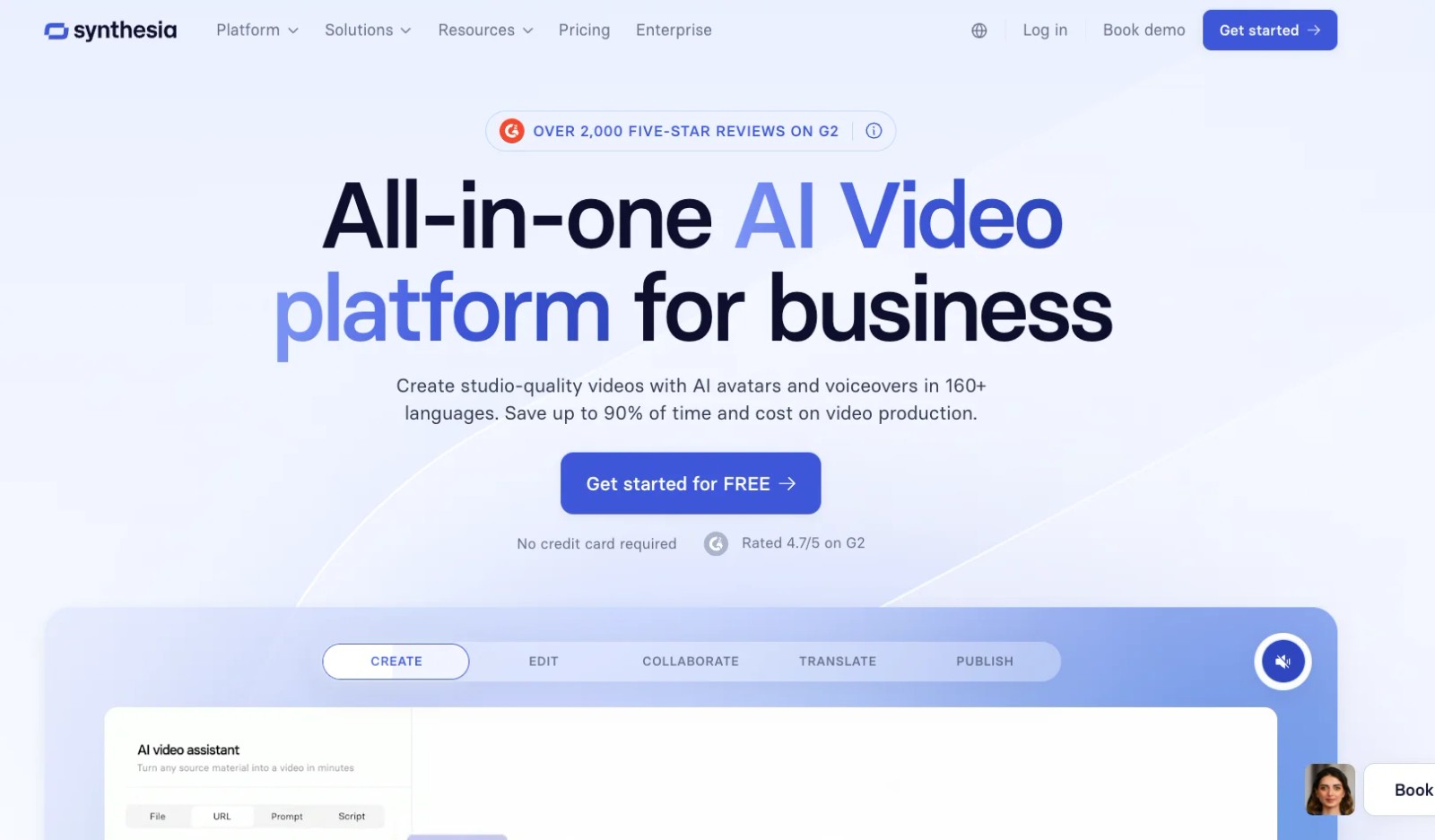
Synthesia is an AI video generation platform that creates presenter-led videos using AI avatars instead of real camera footage. You type a script, choose an avatar, and the platform generates a video with a realistic-looking presenter delivering your content. No camera, no studio, no recording session.
Where Camtasia requires you to record a presenter on camera or on screen, Synthesia removes the recording step entirely. Type a script, select an avatar and background, and the platform generates a finished video with synchronized narration and text overlays. For organizations producing high volumes of standardized training content, onboarding videos, or internal communications across multiple languages, that workflow shortcut is not replicable with traditional recording tools.
Core Capabilities
- AI avatar presenters with over 230 stock avatars in diverse appearances
- Custom avatar creation from a short recording of a real person
- Script-to-video generation in over 140 languages with automatic lip-sync
- Slide and media integration for combining avatar narration with visual content
- Brand kit support for consistent colors, fonts, logos, and backgrounds
- Screen recording integration for embedding walkthroughs alongside avatar narration
- Template library for common business video formats
- Collaborative editing workspace with commenting and approval workflows
- One-click translation for creating localized versions of existing videos
- API access for generating videos programmatically at scale
Standout Strength
Scalable video production without cameras or presenters. Synthesia lets organizations produce hundreds of consistent, branded videos by writing scripts rather than scheduling recording sessions. For global teams that need content in multiple languages, the one-click translation feature alone justifies the platform. No amount of Camtasia expertise can match the speed of generating a localized video from a script.
Best For
Enterprise L&D teams, HR departments, and internal communications teams that produce standardized training videos, compliance training content, product updates, and multilingual onboarding materials at scale. Not designed for casual screen recordings or informal communication.
Pricing Overview
- Starter: $22 per month (billed annually, 10 minutes of video per month)
- Creator: $67 per month (billed annually, 30 minutes of video per month)
- Enterprise: Custom pricing with higher volume and custom avatars
- Free demo available
Limitations
- AI avatars, while improving rapidly, are not indistinguishable from real presenters. Viewers familiar with AI-generated content will notice.
- The platform is designed for scripted content. Spontaneous, off-the-cuff screen recordings are not possible.
- Per-minute pricing means costs scale directly with volume. High-volume producers need Enterprise plans to keep costs manageable.
Quick Comparison Insight
Completely different from Camtasia in approach. Choose Synthesia when you need to produce presenter-led videos at scale without recording anyone on camera. Not a fit for screen recording workflows.
Where Teachfloor Fits
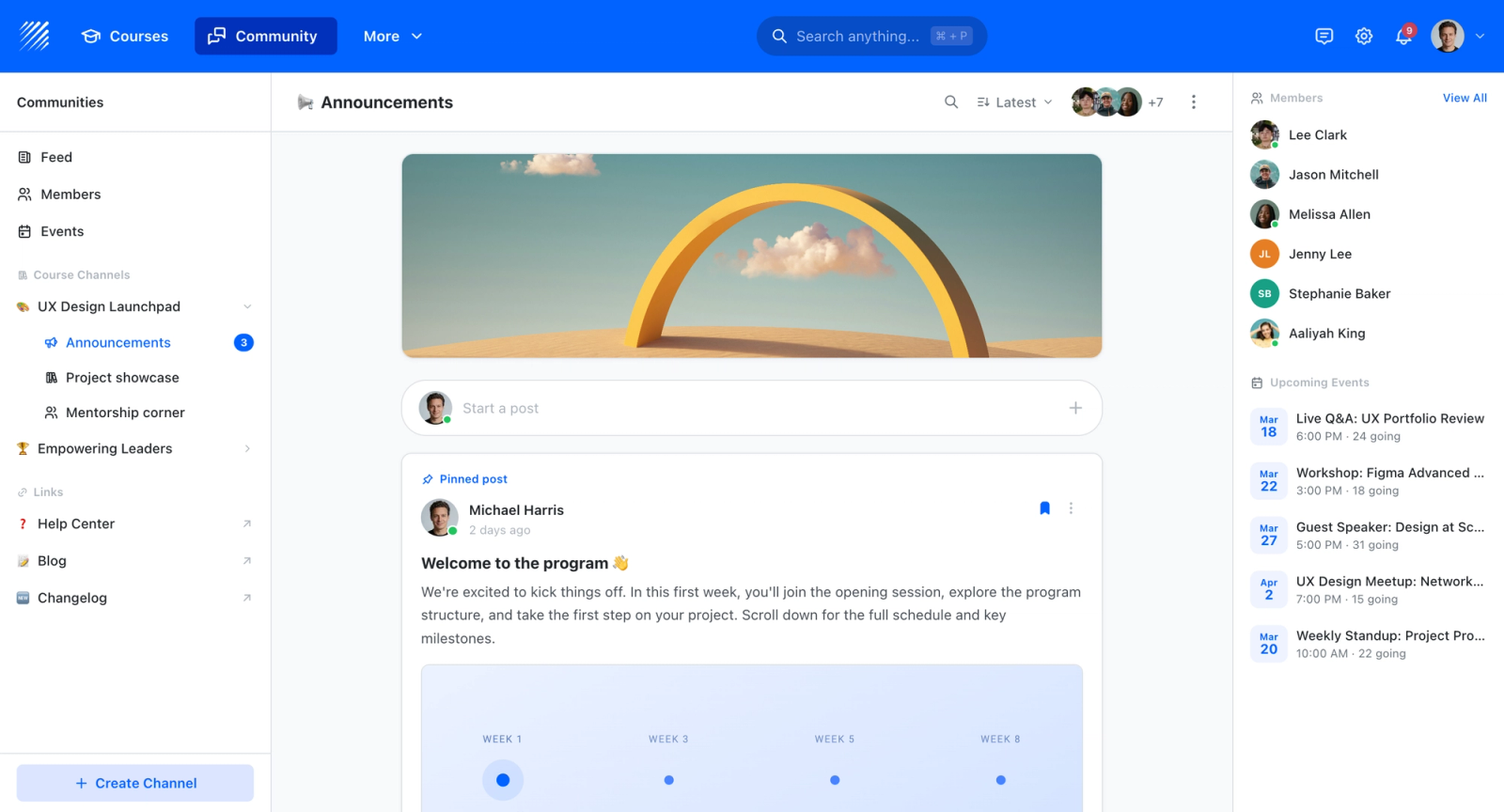
Every tool covered here either records a screen, edits footage, or does both. Teachfloor does neither, its role is what comes after. It hosts finished recordings as structured lessons, attaches quizzes and assessments, tracks completion and progress, and lets you deliver content to cohorts with peer interaction built in. The recording and editing decisions are upstream; Teachfloor is the delivery layer.
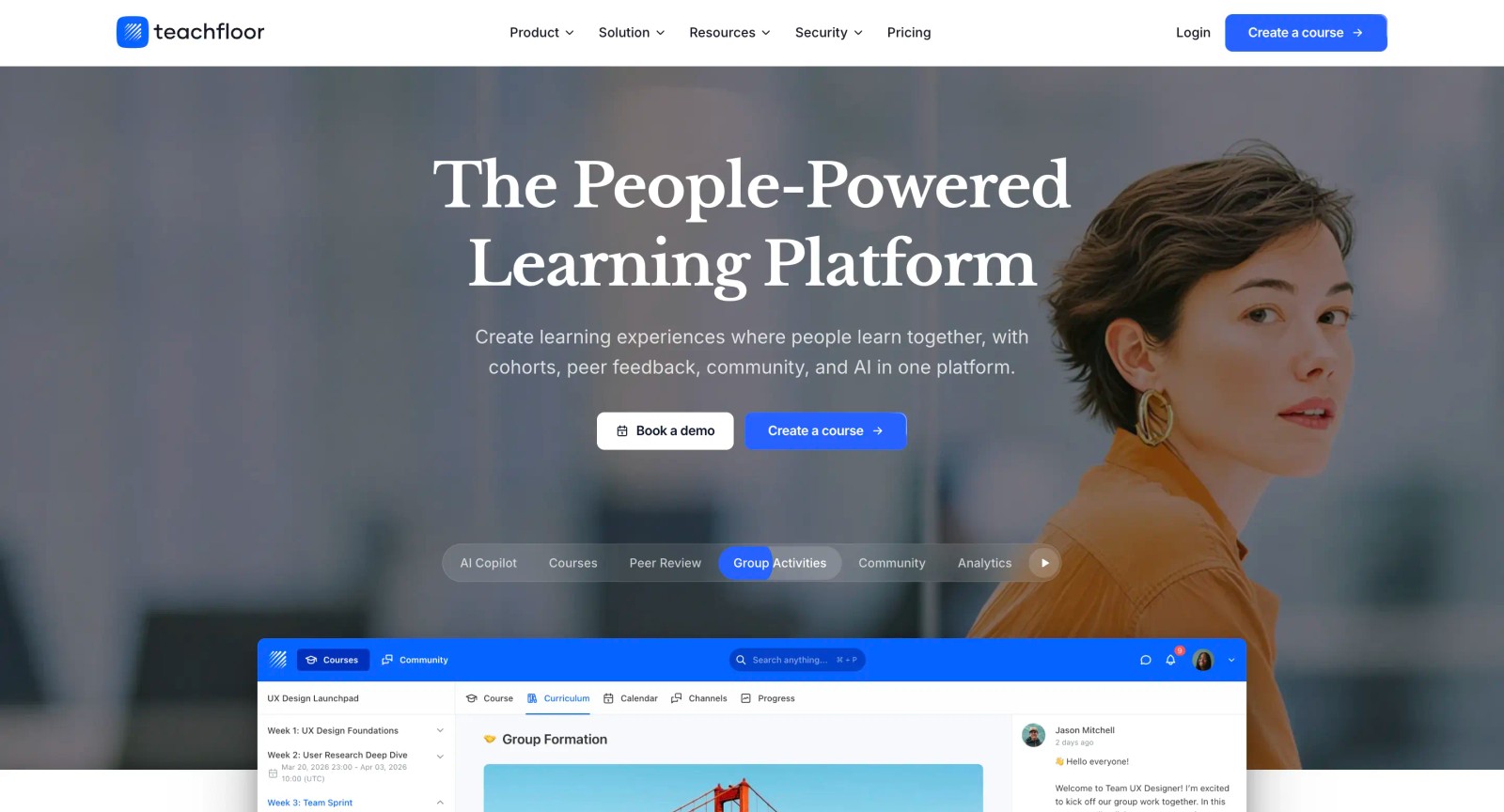
For teams that want to deliver recorded content as a structured learning program, with progress tracking, certificates, and community features, Teachfloor is designed for that use case specifically. Plans start at $89 per month and include a 14-day free trial.
How to Choose the Right Alternative
The right Camtasia alternative depends on which specific pain point you are solving. Rather than comparing feature lists, start with your workflow.
If cost is the primary concern, OBS Studio and DaVinci Resolve are both free and together cover recording and editing. OBS handles capture. DaVinci Resolve handles post-production. The trade-off is a steeper learning curve on both tools, but the output quality can exceed what Camtasia produces.
If you need speed over polish, Loom is the fastest path from recording to shared link. Snagit serves the same purpose for screenshot-heavy workflows. Neither replaces Camtasia for structured video production, but both eliminate its overhead for quick communication tasks.
If you need a direct Camtasia replacement with recording and editing in one application, ScreenPal and Filmora are the closest matches. ScreenPal is simpler and cheaper. Filmora offers a more capable editor. Both have lower system requirements than Camtasia.
If narration drives your content, Descript's text-based editing will save significant time on every project. Editing by transcript is faster than scrubbing a timeline, especially for tutorial and course content where spoken explanation is the backbone.
If you produce remote interviews or podcasts, Riverside solves a quality problem that screen-recording a video call cannot. The local recording architecture produces clean, high-resolution files from every participant regardless of connection quality.
If you need to produce training videos at scale without recording sessions, Synthesia lets you generate presenter-led content from scripts in dozens of languages. The per-minute cost model works well for enterprise teams with high volume and multilingual needs.
If your goal is structured learning delivery, Teachfloor picks up where recording tools leave off. It turns individual videos into cohort-based programs with peer interaction, progress tracking, and certificates.
The honest answer for most teams is that you will not replace Camtasia with a single tool. You will replace it with a workflow: one tool for recording, one for editing, and one for delivery. The tools above let you assemble that workflow based on your actual needs rather than paying for a monolithic application that does everything adequately but nothing exceptionally.
FAQ
Is there a completely free alternative to Camtasia?
Yes. OBS Studio handles screen recording with no cost, no watermark, and no feature restrictions. Pair it with DaVinci Resolve (also free) for editing, and you have a full recording-to-publishing workflow at zero cost. The learning curve is steeper than Camtasia, but the output quality is equal or better.
What is the best Camtasia alternative for beginners?
ScreenPal is the most accessible option. Its recorder is simple, its editor avoids unnecessary complexity, and the pricing starts at $3 per month. Filmora is another strong option if you want more editing depth without the complexity of professional tools.
Can I use Loom as a Camtasia replacement?
For async communication and quick screen recordings, yes. For producing polished tutorial videos with effects, annotations, and multi-track editing, no. Loom and Camtasia serve different purposes. If your recordings are primarily quick explanations shared with teammates, Loom is a better fit. If you are producing structured training content, you need more editing depth.
Which Camtasia alternative has the best video editing?
DaVinci Resolve, by a significant margin. Its free version includes professional-grade editing, color grading, audio post-production, and visual effects that exceed what Camtasia and most paid editors offer. The trade-off is complexity and the absence of built-in screen recording.
Is OBS Studio good for screen recording tutorials?
OBS is excellent for recording tutorials, but it requires a separate editor for post-production. The recording quality and flexibility are superior to Camtasia, and the zero cost makes it the default choice for budget-conscious creators. Pair it with a free or affordable editor to complete the workflow.
Do any Camtasia alternatives offer AI-powered editing?
Descript and Synthesia both use AI significantly. Descript uses AI for transcription, filler word removal, eye contact correction, and voice cloning. Synthesia uses AI to generate entire videos from scripts using AI avatars. Filmora also includes AI features like background removal and auto-reframe.
Free eLearning tools
Speed up your workflow with these free tools from Teachfloor:


