Introducing New App Layouts
Every organization has its own identity, and the platform people use every day should reflect it.
Until now, Teachfloor followed a classic horizontal navigation structure, with a branded header at the top and secondary navigation within individual pages.
Today, we're introducing two entirely new app layouts: Canvas and Canvas Topbar.
These layouts go beyond changing the appearance of Teachfloor. They introduce new ways to navigate the platform, organize information, and create a workspace that feels uniquely yours.
Combined with new color palettes, flexible branding options, and dark mode, they bring a new level of customization to the entire Teachfloor experience.
Three Layouts. Three Different Experiences.
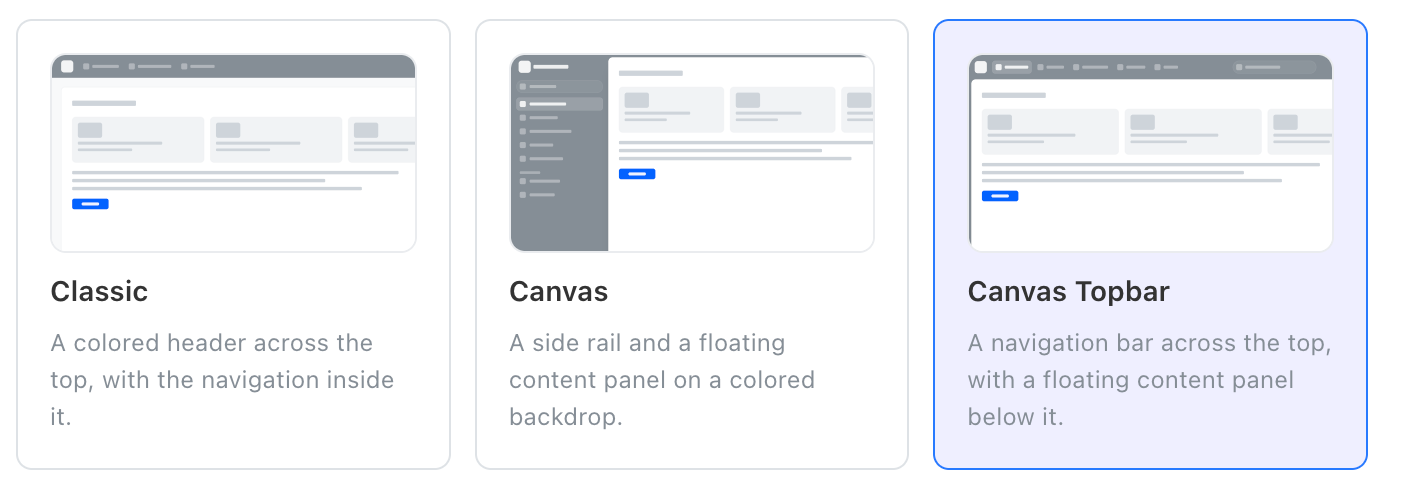
Organizations can now choose between three distinct application layouts, each designed around a different navigation experience.
Classic
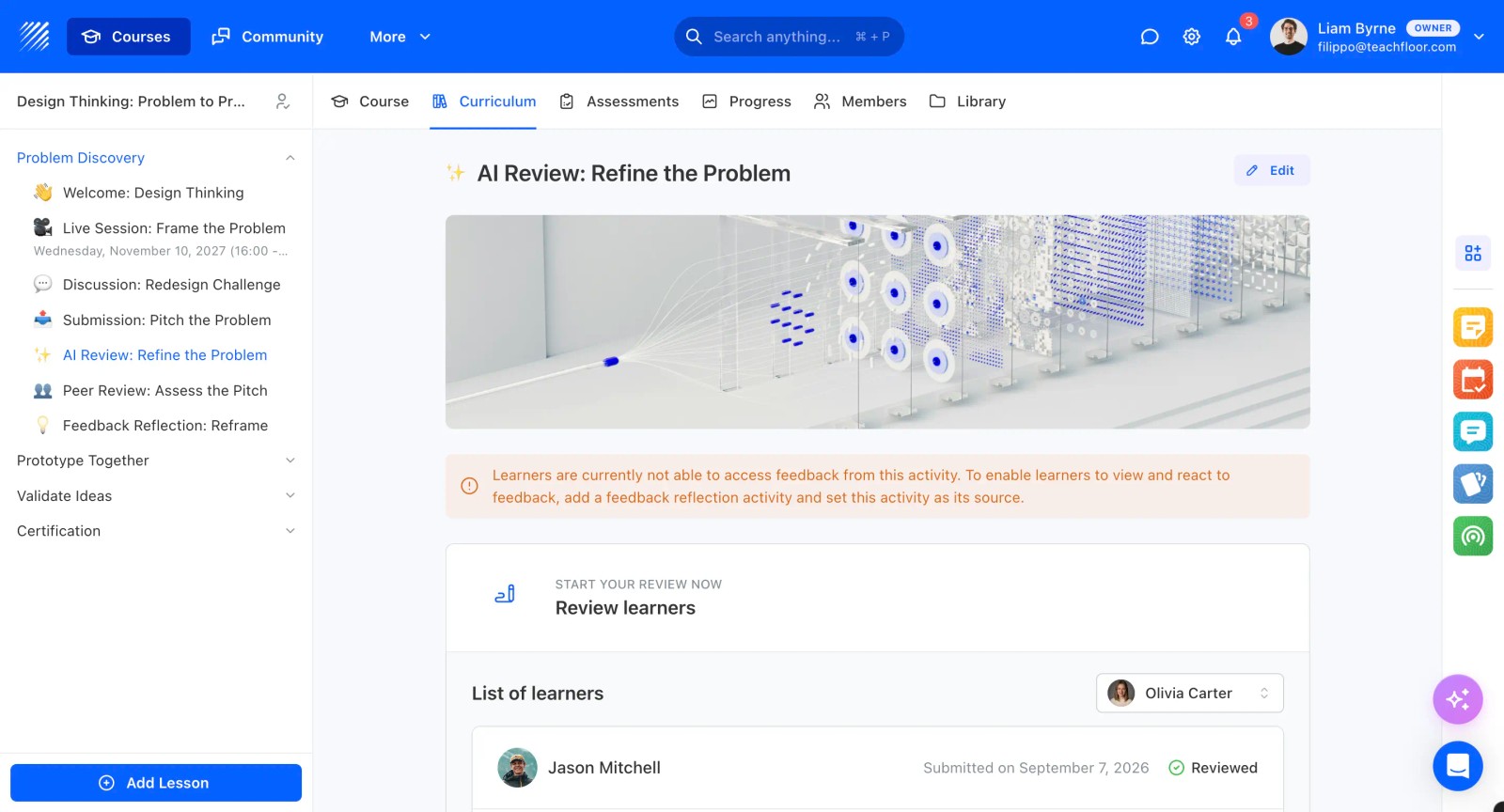
The familiar Teachfloor experience, with a horizontal navigation bar across the top and contextual navigation within individual pages.
Classic remains available for organizations that prefer a traditional, straightforward navigation structure.
Canvas
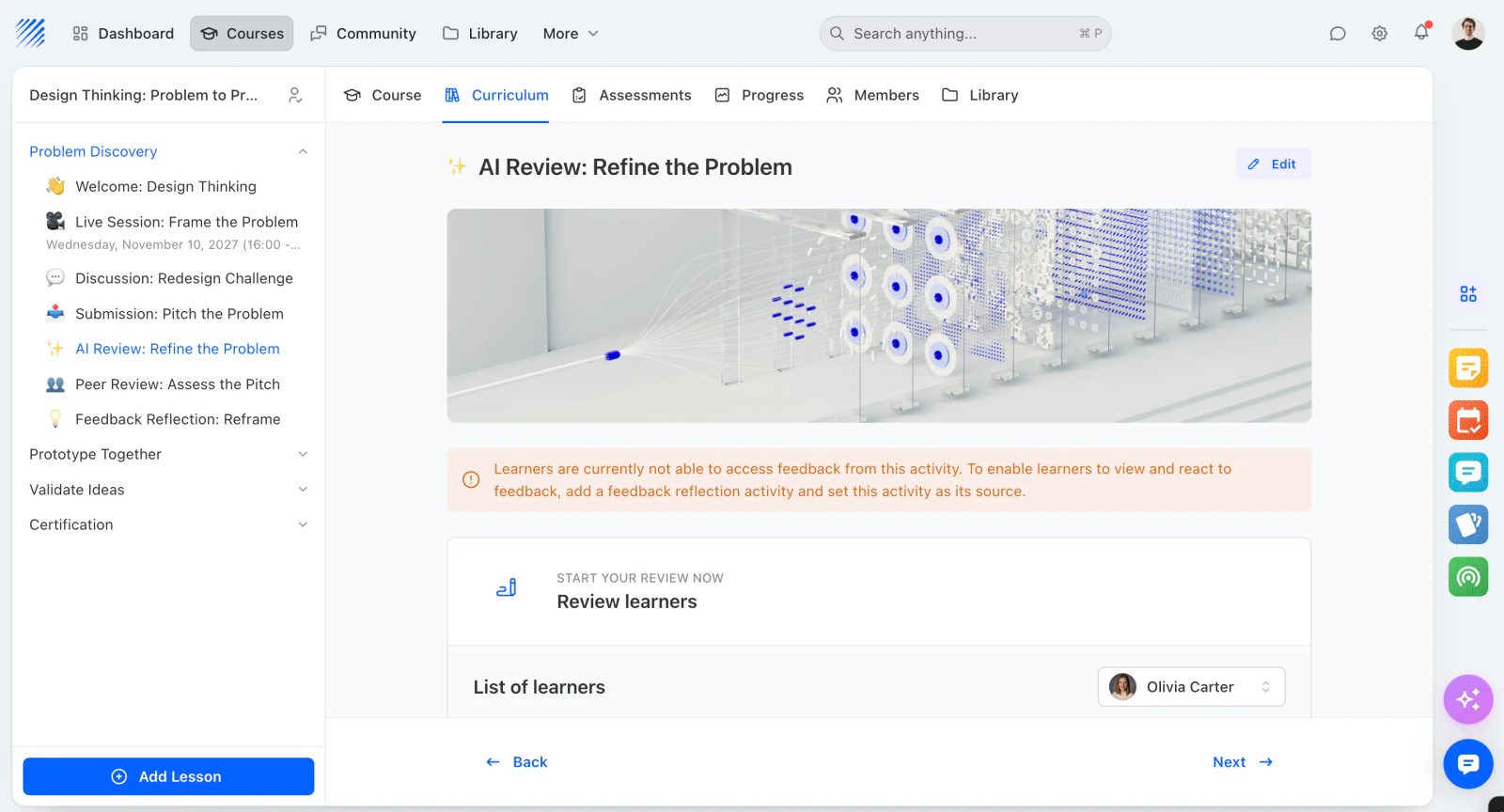
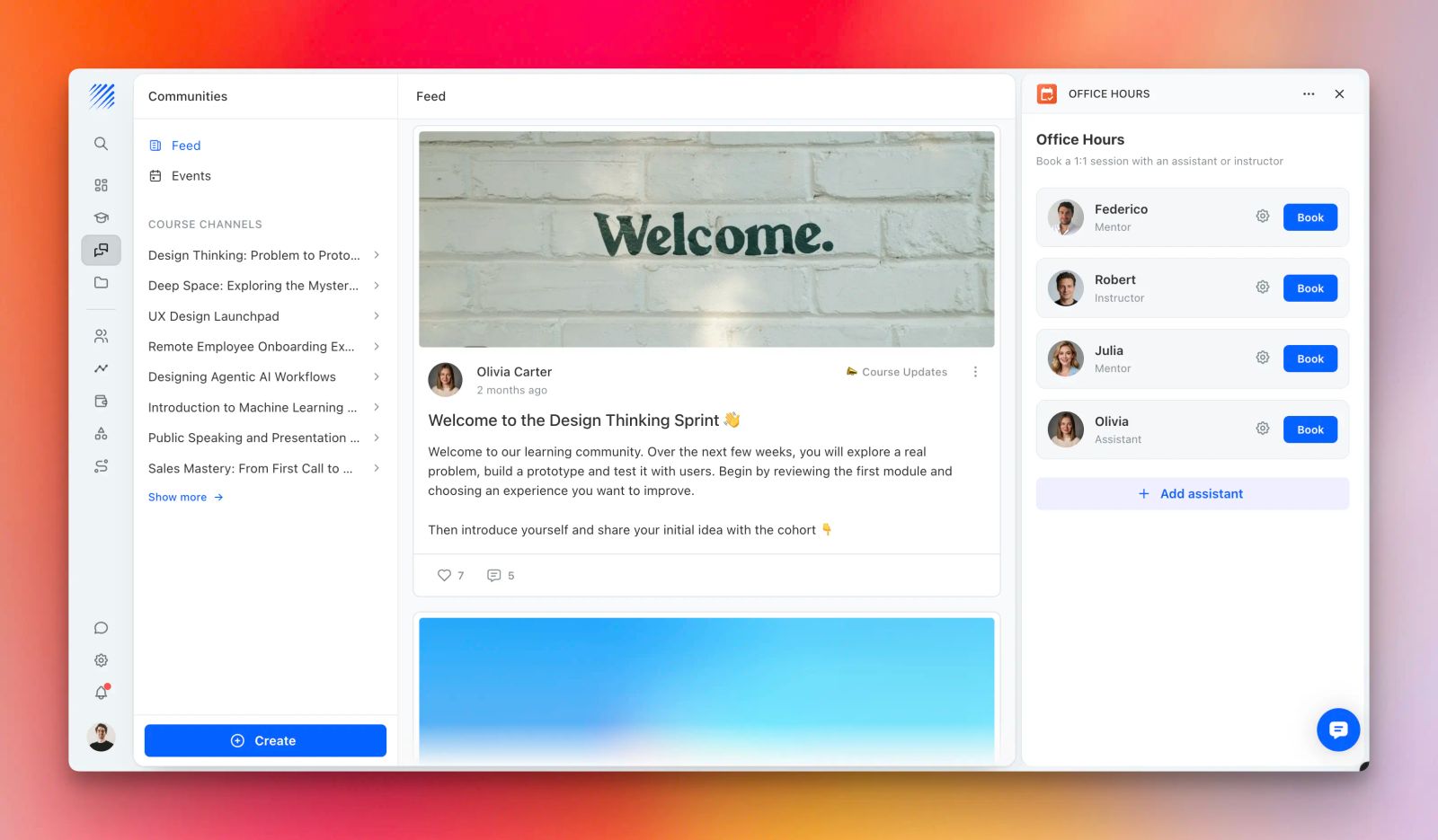
A completely redesigned navigation experience built around a vertical sidebar and a floating content panel on a colored background.
The main sidebar provides access to Teachfloor's primary sections and can be expanded or collapsed depending on the user's preference.
When a section includes additional navigation options, a secondary sidebar appears alongside the main menu, making it easier to navigate complex areas without losing context.
This layout creates a more structured workspace while giving content more room to breathe.
Canvas Topbar
Canvas Topbar combines the best of horizontal and vertical navigation.
Primary sections remain accessible through a navigation bar across the top, while secondary navigation appears in a dedicated sidebar.
Like Canvas, the main content sits inside a floating panel on a colored background, creating a clean and modern application experience.
It's a great option for organizations that prefer familiar top navigation but want the visual improvements and structure of the new Canvas interface.
Collapsible Navigation and Flexible Branding
The new Canvas layout introduces a collapsible sidebar, giving users more control over their workspace.
Expand the sidebar to see navigation labels and access different sections, or collapse it to create more room for content.
To support this experience, organizations can now configure two versions of their logo:
- Icon Logo: A compact version displayed when the sidebar is collapsed.
- Full Logo: The complete logo, including the organization name or wordmark, displayed when the sidebar is expanded.
This allows your branding to adapt naturally to the interface without compromising navigation or visual consistency.
Introducing Nine New Color Palettes
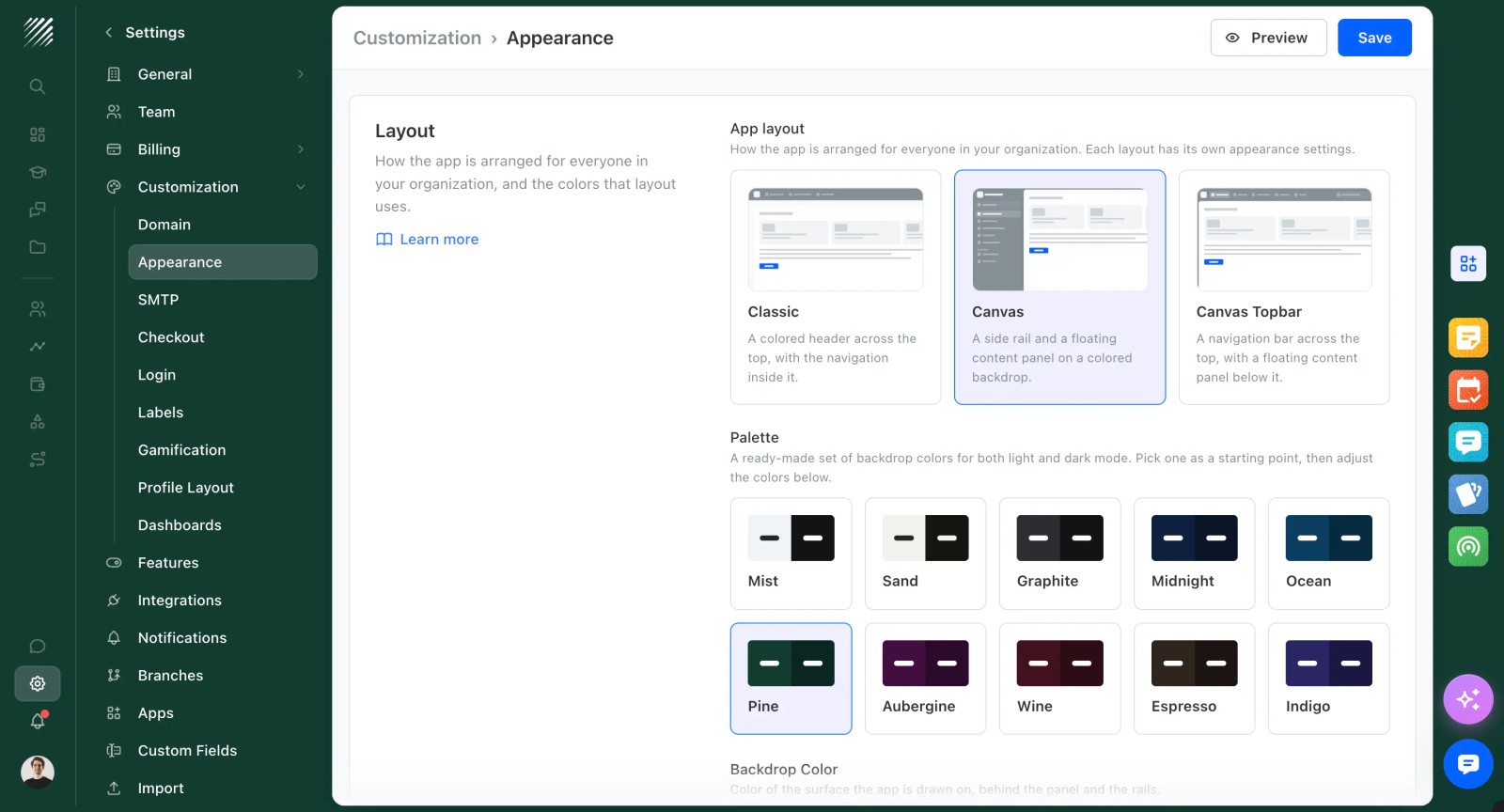
The new layouts also called for a different approach to color.
Teachfloor's signature blue header works beautifully with the Classic layout. But applying the same strong color to an entire vertical sidebar would create a very different visual experience.
That's why we've introduced nine carefully designed color palettes, each with its own personality.
- Mist: Light, neutral, and minimal.
- Sand: Warm, soft, and natural.
- Graphite: Modern and understated.
- Midnight: Deep, elegant, and professional.
- Ocean: Rich blue tones with a refined feel.
- Pine: Natural green tones.
- Aubergine: A distinctive, muted purple.
- Wine: Warm, sophisticated red tones.
- Espresso: Deep, earthy brown tones.
From minimal and neutral interfaces to richer, more distinctive colors, these palettes give organizations greater control over the overall look and feel of Teachfloor.
Each palette provides a coordinated starting point for the interface, with the flexibility to further customize its colors.
Designed for Light and Dark Mode
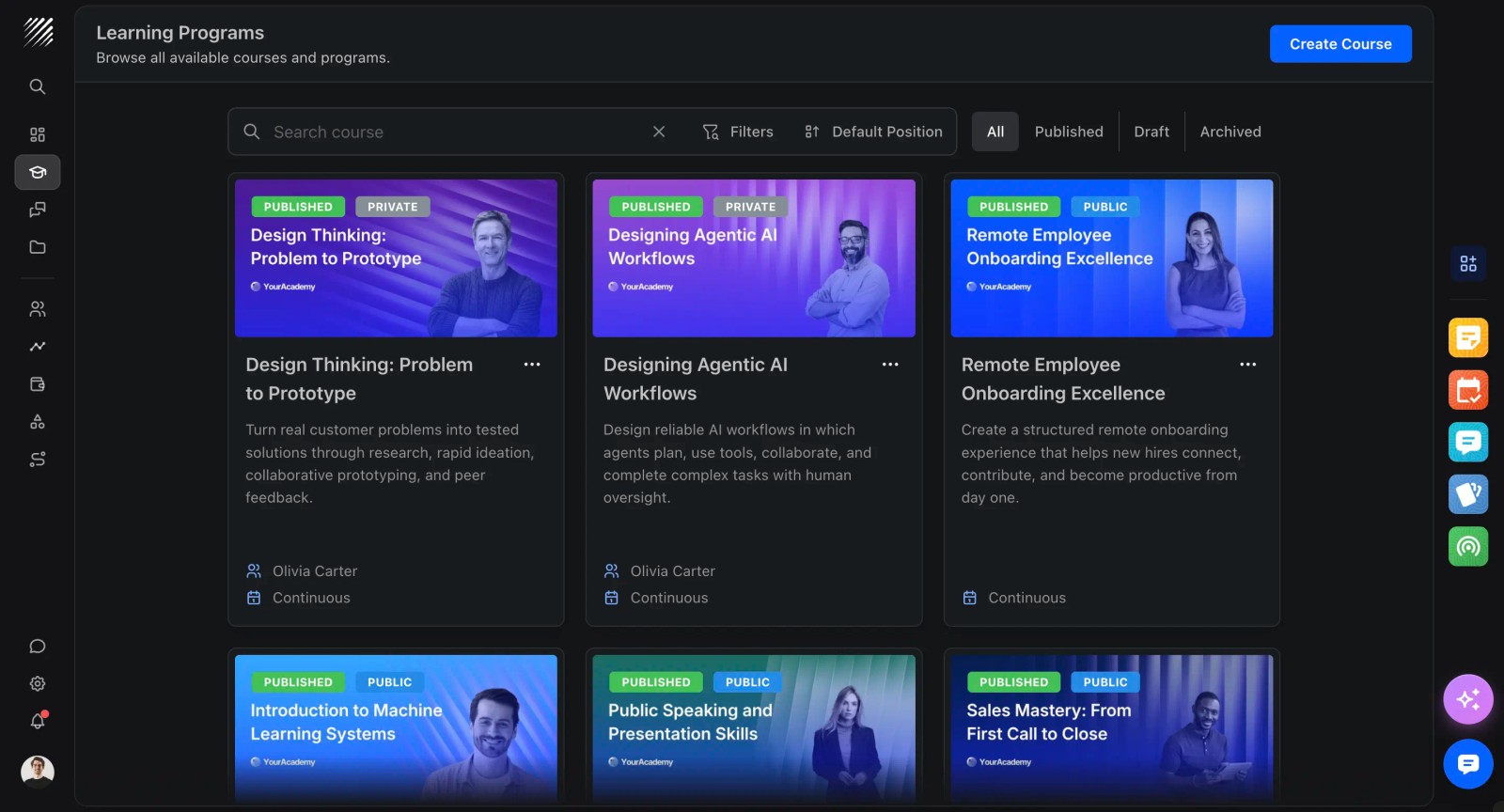
The new layouts aren't limited to light interfaces.
Canvas and Canvas Topbar also work beautifully in dark mode, with coordinated colors, navigation elements, and content surfaces designed to maintain a consistent visual experience.
Whether your organization prefers a bright, minimal workspace or a darker, more immersive interface, Teachfloor adapts to your preference.
You can preview both modes while configuring your appearance settings.
More Than a Visual Update
These new layouts represent another step toward making Teachfloor a truly customizable learning platform.
With Custom Dashboards, organizations can decide what information and widgets each user sees. With Teachfloor Apps, they can extend the platform with entirely new functionality.
Now, with Canvas and Canvas Topbar, they can also customize how the entire application is structured and navigated.
From the layout and navigation to the branding, colors, dashboards, and custom apps, organizations have more freedom to create a learning environment that feels like their own product rather than a generic LMS.
Available Now
Canvas and Canvas Topbar are now available in Teachfloor.
To explore the new layouts, navigate to Settings → Customization → Appearance.
Choose your preferred layout, explore the new color palettes, preview your design in light and dark mode, and save your changes.
Your organization, your branding, your Teachfloor.


