
Customize Your AI Assistant: Name, Tone, Avatar, and Prompts
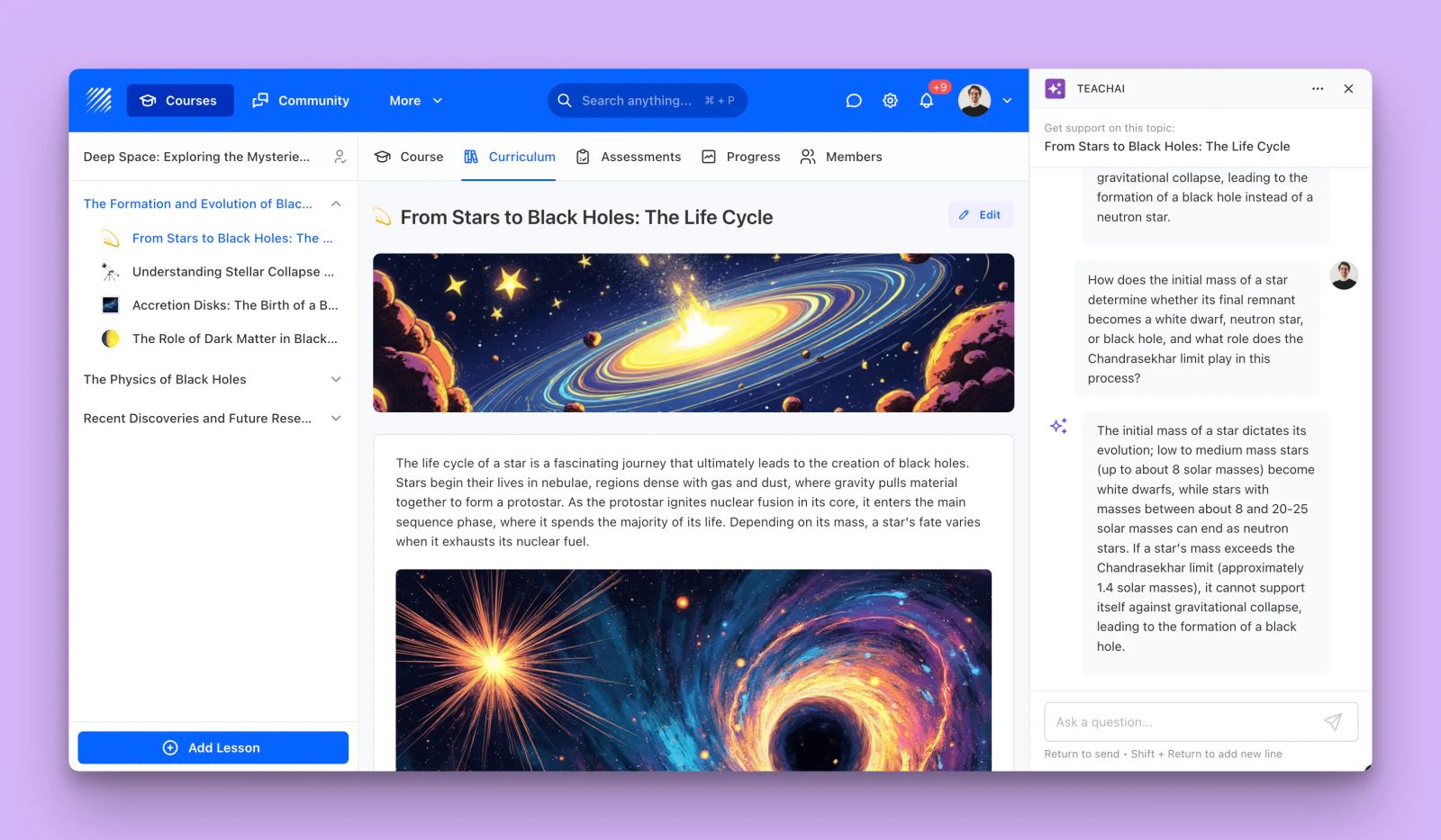
We're rolling out a big customization update to TeachAI, the AI assistant that helps learners make sense of your courses. You can now give it its own name, voice, avatar, and starting prompts, so it feels like a native part of your academy instead of a generic chatbot.
The AI Assistant has helped learners get unstuck since we first introduced it. Now you control how it looks, sounds, and behaves.
Name it and brand it
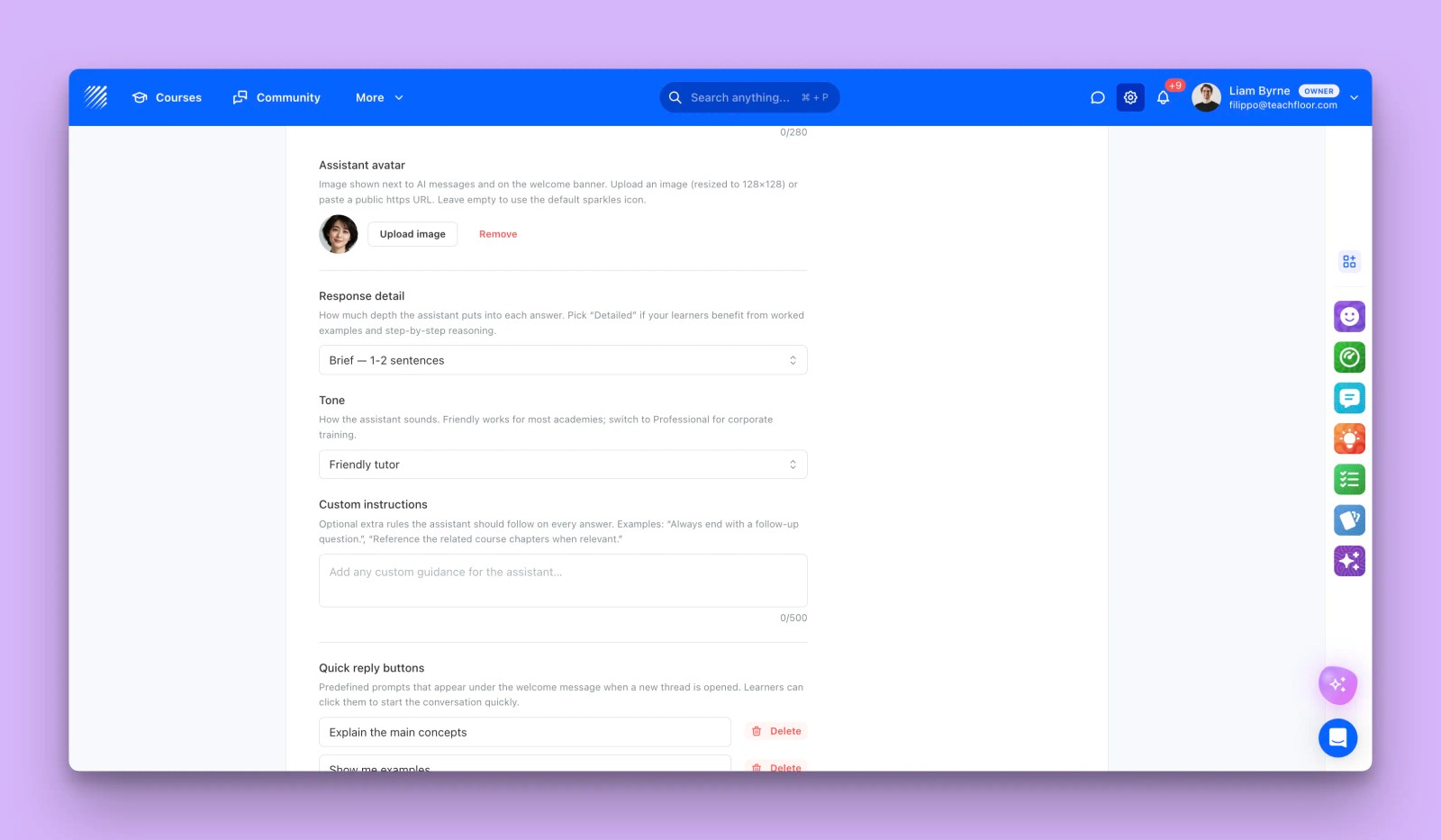
Give the assistant a name (Aria, Coach, TutorBot, anything) that appears on the welcome banner and that it uses when referring to itself. Add a custom welcome message to greet learners in your own words, and upload an avatar, or paste an image URL, so it has a face that matches your brand. Leave any of these empty to fall back to the defaults.
Control how it answers
Response detail. Choose Brief for quick one or two sentence answers, or Detailed when learners benefit from worked examples and step-by-step reasoning.
Tone. Pick Friendly tutor for most academies, or Professional for corporate training.
Set your own rules
Add custom instructions the assistant follows on every answer, like "Always end with a follow-up question" or "Reference the related course chapters when relevant." It is the fastest way to align the assistant with how you teach.
Guide the first message
Configure quick reply buttons: predefined prompts that appear under the welcome message when a learner opens a new thread. Options like "Explain the main concepts", "Show me examples", or "Quiz me" give learners an easy way to start the conversation.
Why it matters
A customized assistant feels trustworthy and on-brand, which gets more learners to actually use it. With name, tone, avatar, instructions, and starter prompts in your hands, TeachAI becomes your academy's tutor, not a generic bot.
These options are available now in TeachAI, under Settings, Apps, TeachAI. Learn more about AI on Teachfloor.


